 PH
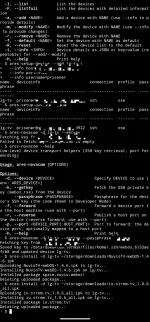
Here's proof:
REQUIREMENTS
STEP 1 — INSTALL TERMUX DEPENDENCIES (REQUIRED!)
Open Termux and run each command separately.
pkg update && pkg upgrade -y
pkg install nodejs-lts openssh curl git -y
pkg install rust git clang make pkg-config openssl libssh -y
STEP 2 — INSTALL THE webOS CLI TOOLS
Run the following command:
cargo install --locked --git You do not have permission to view the full content of this post. Log in or register now. ares-install ares-setup-device ares-novacom ares-device
Important: "ares-device" may fail to compile on Android because of missing native dependencies. In our test, "ares-install", "ares-setup-device", and "ares-novacom" installed successfully.
Verify the available commands:
ares-install --version
ares-setup-device --help
ares-novacom --help
STEP 3 — ENABLE DEVELOPER MODE ON YOUR TV
1. Open the Apps Store and install the Developer Mode app if available for your TV.
2. Sign in using your LG webOS Developer account.
3. Enable Developer Mode and wait for the TV to restart if prompted.
4. Open the Developer Mode app again.
5. Enable Key Server.
6. Keep Developer Mode active during setup.
Developer Mode availability and menus may vary by TV model and webOS version.
STEP 4 — FIND YOUR TV'S IP ADDRESS
Open your LG TV's network settings and locate its IP address.
Make sure your Android phone and TV are connected to the same local network.
Example IP address:
192.168.100.165
Use your own TV's IP address, not the example above.
STEP 5 — REGISTER YOUR TV IN TERMUX
Replace the example IP address with your TV's actual IP address.
ares-setup-device --add lg-tv --info host=YOUR_IP_HERE --info port=9922 --info username=prisoner
Check the registered device:
Run:
ares-setup-device --list
You should see a device named "lg-tv".
STEP 6 — FETCH THE SSH KEY
Open the Developer Mode app on your TV and locate the passphrase displayed for the Key Server.
Run:
ares-novacom -d lg-tv --getkey --passphrase 'YOUR_PASSPHRASE'
Replace "YOUR_PASSPHRASE" with the code displayed on your own TV.
If successful, the tool should retrieve the device's SSH key.
STEP 7 — GIVE TERMUX STORAGE ACCESS
Run:
termux-setup-storage (DONT RUN IF ITS ALREADY RUN IT BEFORE)
Allow the storage permission when Android prompts you.
Navigate to your Downloads folder:
cd ~/storage/downloads
List available ".ipk" files:
ls -lh *.ipk
If your package is stored elsewhere, use its actual path instead.
STEP 8 — INSTALL THE APP
Use the actual filename of your ".ipk" package.
ares-install -d lg-tv ~/storage/downloads/your-app.ipk
Replace "your-app.ipk" with your package's filename.
Wait for the installation result. If successful, follow the installer output and check the TV's app launcher for the installed app.
TROUBLESHOOTING
Error: "Passphrase is empty"
Provide the passphrase using the "--passphrase" option shown in Step 6.
Error: "EBADPLATFORM" when installing "@webos-tools/cli"
The npm CLI package does not accept Android as a supported platform. Use the Rust-based tools described in this tutorial instead.
Error: "No package 'cairo' found"
The optional "ares-device" component may require native libraries unavailable in your current Termux environment. The three other tools may still work.
Error: Connection failed
Developer Mode expired
Reactivate Developer Mode and follow the current LG Developer Mode instructions. Apps installed through Developer Mode may be removed when the session expires.
NOTES
Official resources:
Credits: LG webOS Developer documentation and the webosbrew community.
REQUIREMENTS
- Android phone (aarch64)
- Termux installed from a trusted source
- LG webOS TV connected to the same Wi-Fi network as your phone
- LG Developer Mode app and an active Developer Mode session
- Key Server enabled
- A compatible ".ipk" app package
STEP 1 — INSTALL TERMUX DEPENDENCIES (REQUIRED!)
Open Termux and run each command separately.
pkg update && pkg upgrade -y
pkg install nodejs-lts openssh curl git -y
pkg install rust git clang make pkg-config openssl libssh -y
STEP 2 — INSTALL THE webOS CLI TOOLS
Run the following command:
cargo install --locked --git You do not have permission to view the full content of this post. Log in or register now. ares-install ares-setup-device ares-novacom ares-device
Important: "ares-device" may fail to compile on Android because of missing native dependencies. In our test, "ares-install", "ares-setup-device", and "ares-novacom" installed successfully.
Verify the available commands:
ares-install --version
ares-setup-device --help
ares-novacom --help
STEP 3 — ENABLE DEVELOPER MODE ON YOUR TV
1. Open the Apps Store and install the Developer Mode app if available for your TV.
2. Sign in using your LG webOS Developer account.
3. Enable Developer Mode and wait for the TV to restart if prompted.
4. Open the Developer Mode app again.
5. Enable Key Server.
6. Keep Developer Mode active during setup.
Developer Mode availability and menus may vary by TV model and webOS version.
STEP 4 — FIND YOUR TV'S IP ADDRESS
Open your LG TV's network settings and locate its IP address.
Make sure your Android phone and TV are connected to the same local network.
Example IP address:
192.168.100.165
Use your own TV's IP address, not the example above.
STEP 5 — REGISTER YOUR TV IN TERMUX
Replace the example IP address with your TV's actual IP address.
ares-setup-device --add lg-tv --info host=YOUR_IP_HERE --info port=9922 --info username=prisoner
Check the registered device:
Run:
ares-setup-device --list
You should see a device named "lg-tv".
STEP 6 — FETCH THE SSH KEY
Open the Developer Mode app on your TV and locate the passphrase displayed for the Key Server.
Run:
ares-novacom -d lg-tv --getkey --passphrase 'YOUR_PASSPHRASE'
Replace "YOUR_PASSPHRASE" with the code displayed on your own TV.
If successful, the tool should retrieve the device's SSH key.
STEP 7 — GIVE TERMUX STORAGE ACCESS
Run:
termux-setup-storage (DONT RUN IF ITS ALREADY RUN IT BEFORE)
Allow the storage permission when Android prompts you.
Navigate to your Downloads folder:
cd ~/storage/downloads
List available ".ipk" files:
ls -lh *.ipk
If your package is stored elsewhere, use its actual path instead.
STEP 8 — INSTALL THE APP
Use the actual filename of your ".ipk" package.
ares-install -d lg-tv ~/storage/downloads/your-app.ipk
Replace "your-app.ipk" with your package's filename.
Wait for the installation result. If successful, follow the installer output and check the TV's app launcher for the installed app.
TROUBLESHOOTING
Error: "Passphrase is empty"
Provide the passphrase using the "--passphrase" option shown in Step 6.
Error: "EBADPLATFORM" when installing "@webos-tools/cli"
The npm CLI package does not accept Android as a supported platform. Use the Rust-based tools described in this tutorial instead.
Error: "No package 'cairo' found"
The optional "ares-device" component may require native libraries unavailable in your current Termux environment. The three other tools may still work.
Error: Connection failed
- Verify the TV IP address.
- Make sure the phone and TV are on the same local network.
- Confirm Developer Mode is active and Key Server is enabled.
- Check that the device configuration and SSH key are correct.
Developer Mode expired
Reactivate Developer Mode and follow the current LG Developer Mode instructions. Apps installed through Developer Mode may be removed when the session expires.
NOTES
- Use only ".ipk" packages compatible with your TV's webOS version and architecture.
- Installing an ".ipk" does not guarantee that the app will work correctly.
- Only install packages from sources you trust.
- Keep Developer Mode active while using the developer installation workflow.
Official resources:
- LG webOS Developer: You do not have permission to view the full content of this post. Log in or register now.
- Rust-based CLI tools: You do not have permission to view the full content of this post. Log in or register now.
- Original desktop manager: You do not have permission to view the full content of this post. Log in or register now.
Credits: LG webOS Developer documentation and the webosbrew community.