Setup TUN interface
Step 1: Create a New Interface
1. Navigate to Interfaces:
- From the top menu, hover over Network.
- Click on Interfaces from the dropdown menu.
View attachment 4429820
2. Add a New Interface:
- On the Interfaces page, click the Add new interface... button.
View attachment 4429821
3. Configure Interface Settings:
- In the "Add new interface..." window:
- Name: Enter B4.
- Protocol: Select Unmanaged from the dropdown.
- Device: Click the dropdown to reveal available devices.
View attachment 4429822
- From the device list, create b4tun0.
View attachment 4429824
- Click the Create interface button.
View attachment 4429825
4. Save the Interface:
- You will be taken to the general settings page for the new "B4" interface.
- Click Save at the bottom right of the window. (Do not click Save & Apply yet).
View attachment 4429826
Step 2: Configure the Firewall Zone
5. Navigate to Firewall Settings:
- From the top menu, hover over Network.
- Click on Firewall.
View attachment 4429827
6. Add a New Firewall Zone:
- Scroll down to the "Zones" section.
- Click the Add button to create a new zone.
View attachment 4429828
7. Configure Zone Properties:
- In the "Firewall - Zone Settings" window, set up the following parameters:
- Name: Enter B4.
- Check the box for IPv4 Masquerading.
- Check the box for MSS clamping.
- Covered networks: Select B4 from the dropdown.
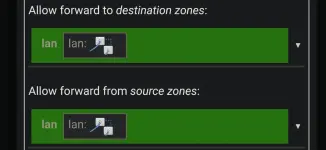
- Allow forward from source zones: Select lan from the dropdown.
- Click Save at the bottom right of the window.
View attachment 4429829
Step 3: Apply Changes
8. Review and Apply:
- You will see an UNSAVED CHANGES notification in the top right corner. click it.
View attachment 4429833
- A "Configuration / Changes" window will appear.
- Review the changes and click the Save & Apply button to finalize and activate your new settings.
View attachment 4429835
B4 Packet Engine
Part 1: Configure Packet Engine Settings
1. Navigate to Core Settings:
- On the left-hand sidebar, click on Settings.
- Ensure you are on the Core tab at the top.
- Select the Packet Engine sub-tab.
2. Set Ingestion Mode:
- Locate the Ingestion mode dropdown.
- Select TUN interface from the list. (This tells b4 to route traffic through a virtual network interface).
3. Set TUN Device Name:
- Scroll down to the "TUN settings" section.
- In the TUN device name field, type exactly: b4tun0
- This must match the device name you used when creating the unmanaged interface in OpenWrt.
4. Save Changes:
- Look at the top right corner of the Configuration panel.
- Click the Save Changes button.
View attachment 4429840
Part 2: Restart the Service
1. Navigate to System Settings:
- Still within the Settings menu, click on the System tab at the top.
- Ensure you are on the Service sub-tab.
2. Restart b4:
- Look for the Service panel on the left side.
- Click the Restart Service button.
- This will apply the new TUN interface configuration and begin routing traffic through b4tun0.
View attachment 4429842
 PH

 Thanks!