 PH
Share ko lang mga ka-PHC! Working sa akin ang DITO Unli Data ₱149 sa Windows 10 PC gamit ang NetShare SSTP method.
Android NetShare:
You do not have permission to view the full content of this post. Log in or register now.
Windows NetShare Desktop App:
You do not have permission to view the full content of this post. Log in or register now.
Official Windows Setup Guide:
You do not have permission to view the full content of this post. Log in or register now.
 Image 1:NetShare Android showing hotspot ON, SSID at password.
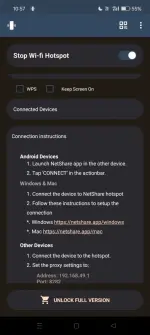
Image 2: Windows Wi-Fi showing Connected.
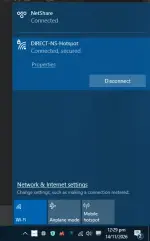
Image 3: NetShare Desktop App main window.
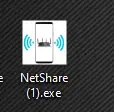
Image 4: SSTP configuration/certificate setup.
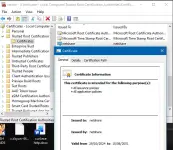
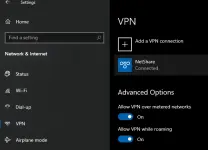
Image 5: Windows VPN showing NetShare Connected.
Kapag connected na, subukan ang YouTube, browser o online games.
Image 6: Speed test o actual internet connection sa PC.

Credits sa NetShare developer. Enjoy mga ka-PHC!
 Requirements
- Android phone (tested sa OPPO A3x)
- DITO SIM na may active Unli Data ₱149 promo
- Windows 10 PC or laptop
- NetShare Android app
- NetShare Windows application
- Wi-Fi hotspot connection between phone and PC
 Download Links
Android NetShare:You do not have permission to view the full content of this post. Log in or register now.
Windows NetShare Desktop App:
You do not have permission to view the full content of this post. Log in or register now.
Official Windows Setup Guide:
You do not have permission to view the full content of this post. Log in or register now.
 Step 1 — Setup Android
- I-on ang DITO mobile data.
- Buksan ang NetShare.
- I-check ang Start Hotspot.
- Tandaan ang Wi-Fi name at password.
Image 1:NetShare Android showing hotspot ON, SSID at password. Step 2 — Connect PC
- Buksan ang Wi-Fi settings ng Windows.
- Hanapin ang NetShare hotspot.
- I-connect gamit ang password.
Image 2: Windows Wi-Fi showing Connected. Step 3 — Install Windows Software
- Download ang NetShare Desktop App sa link sa taas.
- I-install at buksan sa Windows.
- Sundin ang connection instructions ng app.
Image 3: NetShare Desktop App main window. Step 4 — SSTP VPN Setup
- Sundin ang SSTP setup sa Windows app.
- Kung manual setup, gamitin ang official Windows guide sa taas.
- Kumpletuhin ang certificate installation kung kinakailangan.
- Buksan ang Windows Settings → Network & Internet → VPN.
- Piliin ang NetShare → Connect.
Image 4: SSTP configuration/certificate setup. Image 5: Windows VPN showing NetShare Connected. Step 5 — Test Connection
Kapag connected na, subukan ang YouTube, browser o online games. Image 6: Speed test o actual internet connection sa PC. Personal Results
- YouTube 1080p
- Browsing
- Stumble Guys Asia — Around 66 ms
Credits sa NetShare developer. Enjoy mga ka-PHC!
You do not have permission to view the full content of this post. Log in or register now.