 PH
PHPHC-PacMan
Fanatic
First thing to do!
Gawen lahat ng to
Para full boost ang cp mong laggers okay.
Delete all those apps you're not using
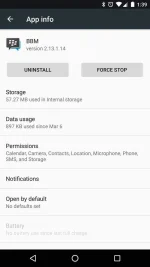
You know the ones I mean. We all download apps on a whim, try them a time or two, then forget they are even there. They sit in the app drawer, counting their days and plotting ways to make your phone slow by using resources like CPU cycles for background services, taking up memory blocks and fragmenting your storage, and generally cluttering the place up. It's not you, dog whistle simulator app, it's us. Things just aren't going to work and we have to say goodbye. We're still the best of friends, right?
To delete any app you've downloaded, you can head into the device settings to find the App "manager." The people who made your phone might have buried it inside another section (hello there, Samsung!) but poke around or ask somebody and you'll find it.
Once open, you'll see lists of apps that are installed on your phone with various sorting options. When you find an app that needs to go away, tap the list entry to open the application's info screen. At the top you'll see a button to Uninstall it. Tap. Boom. Bam. Goodbye unwanted application.
Be vicious here. You can always download an app again if you decide you needed it after all — and that includes apps you ρáíd for — but getting rid of the stragglers and hanger-on apps can make a big difference in how your phone runs the apps you do want.
Clean up that device storage space
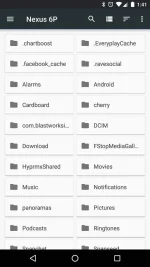
After some time, you'll find a literal crap-ton of "junk" in your storage. Remember all those times you said, "Wait, let me take another one" while you had the camera open? All those pictures you didn't want are still there. So are the screenshots you took to share then promptly forgot all about them. Add in the Downloads folder and you just might have one hell of a mess. I know I do.
This is also an easy fix. To delete the pictures you no longer need, simply open the gallery app and choose the ones that need to go, and delete them. The same goes for videos. And doing it this way, through the gallery, means you have to see each picture or video before you delete them to be sure you really want to delete them.
Next, open the Downloads folder from your app drawer. There's a good chance you'll find it's filled with images, zip files, sound clips and any number of files that you no longer need. If you don't need them, there's no reason they should be taking up storage space, right? Zap them to oblivion. Again, doing it this way makes sure you look at files before you delete them.
Finally, open the storage page in the settings and move down the list until you see an entry for "Misc." or Other. Tap it, and you'll see a list of miscellaneous files that applications have created on your device storage. If you see something you know you no longer need, you can delete it here. If you don't know what a file is for, don't delete it.
...
Ha! Ano sa tingin gana ba
Syempre gagana yan
Like naman
T.Y
Gawen lahat ng to
Para full boost ang cp mong laggers okay.
Delete all those apps you're not using
You know the ones I mean. We all download apps on a whim, try them a time or two, then forget they are even there. They sit in the app drawer, counting their days and plotting ways to make your phone slow by using resources like CPU cycles for background services, taking up memory blocks and fragmenting your storage, and generally cluttering the place up. It's not you, dog whistle simulator app, it's us. Things just aren't going to work and we have to say goodbye. We're still the best of friends, right?
To delete any app you've downloaded, you can head into the device settings to find the App "manager." The people who made your phone might have buried it inside another section (hello there, Samsung!) but poke around or ask somebody and you'll find it.
Once open, you'll see lists of apps that are installed on your phone with various sorting options. When you find an app that needs to go away, tap the list entry to open the application's info screen. At the top you'll see a button to Uninstall it. Tap. Boom. Bam. Goodbye unwanted application.
Be vicious here. You can always download an app again if you decide you needed it after all — and that includes apps you ρáíd for — but getting rid of the stragglers and hanger-on apps can make a big difference in how your phone runs the apps you do want.
Clean up that device storage space
After some time, you'll find a literal crap-ton of "junk" in your storage. Remember all those times you said, "Wait, let me take another one" while you had the camera open? All those pictures you didn't want are still there. So are the screenshots you took to share then promptly forgot all about them. Add in the Downloads folder and you just might have one hell of a mess. I know I do.
This is also an easy fix. To delete the pictures you no longer need, simply open the gallery app and choose the ones that need to go, and delete them. The same goes for videos. And doing it this way, through the gallery, means you have to see each picture or video before you delete them to be sure you really want to delete them.
Next, open the Downloads folder from your app drawer. There's a good chance you'll find it's filled with images, zip files, sound clips and any number of files that you no longer need. If you don't need them, there's no reason they should be taking up storage space, right? Zap them to oblivion. Again, doing it this way makes sure you look at files before you delete them.
Finally, open the storage page in the settings and move down the list until you see an entry for "Misc." or Other. Tap it, and you'll see a list of miscellaneous files that applications have created on your device storage. If you see something you know you no longer need, you can delete it here. If you don't know what a file is for, don't delete it.
...
Ha! Ano sa tingin gana ba
Syempre gagana yan
Like naman
T.Y

 Maraming salamat sa info ts, godbless.