PH
PHVnxskibidi
Enthusiast
Phase 1: Set Up the Netflix Cookie
- Open Google Chrome: Launch your Chrome browser on your computer.
- Install Cookie Editor: Search for "Cookie Editor" in the Chrome Web Store and add the extension to your browser.
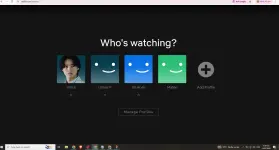
- Open Netflix: Navigate to the official Netflix website.
- Import the Cookie:
- Click on the Cookie Editor extension icon in your browser toolbar.
- Select the Import option.
- Paste the following JSON cookie data into the text box:
[
{
"domain": ".netflix.com",
"expirationDate": 1815118990.274967,
"hostOnly": false,
"httpOnly": false,
"name": "nfvdid",
"path": "/",
"sameSite": null,
"secure": false,
"session": false,
"storeId": null,
"value": "BQFmAAEBEDfQY0dAGiJZuocAfFU2CQpAYdUwSM-D1OYmnErF2ElCBLm3CS95c_ywNg2ALWYqpR11S7Q7F8GGn_WlsEleYshSjx9uKQE-KVY35tPLE1ZtgQ%3D%3D"
}
]
- Click Import to save the changes, then refresh the Netflix page.
Phase 2: Create and Verify Your WISE Wallet
- Sign Up via Referral Link: Go to the You do not have permission to view the full content of this post. Log in or register now. to begin creating your account. Link: You do not have permission to view the full content of this post. Log in or register now.
- Complete KYC Verification: Follow the on-screen prompts to verify your identity (KYC). You will need to provide a valid government-issued ID and complete any required security checks.
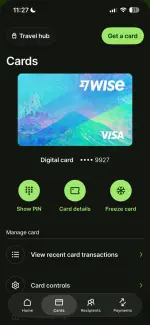
- Get a Virtual Account: Once your identity is verified, navigate to the digital cards/accounts section in WISE and apply for a Virtual Account / Virtual Card.
Phase 3: Activate the Netflix Premium Subscription
- Select the Premium Plan: On Netflix, proceed to the plan selection screen and select the 4K Resolution Premium Bundle (which supports up to 6 devices).
- Set Up Payment: Choose credit/debit card as your payment method.
- Enter WISE Details: Input the card number, expiration date, and security code from your newly created WISE Virtual Card.
- Complete Setup: Finalize the registration to activate your premium access.