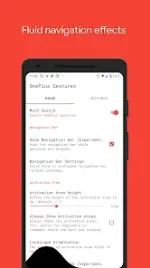
Vivid Navigation Gestures provides gesture-based device control for Android devices running 5.1 and higher. The application replaces standard navigation bar button presses with customizable gesture triggers and includes integrated fluid visual effects.
Technical Specifications
Category
Details
Android Version
5.1+
Permissions
Accessibility Services (for Back, Home, and Quick Settings actions)
Feature Requirements
ADB or Root required to hide the stock navigation bar
Package Name
com.ivianuu.oneplusgestures
Certificate MD5
08340ae25f3999703fe31fbc6ce2d172
Architecture
None (Universal)
Supported DPI
Ldpi, Mdpi, Tvdpi, Hdpi, Xhdpi, Xxhdpi, Xxxhdpi
Gesture Configuration
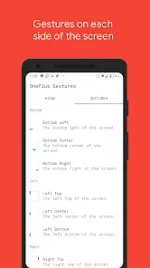
Trigger Zones:
Bottom: Left, Center, Right
Left: Top, Center, Bottom
Right: Top, Center, Bottom
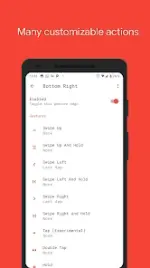
Gesture Types:
Tap / Double Tap / Hold
Swipe Up / Swipe Up and Hold
Swipe Left / Swipe Left and Hold
Swipe Swipe / Swipe Swipe Right and Hold
Swipe Swipe Down / Swipe Swipe Down and Hold
Available Actions
System: Home, Back, Menu, Recent Apps, Last App, Kill App
Interface: Open Notifications, Quick Settings, Power Dialog, Input Method Picker, Show Volume Controls
Navigation: Toggle Split Screen, Toggle Auto Rotation, Toggle Nav Bar
Media: Play/Pause, Next Track, Previous Track
Tools: Launch Google Assistant, Search, Take Screenshots, Launch Apps, Launch Shortcuts, Keycodes
ADB Configuration for Navigation Bar Removal
To hide the stock navigation bar, the WRITE_SECURE_SETTINGS permission must be granted via ADB:
Enable Developer Mode and USB Debugging on the device.
Connect to a PC with ADB installed.
Execute: adb shell pm grant com.ivianuu.oneplusgestures android.permission.WRITE_SECURE_SETTINGS
To restore the navigation bar manually, execute: adb shell wm overscan 0,0,0,0
Installation Procedures (APKS Bundle)
Using Split APK Installer (SAI):
Open SAI and select Install APKs.
Locate and select the .apks archive.
Proceed with the installation.
Using Lucky Patcher:
Open Lucky Patcher and navigate to Rebuild & Install.
Locate the .apks archive and select it for installation.
Supported Languages
af, am, ar, as, az, be, bg, bn, bs, ca, cs, da, de, el, en (AU, CA, GB, IN, XC), es (US), et, eu, fa, fi, fr (CA), gl, gu, hi, hr, hu, hy, in, is, it, iw, ja, ka, kk, km, kn, ko, ky, lo, lt, lv, mk, ml, mn, mr, ms, my, nb, ne, nl, or, pa, pl, pt (BR, PT), ro, ru, si, sk, sl, sq, sr (Latn), sv, sw, ta, te, th, tl, tr, uk, ur, uz, vi, zh (CN, HK, TW), zu.
Recent Updates (v5.1+)
Stability improvements.
Premium features enabled.
Data privacy: No data is collected via Accessibility Services.
 PH
PH