 PH
PH1st
Download Tibiame first Run and Update You do not have permission to view the full content of this post. Log in or register now.
2nd
Termux link You do not have permission to view the full content of this post. Log in or register now.You do not have permission to view the full content of this post. Log in or register now.
Setting up an "autohunt" or botting environment in Termux is a popular project for mobile automation, but it comes with a major caveat: CipSoft (the developers of TibiaME) strictly prohibits the use of third-party automation tools. Using these scripts can lead to a permanent account ban.
If you are proceeding for educational purposes or on a private server, here is how you generally set up the environment and what a Python-based logic flow looks like.
1. Prepare the Termux Environment
First, you need to install Python and the necessary tools to handle the game's automation (often involving image recognition or screen interaction).
# Update packages
pkg update && pkg upgrade
# Install Python and essential tools
pkg install python git clang make pkg-config
# Install dependencies for image processing (common in hunt bots)
pkg install python-numpy opencv-python
2. Setting Up the Python Logic
Most TibiaME bots work by simulating touches based on pixel colors or images (like finding a monster's health bar). Since Termux is a terminal, you often need Termux:API to interact with the Android system, or a script that communicates with an ADB (Android Debug Bridge) server.
Basic Logic Flow
An autohunt script typically follows this loop:
Example Snippet (Conceptual)
You would use a library like subprocess to send "tap" commands to the Android OS:
Shizuku Link You do not have permission to view the full content of this post. Log in or register now.
Shizuku is actually the "gold standard" for this kind of setup if you aren't rooted!
While Termux usually needs Root to control the screen, Shizuku acts as a bridge, giving Termux higher-level permissions (ADB level) without a full system jailbreak. It is much more stable than the old-school "ADB over WiFi" methods.
Here is how you can use Shizuku to power your TibiaME script:
1. The Bridge: rish
To make Termux talk to Shizuku, you use a tool called rish (Remote Interactive Shell).
* Open the Shizuku app and ensure it is running (via "Start" or "Wireless Debugging").
* In the Shizuku app, tap "Use Shizuku in terminal apps" -> "Export files".
* Save the files to a folder you can access.
* In Termux, move those files to your home directory.
* Run these commands to give it permission:
chmod +x rish
pkg install ncurses-utils # Required for rish to work
Now, whenever you run ./rish, you have a shell that can execute input tap or screencap commands instantly.
input these files sa sdcard/Download
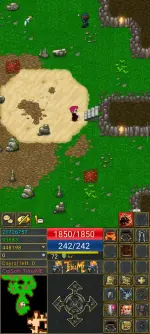
rename nyo monster.png at screen.png
Make sure na naka on ang developer option
Buksan ang shizuku dapat nakarun ang termux sa shizuku
Pag nakarun na
Punta naman kayo sa termux
Etype ang command na ito
nano tibiame.py
tapos icopy paste ito
import cv2
import numpy as np
import os
import time
import subprocess
# --- CONFIGURATION ---
TEMP_SCREEN = '/data/local/tmp/screen.png'
MONSTER_IMG = 'monster.png'
THRESHOLD = 0.65
# Coordinates (Siguraduhing tama ito sa iyong Pointer Location)
UP, DOWN, LEFT, RIGHT = "564.7 2070.1", "564 2295.1", "422.3 2180", "696.9 2173"
SCREEN_CENTER = (540, 1200)
SAFE_RANGE = 180
# Waypoints pattern
waypoints = [DOWN]*7 +
Download Tibiame first Run and Update You do not have permission to view the full content of this post. Log in or register now.
2nd
Termux link You do not have permission to view the full content of this post. Log in or register now.You do not have permission to view the full content of this post. Log in or register now.
Setting up an "autohunt" or botting environment in Termux is a popular project for mobile automation, but it comes with a major caveat: CipSoft (the developers of TibiaME) strictly prohibits the use of third-party automation tools. Using these scripts can lead to a permanent account ban.
If you are proceeding for educational purposes or on a private server, here is how you generally set up the environment and what a Python-based logic flow looks like.
1. Prepare the Termux Environment
First, you need to install Python and the necessary tools to handle the game's automation (often involving image recognition or screen interaction).
# Update packages
pkg update && pkg upgrade
# Install Python and essential tools
pkg install python git clang make pkg-config
# Install dependencies for image processing (common in hunt bots)
pkg install python-numpy opencv-python
2. Setting Up the Python Logic
Most TibiaME bots work by simulating touches based on pixel colors or images (like finding a monster's health bar). Since Termux is a terminal, you often need Termux:API to interact with the Android system, or a script that communicates with an ADB (Android Debug Bridge) server.
Basic Logic Flow
An autohunt script typically follows this loop:
Example Snippet (Conceptual)
You would use a library like subprocess to send "tap" commands to the Android OS:
Shizuku Link You do not have permission to view the full content of this post. Log in or register now.
Shizuku is actually the "gold standard" for this kind of setup if you aren't rooted!
While Termux usually needs Root to control the screen, Shizuku acts as a bridge, giving Termux higher-level permissions (ADB level) without a full system jailbreak. It is much more stable than the old-school "ADB over WiFi" methods.
Here is how you can use Shizuku to power your TibiaME script:
1. The Bridge: rish
To make Termux talk to Shizuku, you use a tool called rish (Remote Interactive Shell).
* Open the Shizuku app and ensure it is running (via "Start" or "Wireless Debugging").
* In the Shizuku app, tap "Use Shizuku in terminal apps" -> "Export files".
* Save the files to a folder you can access.
* In Termux, move those files to your home directory.
* Run these commands to give it permission:
chmod +x rish
pkg install ncurses-utils # Required for rish to work
Now, whenever you run ./rish, you have a shell that can execute input tap or screencap commands instantly.
input these files sa sdcard/Download
rename nyo monster.png at screen.png
Make sure na naka on ang developer option
Buksan ang shizuku dapat nakarun ang termux sa shizuku
Pag nakarun na
Punta naman kayo sa termux
Etype ang command na ito
nano tibiame.py
tapos icopy paste ito
import cv2
import numpy as np
import os
import time
import subprocess
# --- CONFIGURATION ---
TEMP_SCREEN = '/data/local/tmp/screen.png'
MONSTER_IMG = 'monster.png'
THRESHOLD = 0.65
# Coordinates (Siguraduhing tama ito sa iyong Pointer Location)
UP, DOWN, LEFT, RIGHT = "564.7 2070.1", "564 2295.1", "422.3 2180", "696.9 2173"
SCREEN_CENTER = (540, 1200)
SAFE_RANGE = 180
# Waypoints pattern
waypoints = [DOWN]*7 +
*5 + [UP]*4 +
*1 + [UP]*5 +
*6 + [DOWN]*2
def tap(coords):
# Ginagamit ang subprocess.Popen para hindi maghintay ang script
subprocess.Popen(["./rish-64", "-c", f"input tap {coords}"],
stdout=subprocess.DEVNULL, stderr=subprocess.DEVNULL)
def capture_fast():
# Pinagsamang command para mas mabilis ang execution sa shell
os.system(f"./rish-64 -c 'screencap -p {TEMP_SCREEN} && cat {TEMP_SCREEN}' > screen.png")
def find_and_attack():
if not os.path.exists('screen.png'): return False
img = cv2.imread('screen.png')
temp = cv2.imread(MONSTER_IMG)
if img is None or temp is None: return False
res = cv2.matchTemplate(img, temp, cv2.TM_CCOEFF_NORMED)
loc = np.where(res >= THRESHOLD)
if len(loc[0]) > 0:
pts = list(zip(*loc[::-1]))
for pt in pts:
h, w = temp.shape[:2]
cx, cy = pt[0] + int(w/2), pt[1] + int(h/2)
if abs(cx - SCREEN_CENTER[0]) < SAFE_RANGE and abs(cy - SCREEN_CENTER[1]) < SAFE_RANGE:
continue
tap(f"{cx} {cy}")
return True
return False
print("--- RUNNING ULTRA-FAST MODE ---")
current_step = 0
while True:
# 1. Mabilis na screenshot
capture_fast()
# 2. Check kung may monster
if find_and_attack():
print("!!! ATTACKING !!!")
time.sleep(0.8) # Kaunting delay para sa attack animation
else:
# 3. KUNG WALANG MONSTER, LAKAD AGAD
point = waypoints[current_step]
print(f"Walking Step {current_step+1}")
tap(point)
# PINAKAMAHALAGA: Binabaan ang delay sa 0.2 para magmukhang manual na pindot
time.sleep(0.1)
current_step = (current_step + 1) % len(waypoints)
Press Ctrl o para masave then press enter
Pagkaenter
Press ctrl x naman para lumabas sa nano editor
Paglabas sa nano editor
Type nyo naman
python tibiame.py
buksan nyo ang tibiame nyo kung mag auto hunt na sya
ENJOY autohunt mga mamaw
def tap(coords):
# Ginagamit ang subprocess.Popen para hindi maghintay ang script
subprocess.Popen(["./rish-64", "-c", f"input tap {coords}"],
stdout=subprocess.DEVNULL, stderr=subprocess.DEVNULL)
def capture_fast():
# Pinagsamang command para mas mabilis ang execution sa shell
os.system(f"./rish-64 -c 'screencap -p {TEMP_SCREEN} && cat {TEMP_SCREEN}' > screen.png")
def find_and_attack():
if not os.path.exists('screen.png'): return False
img = cv2.imread('screen.png')
temp = cv2.imread(MONSTER_IMG)
if img is None or temp is None: return False
res = cv2.matchTemplate(img, temp, cv2.TM_CCOEFF_NORMED)
loc = np.where(res >= THRESHOLD)
if len(loc[0]) > 0:
pts = list(zip(*loc[::-1]))
for pt in pts:
h, w = temp.shape[:2]
cx, cy = pt[0] + int(w/2), pt[1] + int(h/2)
if abs(cx - SCREEN_CENTER[0]) < SAFE_RANGE and abs(cy - SCREEN_CENTER[1]) < SAFE_RANGE:
continue
tap(f"{cx} {cy}")
return True
return False
print("--- RUNNING ULTRA-FAST MODE ---")
current_step = 0
while True:
# 1. Mabilis na screenshot
capture_fast()
# 2. Check kung may monster
if find_and_attack():
print("!!! ATTACKING !!!")
time.sleep(0.8) # Kaunting delay para sa attack animation
else:
# 3. KUNG WALANG MONSTER, LAKAD AGAD
point = waypoints[current_step]
print(f"Walking Step {current_step+1}")
tap(point)
# PINAKAMAHALAGA: Binabaan ang delay sa 0.2 para magmukhang manual na pindot
time.sleep(0.1)
current_step = (current_step + 1) % len(waypoints)
Press Ctrl o para masave then press enter
Pagkaenter
Press ctrl x naman para lumabas sa nano editor
Paglabas sa nano editor
Type nyo naman
python tibiame.py
buksan nyo ang tibiame nyo kung mag auto hunt na sya
ENJOY autohunt mga mamaw