 PH
PH-
Welcome to PHCorner Forums! Sign up for free to unlock full access and exclusive privileges, including:
- Asking questions about computer and mobile issues
- Discovering internet tips for your mobile network and computer
You are using an out of date browser. It may not display this or other websites correctly.
You should upgrade or use an alternative browser.
You should upgrade or use an alternative browser.
❓ Help How do you install your Windows 11 drivers and keep them updated?
- Thread starter Draft
- Start date
- Status
- Not open for further replies.
From win8.1 to latest Win11 when windows get activated it will automatically installs latest device drivers, if windows is not activated, some important device drivers are not installed.
=====================
Also
here is the method i usually use this method to install/update my device drivers
first select any 'device' in 'Device Manager'
eg: im selecting -> 'Intel(R) Dual Band Wireless-AC 8265' -> 'Properties' -> 'Details' -> 'Hardware Ids'
copy the 'Value'
eg: PCI\VEN_8086&DEV_24FD&CC_0280
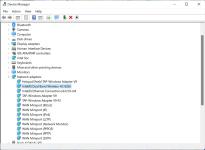
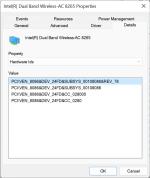
and
open any webbrowser and search for or
as eg: PCI\VEN_8086&DEV_24FD&CC_0280 drp.su
after that
open webpage of the exact device id(hardware id) u typed, in the search result and download the driver for your os.
then extract files of the zip or rar file in any folder
then again select the device,
eg: 'Intel(R) Dual Band Wireless-AC 8265' -> 'Update driver'
select 'Browse my computer for drivers' -> 'Include subfolders' -> 'Next' : Finish
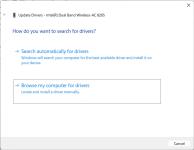
=============================================
Also
for old devices, if drivers are NOT available for latest OS, if the driver setup fails
eg: Mainly USB 4G(modem / DONGLE) DRIVERS -
here is a method to install device drivers
First go the device 'Drivers' folder(where driver files are located) -> open 'cmd.exe' as admin
Type this commands one by one
eg:
Note:
replace the '.inf' file names with in the driver folder which has .inf filenames.
pnputil -i -a android_winusb.inf
pnputil -i -a mmx_cmnxmdm.inf
pnputil -i -a mmx_cmnxnet.inf
pnputil -i -a mmx_cmnxser.inf
copy the above one line by line paste in cmd and click enter
now connect the dongle now its driver installed and now u can use the dongle and connect to the internet.
restart pc if necessary.
=====================
Also
here is the method i usually use this method to install/update my device drivers
first select any 'device' in 'Device Manager'
eg: im selecting -> 'Intel(R) Dual Band Wireless-AC 8265' -> 'Properties' -> 'Details' -> 'Hardware Ids'
copy the 'Value'
eg: PCI\VEN_8086&DEV_24FD&CC_0280
and
open any webbrowser and search for or
as eg: PCI\VEN_8086&DEV_24FD&CC_0280 drp.su
after that
open webpage of the exact device id(hardware id) u typed, in the search result and download the driver for your os.
then extract files of the zip or rar file in any folder
then again select the device,
eg: 'Intel(R) Dual Band Wireless-AC 8265' -> 'Update driver'
select 'Browse my computer for drivers' -> 'Include subfolders' -> 'Next' : Finish
=============================================
Also
for old devices, if drivers are NOT available for latest OS, if the driver setup fails
eg: Mainly USB 4G(modem / DONGLE) DRIVERS -
here is a method to install device drivers
First go the device 'Drivers' folder(where driver files are located) -> open 'cmd.exe' as admin
Type this commands one by one
eg:
Note:
replace the '.inf' file names with in the driver folder which has .inf filenames.
pnputil -i -a android_winusb.inf
pnputil -i -a mmx_cmnxmdm.inf
pnputil -i -a mmx_cmnxnet.inf
pnputil -i -a mmx_cmnxser.inf
copy the above one line by line paste in cmd and click enter
now connect the dongle now its driver installed and now u can use the dongle and connect to the internet.
restart pc if necessary.
ICE Coffee
⭐⭐☕⭐⭐
Not PC Expert Here
mostly sa Windows Update lang ako na i install naman nya yung drivers
pero kung hindi kaya ng update gumagamit na ako ng third party driver installer like DriverPack Solution
mostly sa Windows Update lang ako na i install naman nya yung drivers
pero kung hindi kaya ng update gumagamit na ako ng third party driver installer like DriverPack Solution
atone77721
Forum Guru
Driverpack Solution, kapag BIOS manufacturer's website
Oltaim pren bilong yu
Forum Guru
sa akin via windows update din kahit galing china na windows 11.
Galing China, you mean, mini-PC po ito?sa akin via windows update din kahit galing china na windows 11.

Oltaim pren bilong yu
Forum Guru
yes boss. Boss ko kasi chinese. lahat ng pc at laptops windows 11 pero chinese versions. need pa magdownload ng english language via microsoft sotre. gumagana naman kahit ilang update pa. pero may nakita akong folder dito, mga krack softwares pala ginagamit nila, chinese nga lang na software.Galing China, you mean, mini-PC po ito?
usersusername
Elite
For me. Basta hardware driver sa manufacturer ko kinukuha at lagi kung inuuna ang network driver. Mas detailed ang info ng update sa manufacturer. Pagkatapos sa hardware windows update na ang bahala sa iba.
PHC - Joms
Elite
para sakin.. letting the windows update to update my driver.. just connect to any network
arjoe_ajfc
Forum Guru
Ako sa manufacturer website muna ako maghahanap ng mga drivers then sunod ko na sa windows update para dun sa ibang drivers. Kung wala jan sa dalawa yung driver kinukuha ko ung hardware Id nung hardware naun via devive manager then search sa google then scan sa virus total ung dinownload ko.
PHC - Raijin-X
꧁𓊈𒆜° ꒓ꆂꁹ-ꏝꂑ꒒ °𒆜𓊉꧂
Totoo Po Ba Yan!., Hindi Ako Naniniwala Na Hindi Expert!, Mas Maestro Ka Pa Nga Po Samin Eh!., He-he-he! ...Not PC Expert Here
mostly sa Windows Update lang ako na i install naman nya yung drivers
pero kung hindi kaya ng update gumagamit na ako ng third party driver installer like DriverPack Solution

PHC - Raijin-X
꧁𓊈𒆜° ꒓ꆂꁹ-ꏝꂑ꒒ °𒆜𓊉꧂
Yun Maestro! ...Profesh IT here, working in the field/MSPs, bale 3 lang ma reco namin for full coverage and all set ka na
- Windows Update - yes built in, basic
- Snappy Driver Origin Lite - for drivers
- Manufacturer's Website - BIOS and misc.

- Status
- Not open for further replies.
About this Thread
-
44Replies
-
2KViews
-
34Participants
Last reply from:
bizk8_12
bizk8_12
New Topics
-
Help po !!!! My account got häçked Facebook and steam
- Started by bujoy20
- Replies: 3
- ❓ Computer Discussion & Support
-
Replace laptop lcd
- Started by toki07
- Replies: 0
- ❓ Computer Discussion & Support
-
Mga bossing patulong po nahäçk account ko due to carelessness
- Started by Jeii
- Replies: 2
- ❓ Computer Discussion & Support
-
Computer parts na cheap
- Started by bjenjay1
- Replies: 1
- ❓ Computer Discussion & Support
-
PC APPS - remote or auto saved type and auto audio
- Started by babyzero
- Replies: 0
- ❓ Computer Discussion & Support
-
Data Recovery May Chance pa bato
- Started by tambay28
- Replies: 0
- ❓ Computer Discussion & Support
-
Capcut PC pasabit po
- Started by L A Z A
- Replies: 0
- ❓ Computer Discussion & Support
-
Download Youtube Video using CMD
- Started by BeerGin69
- Replies: 1
- ❓ Computer Discussion & Support
-
Taiwebs alternative websites
- Started by gigsta
- Replies: 0
- ❓ Computer Discussion & Support
-
Tropic Colour - Sino meron nito?
- Started by mikehacker182
- Replies: 0
- ❓ Computer Discussion & Support
Trending Topics
Online now
- Members online
- 1,275
- Guests online
- 3,834
- Total visitors
- 5,109