 PH
PHMarkmadkill19
Forum Veteran
When installing Windows 11 and you reach the screen asking, "Let's connect you to a network," you can use the Shift+F10 keyboard combination to open a Windows command prompt.
At this prompt, type
start ms-cxh:localonly
and press Enter on your keyboard to open a "Microsoft account" window where you can create a new local user for the Windows 11 install.
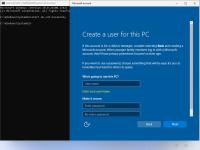
After filling in the information and clicking the Next button, the Windows 11 setup will continue. However, now it will continue using your created local account and will not prompt you to use a Microsoft Account.
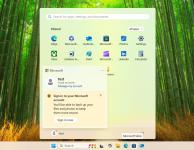
When done installing, you can confirm a local account is being used by clicking on the Start button and then clicking on your account name, as shown below.
Whether Microsoft will remove this command from Windows in the future is too early to tell.
However, as the start ms-cxh:localonly command appears to be more tightly integrated into the operating system, rather than just a script, it will likely be harder to remove.
At this prompt, type
start ms-cxh:localonly
and press Enter on your keyboard to open a "Microsoft account" window where you can create a new local user for the Windows 11 install.
Entering the "start ms-cxh:localonly" command to create a local account
When done installing, you can confirm a local account is being used by clicking on the Start button and then clicking on your account name, as shown below.
Windows 11 configured to use a local account
As you can see, this command makes it much easier to use a local account when setting up Windows 11, even compared to the previous BypassNRO method.
Whether Microsoft will remove this command from Windows in the future is too early to tell.
However, as the start ms-cxh:localonly command appears to be more tightly integrated into the operating system, rather than just a script, it will likely be harder to remove.