 PH
PH-
Welcome to PHCorner Forums! Sign up for free to unlock full access and exclusive privileges, including:
- Asking questions about computer and mobile issues
- Discovering internet tips for your mobile network and computer
You are using an out of date browser. It may not display this or other websites correctly.
You should upgrade or use an alternative browser.
You should upgrade or use an alternative browser.
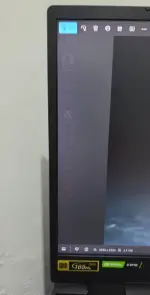
Help po about sa shadow background icons sa windows 11
- Thread starter liivii
- Start date
SanitariuM
Eternal Poster
Step 1 – Clear Icon & Thumbnail Cache
Press Win + R, type: cleanmgr
Select C: drive → Check Thumbnails → Click OK.
Restart your PC.
Update/Reinstall Graphics Driver
Press Win + X → Device Manager.
Expand Display adapters → Right-click GPU → Update driver.
If issue persists, uninstall driver and reinstall from Intel/NVIDIA/AMD official site.
Run System File Checker
Open Command Prompt (Admin).
Run:
sfc /scannow then reboot pc
then open CMD Admin then copy+paste this command:
DISM /Online /Cleanup-Image /RestoreHealth
reboot pc
Press Win + R, type: cleanmgr
Select C: drive → Check Thumbnails → Click OK.
Restart your PC.
Update/Reinstall Graphics Driver
Press Win + X → Device Manager.
Expand Display adapters → Right-click GPU → Update driver.
If issue persists, uninstall driver and reinstall from Intel/NVIDIA/AMD official site.
Run System File Checker
Open Command Prompt (Admin).
Run:
sfc /scannow then reboot pc
then open CMD Admin then copy+paste this command:
DISM /Online /Cleanup-Image /RestoreHealth
reboot pc
Thanks in advance po, try ko po ito ngayon dinStep 1 – Clear Icon & Thumbnail Cache
Press Win + R, type: cleanmgr
Select C: drive → Check Thumbnails → Click OK.
Restart your PC.
Update/Reinstall Graphics Driver
Press Win + X → Device Manager.
Expand Display adapters → Right-click GPU → Update driver.
If issue persists, uninstall driver and reinstall from Intel/NVIDIA/AMD official site.
Run System File Checker
Open Command Prompt (Admin).
Run:
sfc /scannow then reboot pc
then open CMD Admin then copy+paste this command:
DISM /Online /Cleanup-Image /RestoreHealth
reboot pc
SanitariuM
Eternal Poster
also make sure to check this:
Check Refresh & G-Sync Settings
Right-click Desktop → Display settings → Advanced display.
Make sure it shows 165Hz at native QHD (2560×1440).
Open NVIDIA Control Panel → Set up G-Sync:
Enable G-Sync only for fullscreen mode (disable for windowed/borderless).
Apply and restart.
Disable Hardware Accelerated GPU Scheduling
Press Win + I → System → Display → Graphics → Default graphics settings.
Toggle Hardware-accelerated GPU scheduling OFF.
Restart PC.
Check Refresh & G-Sync Settings
Right-click Desktop → Display settings → Advanced display.
Make sure it shows 165Hz at native QHD (2560×1440).
Open NVIDIA Control Panel → Set up G-Sync:
Enable G-Sync only for fullscreen mode (disable for windowed/borderless).
Apply and restart.
Disable Hardware Accelerated GPU Scheduling
Press Win + I → System → Display → Graphics → Default graphics settings.
Toggle Hardware-accelerated GPU scheduling OFF.
Restart PC.
Hindi po ba maddelete mga files ko after ng cleanmgr at dism/restorehealth?also make sure to check this:
Check Refresh & G-Sync Settings
Right-click Desktop → Display settings → Advanced display.
Make sure it shows 165Hz at native QHD (2560×1440).
Open NVIDIA Control Panel → Set up G-Sync:
Enable G-Sync only for fullscreen mode (disable for windowed/borderless).
Apply and restart.
Disable Hardware Accelerated GPU Scheduling
Press Win + I → System → Display → Graphics → Default graphics settings.
Toggle Hardware-accelerated GPU scheduling OFF.
Restart PC.
SanitariuM
Eternal Poster
No, your personal files won’t be deleted. cleanmgr only clears temporary files like cache, thumbnails, and recycle bin items (if you select them). DISM /RestoreHealth only repairs Windows system files, it doesn’t touch your personal documents, pictures, or apps.Hindi po ba maddelete mga files ko after ng cleanmgr at dism/restorehealth?
for you to get a clearer picture:
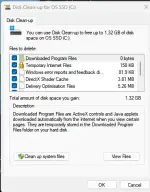
done na po sa steps ng 1st reply nyo wait ko na lang po matapos yung ddl ko na games tapos restart ko na. Anyways sa tingin nyo po ba software lang problem nito at hindi hardware o mismong laptop ang may problem? Thanks po again.No, your personal files won’t be deleted. cleanmgr only clears temporary files like cache, thumbnails, and recycle bin items (if you select them). DISM /RestoreHealth only repairs Windows system files, it doesn’t touch your personal documents, pictures, or apps.
for you to get a clearer picture:
View attachment 3876923
SanitariuM
Eternal Poster
Keep your C: drive for Windows and system files only. Save and install all your games on an external drive instead.
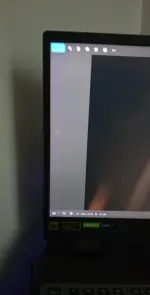
there's still some left, I already did all the steps provided on top.Keep your C: drive for Windows and system files only. Save and install all your games on an external drive instead.
Similar threads
-
🖥️ PC App Mga lods pasabit sa windows 11 product key ver 26h2
- Started by jhengky22
- Replies: 1
-
-
-
🛠️ Tools How to fix alt+tab and taskbar sa windows 11
- Started by Noir_
- Replies: 2
-
GSM Pack v4.4: Pinakamabilis at Pinakamahusay na Flashing Package para sa Windows 11!
- Started by KingAlaric
- Replies: 0
About this Thread
-
8Replies
-
381Views
-
2Participants
Last reply from:
liivii
liivii
New Topics
-
After nag reset parang nag corrupt
- Started by the_ef
- Replies: 0
- 🖥️ Device & Hardware
-
HEARVO KVM SWITCH
- Started by Roll277
- Replies: 0
- 🖥️ Device & Hardware
-
Android Stereo Firmware Update
- Started by Jayjaypomx
- Replies: 0
- 🖥️ Device & Hardware
-
RESET or REFORMAT new windows?
- Started by PhRD
- Replies: 2
- 🖥️ Device & Hardware
-
Rasberry pi 4 b
- Started by ZenKurtXhyle
- Replies: 1
- 🖥️ Device & Hardware
-
Windows File System Corrupted?
- Started by StaticPhantom
- Replies: 1
- 🖥️ Device & Hardware
-
LEGIT SHOPS SELLING PC/ LAPTOP HARDWARE PARTS
- Started by Rubrix02
- Replies: 1
- 🖥️ Device & Hardware
-
Help guys worth it ba to sa 10kphp
- Started by Psycho Guy
- Replies: 4
- 🖥️ Device & Hardware
-
Adobe Photoshop 2026 v27.10.0 (x64) Multi (Activado)
- Started by DLark
- Replies: 2
- 🖥️ Device & Hardware
Trending Topics
Online now
- Members online
- 1,090
- Guests online
- 5,036
- Total visitors
- 6,126