 PH
PHMicrosoft Print to PDF is a built-in Feature on Windows 11 that allows users to save documents to PDF files without using any 3rd-party applications. Though you can enable Microsoft Print to PDF via GUI, some users prefer to enable or disable this feature on Windows 11 using the Command Prompt or Windows PowerShell. Using CMD or PowerShell for enabling this feature is ideal for users who want to enable it on multiple PCs using Scripts, Automation, Remote Management, etc. Let’s get started.
Easy Way to Turn on Microsoft Print to PDF on Windows 11 Editions using the Command PromptWe will use the DISM Tool via the Command Prompt to enable this feature on Windows 11. However, DISM requires Elevated Permissions.
Microsoft Print to PDF Availability on various Windows Editions
Windows Editions | Availability |
| Windows Servers | Yes |
| Windows 11 Home | Yes |
| Windows 11 Professional | Yes |
| Windows 11 Education | Yes |
| Windows 11 Enterprise | Yes |
| Windows 11 Pro Education | Yes |
| You do not have permission to view the full content of this post. Log in or register now. | Varies based on Configuration |
| You do not have permission to view the full content of this post. Log in or register now. | Yes |
Easy Way to Turn on Microsoft Print to PDF on Windows 11 Editions using the Command PromptWe will use the DISM Tool via the Command Prompt to enable this feature on Windows 11. However, DISM requires Elevated Permissions.
- Go to the Run Command using the keyboard shortcut "win key + r".
- In the Run Command, type the command "cmd", and press "ctrl + shift + enter".
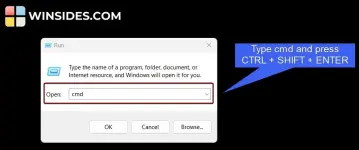
- The User Account Control will confirm and open the Command Prompt with Administrative Privileges.
- Once the Command Prompt opens, execute the following command in the terminal. dism /Online /Enable-Feature /FeatureName:"Printing-PrintToPDFServices-Features" /NoRestart
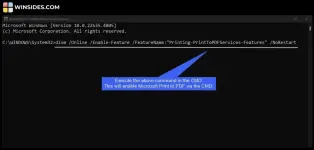
- The DISM will enable Microsoft Print to PDF on Windows 11 via the Command Prompt. Once you get the message “The operation completed successfully“. That’s it. This feature is now enabled on your Windows 11.
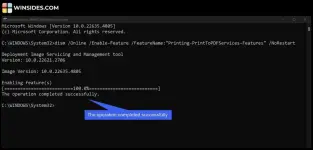
Note: If you want to disable Microsoft Print to PDF on Windows 11, kindly execute the following command in the Command Prompt. dism /Online /Disable-Feature /FeatureName:"Printing-PrintToPDFServices-Features" /NoRestart
Decoding Microsoft Print to PDF Enable CMD Command
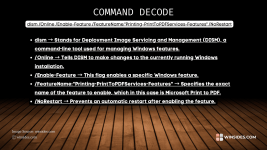 Decoding Microsoft Print to PDF CMD Command
Quick Way to Enable Microsoft Print to PDF using Windows PowerShell
Here, we will check out how to enable this feature using Windows PowerShell.
- Open the Run Command using the shortcut WinKey + R.
- Type the following command powershell In the Run Command, and press ctrl+shift+enter .
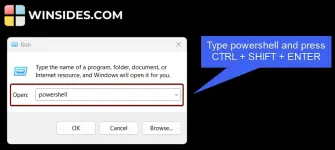
Type powershell and press Ctrl + Shift + Enter
- PowerShell will open as Administrator.
- In PowerShell, execute the following command. This command will enable Microsoft Print to PDF via Windows PowerShell. Enable-WindowsOptionalFeature -Online -FeatureName Printing-PrintToPDFServices-Features -NoRestart
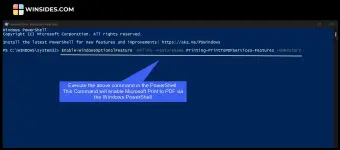 Execute the Print to PDF Enable Command in the PowerShell
- PowerShell will enable Microsoft Print to PDF on Windows 11. Under Restart Needed, the value is true, which indicates that a Restart is essential.
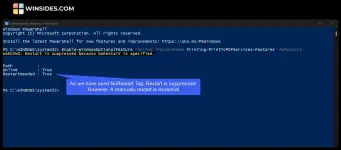 Restart needed after the feature is enabled
Note: If you want to disable Microsoft Print to PDF on Windows 11 via Windows Powershell, kindly execute the following command in the PowerShell. Disable-WindowsOptionalFeature -Online -FeatureName Printing-PrintToPDFServices-Features -NoRestart
Decoding Print to PDF Enable Command via Windows PowerShell
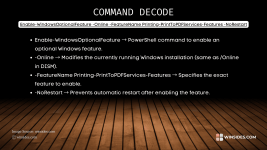 Decoding Microsoft Print to PDF PowerShell Command
Take Away
Microsoft Print to PDF on Windows 11 is an essential utility feature that eliminates the need for third-party applications to save files as PDF on Windows 11 OS. If you have any queries, kindly let us know in the comments section.
- The User Account Control will confirm and open the Command Prompt with Administrative Privileges.
- Once the Command Prompt opens, execute the following command in the terminal. dism /Online /Enable-Feature /FeatureName:"Printing-PrintToPDFServices-Features" /NoRestart
- The DISM will enable Microsoft Print to PDF on Windows 11 via the Command Prompt. Once you get the message “The operation completed successfully“. That’s it. This feature is now enabled on your Windows 11.
Note: If you want to disable Microsoft Print to PDF on Windows 11, kindly execute the following command in the Command Prompt. dism /Online /Disable-Feature /FeatureName:"Printing-PrintToPDFServices-Features" /NoRestart
Decoding Microsoft Print to PDF Enable CMD Command
Decoding Microsoft Print to PDF CMD Command
Quick Way to Enable Microsoft Print to PDF using Windows PowerShell
Here, we will check out how to enable this feature using Windows PowerShell.
- Open the Run Command using the shortcut WinKey + R.
- Type the following command powershell In the Run Command, and press ctrl+shift+enter .
Type powershell and press Ctrl + Shift + Enter
- PowerShell will open as Administrator.
- In PowerShell, execute the following command. This command will enable Microsoft Print to PDF via Windows PowerShell. Enable-WindowsOptionalFeature -Online -FeatureName Printing-PrintToPDFServices-Features -NoRestart
Execute the Print to PDF Enable Command in the PowerShell- PowerShell will enable Microsoft Print to PDF on Windows 11. Under Restart Needed, the value is true, which indicates that a Restart is essential.
Restart needed after the feature is enabled
Note: If you want to disable Microsoft Print to PDF on Windows 11 via Windows Powershell, kindly execute the following command in the PowerShell. Disable-WindowsOptionalFeature -Online -FeatureName Printing-PrintToPDFServices-Features -NoRestartDecoding Print to PDF Enable Command via Windows PowerShell
Decoding Microsoft Print to PDF PowerShell Command
Take Away
Microsoft Print to PDF on Windows 11 is an essential utility feature that eliminates the need for third-party applications to save files as PDF on Windows 11 OS. If you have any queries, kindly let us know in the comments section.