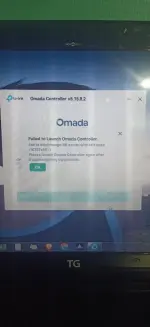
May step by step po ba kayo ng set up ng omada controller?
Certainly! Here is a step-by-step guide to set up the Omada controller:
1.
Download the Omada Controller Software: Visit the official TP-Link website and download the Omada controller software suitable for your operating system (Windows, macOS, Linux).
2.
Install the Omada Controller Software: Double-click the downloaded file to start the installation process. Follow the on-screen instructions to complete the installation.
3.
Launch the Omada Controller: After the installation is complete, launch the Omada controller software. The first time you run the software, you will be prompted to create an account and set up a new site.
4.
Create a New Site: Enter the name for your site (e.g., Home, Office) and set the time zone for your location.
5.
Add Devices: Even though you don't have the EAP110 device yet, you can still add it to the Omada controller software. Click on the "+" icon to add a new device and follow the instructions to add a simulated EAP110 or skip this step for now.
6.
Configure Network Settings: Set up your network settings, including SSID, security settings, and other configurations you want to apply to your EAP110 device.
7.
Save Configuration: Once you have configured the settings, save the configuration changes.
8.
Connect EAP110: When you have the EAP110 device, follow the instructions provided with the device to connect it to your network. The Omada controller software will detect the device, and you can adopt it into your network.
9.
Monitor and Manage: After adopting the EAP110 into your network, you can monitor and manage it through the Omada controller software. You can view device status, manage firmware updates, and make configuration changes as needed.
That's a basic overview of the setup process for the Omada controller. If you encounter any specific issues or need further clarification on any step, feel free to ask for assistance!
 PH
PH