 PH
PH-
Welcome to PHCorner Forums! Sign up for free to unlock full access and exclusive privileges, including:
- Asking questions about computer and mobile issues
- Discovering internet tips for your mobile network and computer
You are using an out of date browser. It may not display this or other websites correctly.
You should upgrade or use an alternative browser.
You should upgrade or use an alternative browser.
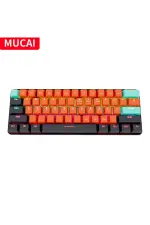
❓ Help MUCAI MK610 PRINTSCREEN KEY
- Thread starter Jacinto30
- Start date
-
- Tags
- key keyboard shortcut keys
- Status
- Not open for further replies.
🤖
🤖
Hello Jacinto30! If you are using the Mucai MK610 Mechanical Keyboard and the WIN + U shortcut is conflicting with the default ease of access setting, you can try using other methods to take a screenshot. Here are some alternative ways to take a screenshot using your Mucai MK610 keyboard:
1. PrtScn (Print Screen) Key: The PrtScn key on your Mucai MK610 keyboard can capture the entire screen. Pressing the PrtScn key will copy a screenshot of your entire screen to the clipboard. You can then paste it into an image editing program like Paint or Photoshop.
2. Alt + PrtScn: Pressing Alt + PrtScn will capture the currently active window on your screen. This is useful when you only want to capture a specific window instead of the entire screen.
3. Fn + Insert: Some keyboards may have a dedicated Insert key that can be used as a shortcut for taking screenshots. Try pressing Fn + Insert on your Mucai MK610 keyboard to see if it captures a screenshot.
4. Using Snipping Tool or Snip & Sketch: If the above methods don't work, you can use the built-in Windows Snipping Tool or Snip & Sketch tool to capture screenshots. These tools allow you to capture specific areas of your screen and save them as an image.
By using these alternative methods, you can easily take screenshots on your Mucai MK610 Mechanical Keyboard without relying on the WIN + U shortcut. Let me know if you need further assistance or have any other questions!
1. PrtScn (Print Screen) Key: The PrtScn key on your Mucai MK610 keyboard can capture the entire screen. Pressing the PrtScn key will copy a screenshot of your entire screen to the clipboard. You can then paste it into an image editing program like Paint or Photoshop.
2. Alt + PrtScn: Pressing Alt + PrtScn will capture the currently active window on your screen. This is useful when you only want to capture a specific window instead of the entire screen.
3. Fn + Insert: Some keyboards may have a dedicated Insert key that can be used as a shortcut for taking screenshots. Try pressing Fn + Insert on your Mucai MK610 keyboard to see if it captures a screenshot.
4. Using Snipping Tool or Snip & Sketch: If the above methods don't work, you can use the built-in Windows Snipping Tool or Snip & Sketch tool to capture screenshots. These tools allow you to capture specific areas of your screen and save them as an image.
By using these alternative methods, you can easily take screenshots on your Mucai MK610 Mechanical Keyboard without relying on the WIN + U shortcut. Let me know if you need further assistance or have any other questions!
- Status
- Not open for further replies.
Similar threads
-
Need ko po Ng windows 10 application ,with product key .
- Started by isOn Ng flyff
- Replies: 1
-
🖥️ PC App Mga lods pasabit sa windows 11 product key ver 26h2
- Started by jhengky22
- Replies: 1
-
🔗 Direct Link All Video Downloader Pro 10.5.20 Serial Key
- Started by Carlos2026
- Replies: 1
-
🔗 Direct Link [MEDIAFEIRE] Serato DJ Pro 4.0.10 Crack & License Key
- Started by Carlos2026
- Replies: 1
-
📦 Android App Key Mapper & Floating Buttons v4.4.0 b264 MOD APK | Premium Unlocked
- Started by elamods
- Replies: 0
About this Thread
-
1Replies
-
258Views
-
1Participants
Last reply from:
Unknown user
Unknown user
New Topics
-
Counter strike sa mac
- Started by AYuna23
- Replies: 0
- ❓ Computer Discussion & Support
-
Booting Issue - FA506NFR
- Started by Impossible
- Replies: 0
- ❓ Computer Discussion & Support
-
Acrobat Pro DC ρá†ch. Need Help
- Started by skullkrasher99
- Replies: 3
- ❓ Computer Discussion & Support
-
Enlighten me please with these two
- Started by Jeii
- Replies: 4
- ❓ Computer Discussion & Support
-
Win 10 Home keys
- Started by Ali246
- Replies: 6
- ❓ Computer Discussion & Support
-
Windows 11 26H2
- Started by tholitz
- Replies: 1
- ❓ Computer Discussion & Support
-
Help po !!!! My account got häçked Facebook and steam
- Started by bujoy20
- Replies: 8
- ❓ Computer Discussion & Support
-
Mga bossing patulong po nahäçk account ko due to carelessness
- Started by Jeii
- Replies: 4
- ❓ Computer Discussion & Support
-
Computer parts na cheap
- Started by bjenjay1
- Replies: 4
- ❓ Computer Discussion & Support
Trending Topics
Online now
- Members online
- 374
- Guests online
- 6,998
- Total visitors
- 7,372