 PH
PHGood Day mga Master!
For those na may old apple macbooks/Macs lying around at hindi na nagagamit due to outdated na ang software, sluggish dahil sa Software Update o sadyang sobrang bagal alng dahil sa software or system na inoopearte ng Hardware, i revive natin 'yan with Windows 10/11 (depends kung ano ang suitable sainyo hahaha).
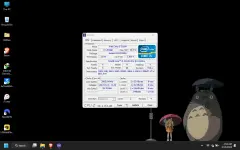
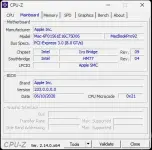
I am using Macbook Pro Mid 2012 na hanggang MacOS Catalina nalang ang support at sinubukan kong installan ng Ventura, Sonoma, at Sequoia using Opencore pero may signs of aging na talaga dahil sa Lag at unstable na pag ginagamit. (Note na ang Macbook ko ay maxed out na ang Ram at Upgraded storage and Modified narin ang ventilation System nya for better performance). Proofs na i am using Windows 11 for Mbp mid 2012 (applicable for MBA and MBP any model basta supported ng Bootcamp Assistant Software)
PICS (SCREENSHOTS):
To do this, you may need the following things to get started:
-A mouse (para hindi ka mahirapan dahil ang soft click ay hindi gagana without BCA installed since installing palang)
-Usb minimum of 16gb with Windows ISO (ang ginamit ko is ISO ni GhostSpectre for smooth and stable performance at Bloatware free, so far napakabilis parin nya) I'll provide YT link para sa pag DL ng ISO nya (always nasa desc box)
-Bootcamp Drivers (depends of the model of your Mac, nada download sya sa Apple website)
-MacHALDriver.sys for Windows 11 sa Mbp mid 2012 and Mac mid 2012 and up dahil magbibigay ito ng BSOD (WDF_VIOLATION caused by iGPU Driver), minsan working naman sya sa ibang models kahit hindi na need ng ganitong File.
-LAN Cable (For Windows 11 if stuck sa Network connectivity screen)
Step by da Step Installation with Niña:
First step is i-download mo ang ISO file of your choice (pwedeng stock windows o debloated windows like GS o Atlas o GgOS ikaw na bahala), hindi ko ma post ang Iso gile ni Ghost Spectre dahil wala na sakin ang file, dun mo nalang i download straight from his website link yun nalang i provide ko nalang. I download mo na rin yung Bootcamp drivers straight from apple website Plus the MaCHALDriver.sys provided ko na din haha, Bootcamp installer lang hondo ko ma provie=de dahil malaki ang file.
PRO: You do not have permission to view the full content of this post.
Log in or register now.
You do not have permission to view the full content of this post.
Log in or register now.
PASS: "24h2" (exclude ")
BOOTCAMP: You do not have permission to view the full content of this post. Log in or register now.
Second step is Gumawa kana ng bootable drive using RUFUS, plug mo yung usb and then select mo lang yung iso na gagamitin mo and make sure na naka UEFI yan kasi UEFI-based naman ang MBP kaya need talaga ganon hahaha.
Rufus Link: You do not have permission to view the full content of this post. Log in or register now.
Third step is, Once na ok na ang bootable drive mo e pwede mo nang i boot ang device mo sa drive, simply plug mo nlang ang then hold the "option" key to enter boot menu and click the "EFI BOOT" na may logo na usb or orange icon depende sa model ng laptop mo then choose mo yun tas i iastall mo lang (ikaw na bahala wether i erase mo lahat ng data or may spare drive ka naman na pag iinstallan, preferably sa SSD sya maganda i install para swift ang performance nya and mataas din ram sana (not sure of mag bottleneck sya pero probably stick to 8gb rather 16gb to prevent bottlenecking na rin).
After installation, Fourth step na with Niña! i set up mo na yung Windows sa laptop mo, mapapansin mo if ang ginamit mong iso for windows 11 ay yung hindi debloated bversion, ma sstuck ka sa WIFI and need i bypass using Lan cable or phone via USB tethering. Pero id GS version naman ng W11, makakapasok ka kaagad sa desktop. After makapasok sa desktop, i-install mo lang Bootcamp drivers na dinownload mo and after non working na ang device mo. Pero hindi pa don tapos HAHAHA!
Para tayo'y sumakses, kailangan talag anating sundin Step by da step patungong sakses hahahaha kaya may Step 6 pa (optional)
since okay na ang device mo, sound working, visual works, need natin ngayon u=i open ang windows updates pata mag update ang driver nya independently, after updates i Restart mo na ang macbook/Mac mo and if may lumabas na BSOD na may "WDF_VIOLATION", eto ang solution para sa'yo!. Naalala mo yung "MacHALDriver.sys"? yun ang susi para sumakses tayo!. I boot ang device sa Safe mode (F8) or press shift key when restarting, if mabilis namang mag BSOD, bilisan mo ang pag restart at unahan mo (ganun ginawa ko hahaha), i boot mo lang sya sa safe mode. Ngayong naka safe mode kana, ang gagawin natin is i-copy lang natin yung file at i paste sa "Windows C:/Windows/System32/Drivers" at pag may prompt na lumabas, i click mo lang ang overwrite or replace.
Lastly i restart mo na for finishing touches and HUWAW! (we did it dance by Nina), sumakses ka sa pag revive ng Laptop mong nag agaw-buhay noon haha!, ready to use na 'yan!
ang major flaw lang ng Windows sa Macbook is yung Thunderbolt nya for secondary display ay hindi gagana if hindi Mac Cinema display ang gagamitin, untested ko pa since wala akong cinema display per ang miracast naman e stable and working sa MBP mid 2012. If may concerns, feel free to have a Feedback and comment! Ty!
For those na may old apple macbooks/Macs lying around at hindi na nagagamit due to outdated na ang software, sluggish dahil sa Software Update o sadyang sobrang bagal alng dahil sa software or system na inoopearte ng Hardware, i revive natin 'yan with Windows 10/11 (depends kung ano ang suitable sainyo hahaha).
I am using Macbook Pro Mid 2012 na hanggang MacOS Catalina nalang ang support at sinubukan kong installan ng Ventura, Sonoma, at Sequoia using Opencore pero may signs of aging na talaga dahil sa Lag at unstable na pag ginagamit. (Note na ang Macbook ko ay maxed out na ang Ram at Upgraded storage and Modified narin ang ventilation System nya for better performance). Proofs na i am using Windows 11 for Mbp mid 2012 (applicable for MBA and MBP any model basta supported ng Bootcamp Assistant Software)
PICS (SCREENSHOTS):
To do this, you may need the following things to get started:
-A mouse (para hindi ka mahirapan dahil ang soft click ay hindi gagana without BCA installed since installing palang)
-Usb minimum of 16gb with Windows ISO (ang ginamit ko is ISO ni GhostSpectre for smooth and stable performance at Bloatware free, so far napakabilis parin nya) I'll provide YT link para sa pag DL ng ISO nya (always nasa desc box)
-Bootcamp Drivers (depends of the model of your Mac, nada download sya sa Apple website)
-MacHALDriver.sys for Windows 11 sa Mbp mid 2012 and Mac mid 2012 and up dahil magbibigay ito ng BSOD (WDF_VIOLATION caused by iGPU Driver), minsan working naman sya sa ibang models kahit hindi na need ng ganitong File.
-LAN Cable (For Windows 11 if stuck sa Network connectivity screen)
Step by da Step Installation with Niña:
First step is i-download mo ang ISO file of your choice (pwedeng stock windows o debloated windows like GS o Atlas o GgOS ikaw na bahala), hindi ko ma post ang Iso gile ni Ghost Spectre dahil wala na sakin ang file, dun mo nalang i download straight from his website link yun nalang i provide ko nalang. I download mo na rin yung Bootcamp drivers straight from apple website Plus the MaCHALDriver.sys provided ko na din haha, Bootcamp installer lang hondo ko ma provie=de dahil malaki ang file.
PRO:
You do not have permission to view the full content of this post.
Log in or register now.PASS: "24h2" (exclude ")
BOOTCAMP: You do not have permission to view the full content of this post. Log in or register now.
Second step is Gumawa kana ng bootable drive using RUFUS, plug mo yung usb and then select mo lang yung iso na gagamitin mo and make sure na naka UEFI yan kasi UEFI-based naman ang MBP kaya need talaga ganon hahaha.
Rufus Link: You do not have permission to view the full content of this post. Log in or register now.
Third step is, Once na ok na ang bootable drive mo e pwede mo nang i boot ang device mo sa drive, simply plug mo nlang ang then hold the "option" key to enter boot menu and click the "EFI BOOT" na may logo na usb or orange icon depende sa model ng laptop mo then choose mo yun tas i iastall mo lang (ikaw na bahala wether i erase mo lahat ng data or may spare drive ka naman na pag iinstallan, preferably sa SSD sya maganda i install para swift ang performance nya and mataas din ram sana (not sure of mag bottleneck sya pero probably stick to 8gb rather 16gb to prevent bottlenecking na rin).
After installation, Fourth step na with Niña! i set up mo na yung Windows sa laptop mo, mapapansin mo if ang ginamit mong iso for windows 11 ay yung hindi debloated bversion, ma sstuck ka sa WIFI and need i bypass using Lan cable or phone via USB tethering. Pero id GS version naman ng W11, makakapasok ka kaagad sa desktop. After makapasok sa desktop, i-install mo lang Bootcamp drivers na dinownload mo and after non working na ang device mo. Pero hindi pa don tapos HAHAHA!
Para tayo'y sumakses, kailangan talag anating sundin Step by da step patungong sakses hahahaha kaya may Step 6 pa (optional)
since okay na ang device mo, sound working, visual works, need natin ngayon u=i open ang windows updates pata mag update ang driver nya independently, after updates i Restart mo na ang macbook/Mac mo and if may lumabas na BSOD na may "WDF_VIOLATION", eto ang solution para sa'yo!. Naalala mo yung "MacHALDriver.sys"? yun ang susi para sumakses tayo!. I boot ang device sa Safe mode (F8) or press shift key when restarting, if mabilis namang mag BSOD, bilisan mo ang pag restart at unahan mo (ganun ginawa ko hahaha), i boot mo lang sya sa safe mode. Ngayong naka safe mode kana, ang gagawin natin is i-copy lang natin yung file at i paste sa "Windows C:/Windows/System32/Drivers" at pag may prompt na lumabas, i click mo lang ang overwrite or replace.
Lastly i restart mo na for finishing touches and HUWAW! (we did it dance by Nina), sumakses ka sa pag revive ng Laptop mong nag agaw-buhay noon haha!, ready to use na 'yan!
ang major flaw lang ng Windows sa Macbook is yung Thunderbolt nya for secondary display ay hindi gagana if hindi Mac Cinema display ang gagamitin, untested ko pa since wala akong cinema display per ang miracast naman e stable and working sa MBP mid 2012. If may concerns, feel free to have a Feedback and comment! Ty!
