PH
PHUSE THIS CODE : fwEOqhYpWrny7tSo
Post-Quantum DePIN Testnet Installation Guide
Post-Quantum DePIN Testnet Installation Guide

Please note: This Testnet works with Chrome/Chromium based browsers and services only — i.e. Gmail, emails served by Google Admin and Chromium based browsers.
This guide will navigate you through the process of downloading and installing the Naoris Wallet and Browser Security Node, transforming your device into a trusted validator node, contributing to a secure, incentivized global network.
Create the Naoris Protocol Wallet
Step 1)
Go to the Naoris Protocol Testnet website at You do not have permission to view the full content of this post. Log in or register now. and click ‘How It Works’ in the navigation bar.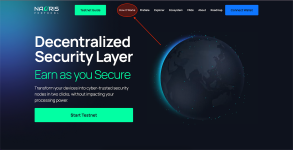
Step 2)
Click ‘Install Wallet’ in the “How It Works” section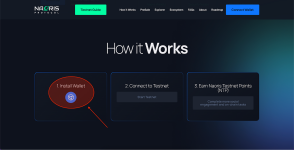
Step 3)
Click ‘Add To Chrome’ in the Naoris Wallet Chrome Web Store Page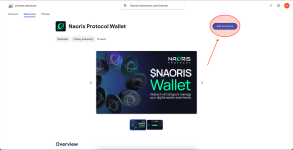
Click ‘Add Extension’ in the Naoris Wallet Chrome Web Store Page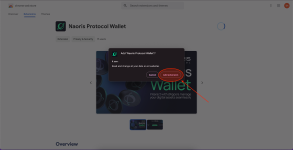
Step 5)
Click ‘Create a New Wallet’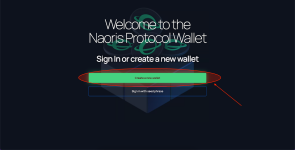
Step 6)
Read and Sign the Privacy Policy & Terms of Service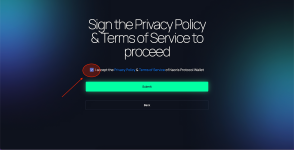
Step 7)
Copy the seed phrase and keep it in a safe place. Click ‘Copy All Words’ then click ‘I Wrote It Down On Paper’ to proceed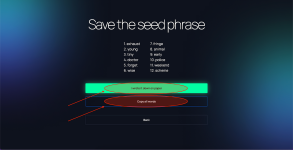
Step 8)
Add the correct word in the correct order in each of the four fields then click ‘Confirm’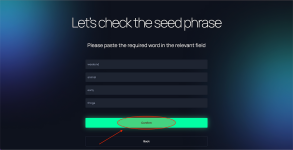
Step 9)
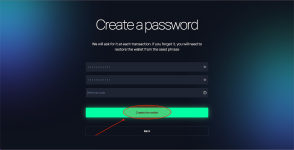
Add password, confirm password and click ‘Create The Wallet’ to proceed.Also, you can add the referral code you have received from your friend in the Referral Code field
The referral code is not mandatory, so if you do not have one just leave blank.
Step 10)
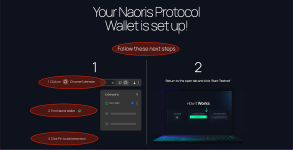
Your wallet is now installed! Now go to the upper right-hand corner of your browser1. Click ‘Extension’
2. Find Naoris Protocol Wallet
3. Click the pin icon, to pin the extension to the browser
Step 11)
Step 12)
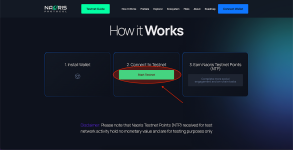
Now Login with your Naoris Wallet. Click ‘Connect Wallet’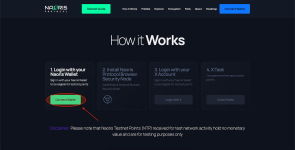
Step 13)
Choose which way to connect, click ‘Naoris Chrome Extension” — Metamask is not available at the moment.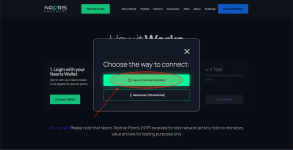
Step 14)
Now click on ‘Connect’ to connect the Naoris Protocol Wallet to the testnet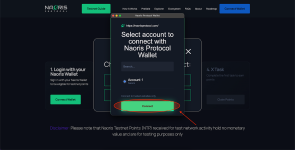
Step 15)
Click on Install Browser Security Node in the How It Works section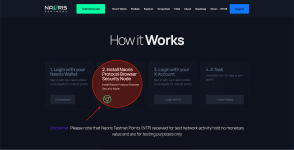
Step 16)
Click ‘Add To Chrome’ in the Naoris Browser Security Node Chrome Web Store Page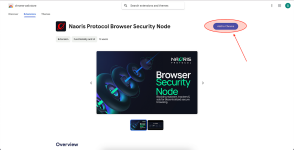
Step 17)
Click ‘Add Extension’ in the Naoris Browser Security Chrome Web Store Page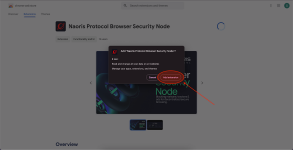
Step 18)
Browser Security Node Installed! Follow the steps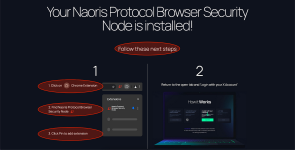
Go back to the website and click on ‘Login with X’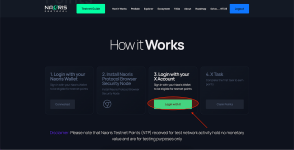
Step 20)
Authorize access to your Twitter Account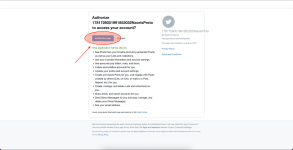
Step 21)
Click on ‘Follow’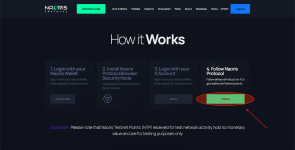
Step 22)
Click on ‘Proceed’. Do not forget to come back to this screen when you have followed the Naoris Protocol X account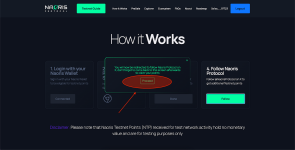
Step 23)
Click on ‘Follow @NaorisProtocol’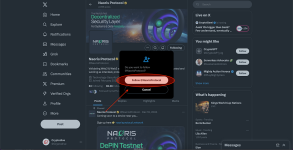
Claim Your Points
Click 'Claim Points' to claim your points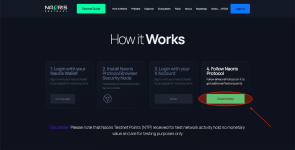
Click ‘Points will be added to Dashboard’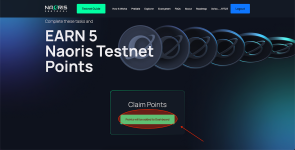
Step 26)
Add wallet password and click ‘Sign’ to add the points to your dashboard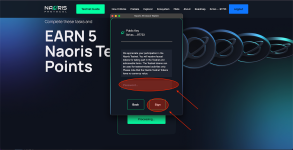
Step 27)
The Download and Install Process is now complete you will be directed to the Ecosystem page as below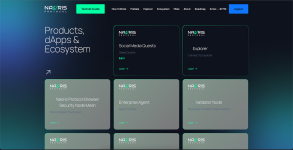
Step 28)
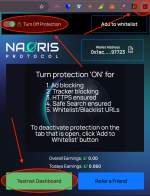
To go to the Dashboard…follow these three tasks1. Select Browser Security Node Extension in the extension list
2. Turn ‘On’ Protection
3. Open the ‘Testnet Dashboard’