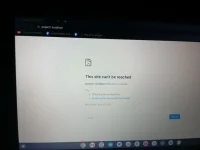
Hello, it seems like you are experiencing an issue with configuring virtual hosts in XAMPP for your project. Here are some steps you can try to troubleshoot and resolve the problem:
1. Check Configuration Files:
- Ensure that you have correctly configured the httpd.conf and httpd-vhosts.conf files in your XAMPP installation.
- Double-check that the VirtualHost configuration for project1.localhost in httpd-vhosts.conf is correct and not being overridden by any other configurations.
2. Restart Apache Server:
- After making changes to the configuration files, restart the Apache server in XAMPP to apply the changes.
- Sometimes, the changes may not take effect until the server is restarted.
3. Clear DNS Cache:
- It's possible that your system is still using cached DNS information. Try clearing the DNS cache on your system to ensure that the updated host file entry is being used.
4. Check Windows Hosts File:
- Ensure that you have the correct entry in the Windows hosts file located at C:\Windows\System32\drivers\etc\hosts.
- The entry should look like 127.0.0.1 project1.localhost.
5. Test Connectivity:
- After making the above changes, try accessing http://project1.localhost/ in your web browser.
- If it still doesn't work, try accessing the site using a different browser or an incognito/private window to rule out any browser caching issues.
6. Error Logs:
- Check the Apache error logs located in the logs directory of your XAMPP installation for any clues on why the site is not loading.
- Look for any specific error messages related to the VirtualHost configuration or the request to project1.localhost.
By following these steps, you should be able to diagnose and resolve the issue with your virtual host configuration in XAMPP. If you continue to encounter problems, feel free to provide more details or error messages for further assistance.
 PH
PH