PH
PHDONotorious
Forum Guru
REGISTER HERE:You do not have permission to view the full content of this post. Log in or register now.
Multiple Node Participation Guide:
1. Go to our official homepage atYou do not have permission to view the full content of this post. Log in or register now. and click the ‘Download’ button to install the Multiple node client. This version currently supports Windows Operating System only; versions supporting all operating systems will be released gradually as planned.

2. Go to our official homepage atYou do not have permission to view the full content of this post. Log in or register now. and click the “Get Started” button to connect your wallet for quick login. Once logged in successfully, a unique account identification code will be generated.
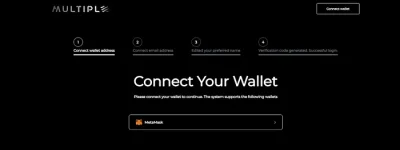
3. After connecting the wallet and/or setting up the email, the generated unique account identification code will be used to connect to the node client. If you forget the unique identification code, you can always retrieve it in the settings after logging into the homepage.
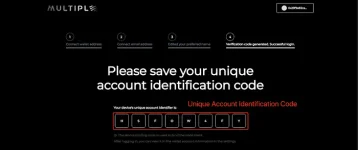
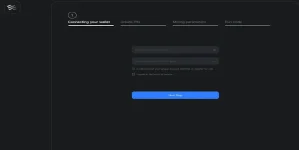
4. For the first login to the Multiple node client, enter the generated unique account identification code, set a new PIN code, and configure the mining parameters. Once these steps are completed, you will successfully log in and run the Multiple node.
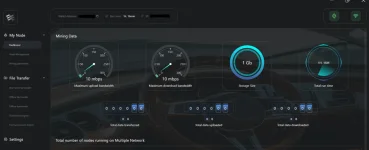
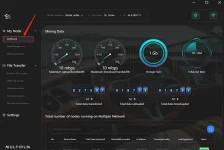
5. Dashboard: On the node homepage, you can view your node’s dashboard data, including the upload bandwidth, download bandwidth, storage space, node uptime, transferred file data, and more. This allows you to easily understand and manage your node’s operational status.
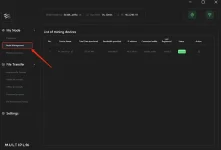
6. Node Management: Here, you can view the number of nodes bound to your wallet address and the general status of each node. You can also perform actions such as renaming node devices, deleting nodes, and re-binding them.
7. Mining Parameters: Here, you can configure the mining parameters, including the amount of bandwidth provided, storage space, and more.
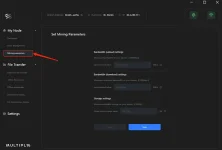
8. Real Time File Transfer: You can search for wallet addresses and transfer file data to other online node devices in real-time.
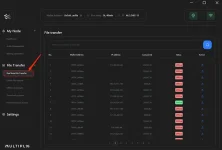
9. Offline File Transfer: You can search for wallet addresses and transfer file data to other node devices while offline.
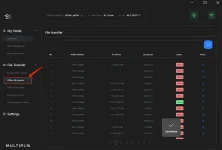
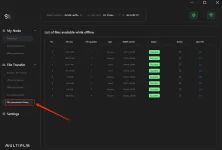
10. Offline Downloads: Files sent to you by other nodes will be stored in this list for 3 days, and you can download them at any time within that period.
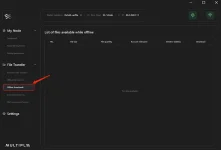
11. Download Progress: Here, you can view the download progress of each file sent to you by other nodes.
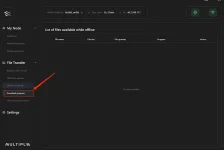
12. File Transmission History: Here, you can view the records of all sent and received files at any time.
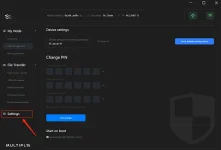
13. Settings: Here, you can configure the node devices for receiving files, set or reset the PIN code, and perform other related operations.
Referrals
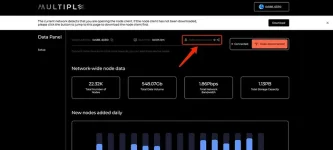
Once you’ve completed the account setup, you’ll see a Referral button, as shown in the screenshot below. Click on it to generate a unique link that you can copy and share with your friends to introduce them to Multiple Network. All your referrals made through this feature will be tracked by our system — so don’t hesitate to share and spread the word!