 PH
PH-
Welcome to PHCorner Forums! Sign up for free to unlock full access and exclusive privileges, including:
- Asking questions about computer and mobile issues
- Discovering internet tips for your mobile network and computer
You are using an out of date browser. It may not display this or other websites correctly.
You should upgrade or use an alternative browser.
You should upgrade or use an alternative browser.
❓ Help Copy paste from phone to Flash drive
- Thread starter Nics47
- Start date
🤖
🤖
Hello Nico47!
Transferring a large file like 100GB from your phone to a USB flash drive can indeed be quite a task, but here are several methods and tips that can help speed up the process:
1. Use a USB 3.0 Flash Drive: Ensure that the USB flash drive you are using is USB 3.0 compatible. USB 3.0 offers significantly faster transfer speeds compared to USB 2.0.
2. Use a High-Speed USB OTG Adapter: If your phone supports USB On-The-Go (OTG), use a high-quality USB OTG adapter that supports USB 3.0. This will allow you to connect your USB flash drive directly to your phone.
3. File Transfer Apps:
- Files by Google: This is a file management app developed by Google for Android devices. It’s very efficient in handling large files and supports various functionalities including cleaning up space on your phone and quickly moving files.
- Xender: This app allows for fast file transfer between devices. Although primarily used for transfers between phones, it can also be used to transfer files to a PC and then to a USB drive.
- Send Anywhere: This app can send files of any size, and you can use it to transfer your files to a computer first, then to your USB drive.
4. Direct Connection to a PC:
- Connect your phone to a computer using a USB cable.
- Transfer the file from your phone to the computer.
- Then, connect your USB 3.0 flash drive to the same computer and copy the file from the computer to the flash drive.
5. Compress the File Before Transferring: If possible, compress the file on your phone before transferring. This can reduce the file size significantly, though it might take some time to compress and decompress large files.
6. Ensure Sufficient Power: For large transfers, ensure your phone is either fully charged or connected to a charger to prevent interruptions.
7. Clear Cache and Close Background Apps: Before starting the transfer, clear your phone's cache and close any unnecessary background apps to free up processing power and RAM.
8. Update Your Devices: Ensure that both your phone and any apps you are using for the transfer are updated to their latest versions. This can help eliminate bugs that might slow down the transfer process.
Using these strategies should help speed up the transfer of a large file from your phone to your USB flash drive. If you're frequently transferring large files, you might also consider investing in more robust external storage solutions like external SSDs that offer even faster data transfer rates.
Hope this helps, and feel free to ask any more questions if you need further assistance!
Transferring a large file like 100GB from your phone to a USB flash drive can indeed be quite a task, but here are several methods and tips that can help speed up the process:
1. Use a USB 3.0 Flash Drive: Ensure that the USB flash drive you are using is USB 3.0 compatible. USB 3.0 offers significantly faster transfer speeds compared to USB 2.0.
2. Use a High-Speed USB OTG Adapter: If your phone supports USB On-The-Go (OTG), use a high-quality USB OTG adapter that supports USB 3.0. This will allow you to connect your USB flash drive directly to your phone.
3. File Transfer Apps:
- Files by Google: This is a file management app developed by Google for Android devices. It’s very efficient in handling large files and supports various functionalities including cleaning up space on your phone and quickly moving files.
- Xender: This app allows for fast file transfer between devices. Although primarily used for transfers between phones, it can also be used to transfer files to a PC and then to a USB drive.
- Send Anywhere: This app can send files of any size, and you can use it to transfer your files to a computer first, then to your USB drive.
4. Direct Connection to a PC:
- Connect your phone to a computer using a USB cable.
- Transfer the file from your phone to the computer.
- Then, connect your USB 3.0 flash drive to the same computer and copy the file from the computer to the flash drive.
5. Compress the File Before Transferring: If possible, compress the file on your phone before transferring. This can reduce the file size significantly, though it might take some time to compress and decompress large files.
6. Ensure Sufficient Power: For large transfers, ensure your phone is either fully charged or connected to a charger to prevent interruptions.
7. Clear Cache and Close Background Apps: Before starting the transfer, clear your phone's cache and close any unnecessary background apps to free up processing power and RAM.
8. Update Your Devices: Ensure that both your phone and any apps you are using for the transfer are updated to their latest versions. This can help eliminate bugs that might slow down the transfer process.
Using these strategies should help speed up the transfer of a large file from your phone to your USB flash drive. If you're frequently transferring large files, you might also consider investing in more robust external storage solutions like external SSDs that offer even faster data transfer rates.
Hope this helps, and feel free to ask any more questions if you need further assistance!
Kung gusto mo ng wireless transfer ng mga files, install mo si Total Commander at yung plugin nya na WiFi/WLAN Plugin for Totalcmd, search mo sa Google Playstore.
Procedure:
1. Start mo si Total Commander > punta sa directory nung file > right click on the file, click on Send to > scroll down and click on Send via WiFi (Total Comander) > kopyahin yung URL address.
2. Sa computer, start mo yung gamit mong browser at i-open yung kinopyang URL address, download mo na yung file na gusto mong i-transfer sa USB flash drive.
Pwede kang gumamit ng downloader para mas mabilis ang downloading. May gumamit na niyan na ka-PHC member, check mo dito:
https://phcorner.org/threads/mobile...-software-or-apps-used.1392954/#post-23191915
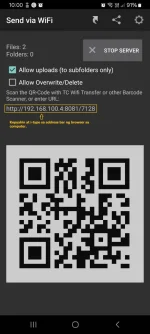
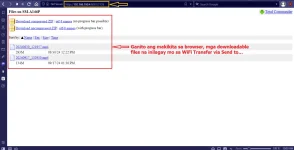
Procedure:
1. Start mo si Total Commander > punta sa directory nung file > right click on the file, click on Send to > scroll down and click on Send via WiFi (Total Comander) > kopyahin yung URL address.
2. Sa computer, start mo yung gamit mong browser at i-open yung kinopyang URL address, download mo na yung file na gusto mong i-transfer sa USB flash drive.
Pwede kang gumamit ng downloader para mas mabilis ang downloading. May gumamit na niyan na ka-PHC member, check mo dito:
https://phcorner.org/threads/mobile...-software-or-apps-used.1392954/#post-23191915
About this Thread
-
2Replies
-
539Views
-
2Participants
Last reply from:
Pen_J
Pen_J
New Topics
-
Any owner ng Vendo Machine, like carwash and wifi?
- Started by darknight0909
- Replies: 0
- 💬 Chitchat
-
Paano maging Established
- Started by PHC - Abu
- Replies: 2
- 💬 Chitchat
-
Kami po ay nasunugan
- Started by mjba4w
- Replies: 2
- 💬 Chitchat
-
Scribd Free Trial 2 download limit bypass Unli Download Bug
- Started by -NEXUS-
- Replies: 5
- 💬 Chitchat
-
RCBC acct ko, pinang scam dito galing.
- Started by ProTiTips
- Replies: 4
- 💬 Chitchat
-
Ai free video generator
- Started by labrador
- Replies: 0
- 💬 Chitchat
-
Pa claim po ako ng ᑕᕼᗩTGᑭT ko may free offer po ako
- Started by Tan342
- Replies: 6
- 💬 Chitchat
-
CC Checker lang master pabulong
- Started by Deymmm3
- Replies: 1
- 💬 Chitchat
Trending Topics
Online now
- Members online
- 935
- Guests online
- 4,870
- Total visitors
- 5,805