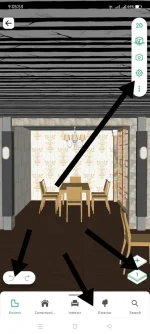
I'm sorry for the confusion earlier. It seems that Planner 5D may have updated their features since my last response. If you're unable to find the 360° Panorama and Save Image options in the current version of Planner 5D, here are some alternative ways to create a walkthrough video and download images of your project:
1. Creating a Walkthrough Video:
- You can use screen recording software on your device to record a walkthrough of your project in Planner 5D. Simply navigate through your design while recording your screen to capture the walkthrough.
- There are many screen recording tools available for different devices and operating systems, such as OBS Studio, Camtasia, QuickTime (for Mac), or the built-in Game Bar on Windows. Choose one that suits your needs and preferences.
2. Downloading Images of Your Project:
- You can take screenshots of your project within Planner 5D to capture images of different views.
- To take a screenshot, use the screenshot function on your device. For example, on Windows, you can press the "Print Screen" key on your keyboard to capture the entire screen or use "Alt + Print Screen" to capture the active window. On Mac, you can use "Command + Shift + 4" to capture a selected area.
- Once you've taken the screenshot, you can save it to your computer or device for further use or sharing.
I hope these alternative methods help you achieve your goal of creating a walkthrough video and downloading images of your project. If you have any more questions or need further assistance, feel free to ask. Thank you!
 PH
PH