 PH
PHSilent reader lang ako sa thread ni master quantum, gusto ko syang idrag down simula pa nung una kasi naka 1Mphp sya sa ganyang pamamaraan sobrang unfair, pero ayun nga nakapagviral ako sa tutorial nya at open lahat ng ads (Active lahat 75ads)
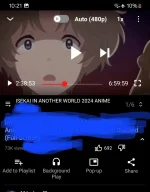
Sa mga hindi pa nakakaalam ng method,
Closed na yung thread nya but you can still visit and download yung buong tutorial sa last page—
Thread
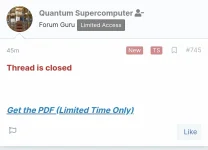
You do not have permission to view the full content of this post. Log in or register now.
(I recommend you to read that muna bago ka dito sa thread na 'to)
So, lets start kung paano nya ginagawa yung ffmpeg using android phone (kahit di ka marunong magcode)
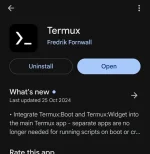
To install FFmpeg in Termux on your Android phone, follow these steps:
1. Open Termux: Make sure Termux is up-to-date.
2. Update Packages:
Type :
pkg update && pkg upgrade
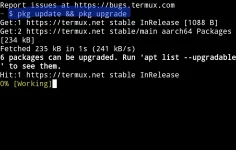
Type : Y (kapag nagstop or nagask ng continue)
3. Install FFmpeg:
Type :
pkg install ffmpeg
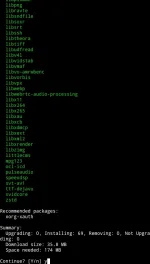
Press : Y (ulit)
This will download and install FFmpeg in Termux.
4. Verify Installation: Check if FFmpeg is installed successfully by running:
Type :
ffmpeg -version
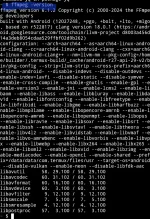
You should see FFmpeg's version info if it’s installed correctly.
Now you can use FFmpeg to edit audio and video files directly on your Android device through Termux!
How?
Punta ka sa storage mo and create folder name "ffmpeg"
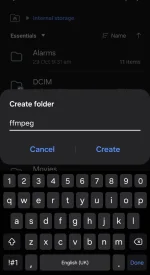
And then *********** video you wanna edit sa loob ng folder na yan :
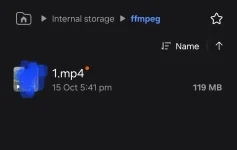
Now, balik ka ulit sa termux :
Type :
pkg install termux-api
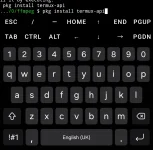
And then type this :
termux-setup-storage

Lalabas -'to
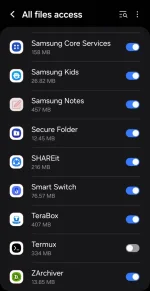
Switch on mo yang termux.
You can now apply the codes na nasa pdf and also mga codes na nakasulat dun sa shinare ni master quantum
na Nandito (extract then rename nyo yung file into .zip, then extract ulit):
You do not have permission to view the full content of this post. Log in or register now.
So paano yung command pag ilalagay na yung code?
This command is compressing your video into low size
Type :
cd /storage/emulated/0/ffmpeg && ffmpeg -i 1.mp4 -vcodec libx264 -crf 28 output.mp4
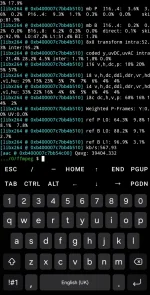
Then after nyan, punta kayo sa result, makikita nyo ang ouput dun sa folder
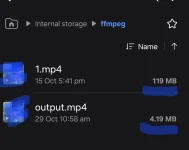
cd /storage/emulated/0/ffmpeg && ffmpeg -i 1.mp4 -vcodec libx264 -crf 28 output.mp4
yung name ng file is dapat yung ang nasa code.
also note na yung (cd/emulated/0/ffmpeg) is yan yung location ng ffmpeg folder sa android mo.
Happy experimenting guys!
termux android version nung zip file ni master |
cd /storage/emulated/0/ffmpeg
# Set random values for each parameter
RAND_RESOLUTION=$(awk "BEGIN {print 0.9 + (rand() * (1.10 - 0.90))}")
RAND_VOLUME=$(awk "BEGIN {print 0.9 + (rand() * (1.10 - 0.90))}")
RAND_GAMMA=$(awk "BEGIN {print 0.9 + (rand() * (1.10 - 0.90))}")
RAND_SATURATION=$(awk "BEGIN {print 0.9 + (rand() * (1.10 - 0.90))}")
RAND_BRIGHTNESS=$(awk "BEGIN {print 0.0 + (rand() * (0.10 - 0.00))}")
echo "Resolution: $RAND_RESOLUTION, Volume: $RAND_VOLUME, Gamma: $RAND_GAMMA, Saturation: $RAND_SATURATION, Brightness: $RAND_BRIGHTNESS"
# Apply command to each .mp4 file in the current directory
for file in *.mp4; do
filename=$(basename "$file")
ffmpeg -i "$file" \
-vf "scale=ceil(iw*$RAND_RESOLUTION/2)2:ceil(ih$RAND_RESOLUTION/2)*2,eq=gamma=$RAND_GAMMA:saturation=$RAND_SATURATION:brightness=$RAND_BRIGHTNESS" \
-af "volume=$RAND_VOLUME" \
-preset fast -threads 4 \
"output_${filename%.*}.mp4"
done
Sa mga hindi pa nakakaalam ng method,
Closed na yung thread nya but you can still visit and download yung buong tutorial sa last page—
Thread
You do not have permission to view the full content of this post. Log in or register now.
(I recommend you to read that muna bago ka dito sa thread na 'to)
So, lets start kung paano nya ginagawa yung ffmpeg using android phone (kahit di ka marunong magcode)
To install FFmpeg in Termux on your Android phone, follow these steps:
1. Open Termux: Make sure Termux is up-to-date.
2. Update Packages:
Type :
pkg update && pkg upgrade
Type : Y (kapag nagstop or nagask ng continue)
3. Install FFmpeg:
Type :
pkg install ffmpeg
Press : Y (ulit)
This will download and install FFmpeg in Termux.
4. Verify Installation: Check if FFmpeg is installed successfully by running:
Type :
ffmpeg -version
You should see FFmpeg's version info if it’s installed correctly.
Now you can use FFmpeg to edit audio and video files directly on your Android device through Termux!
How?
Punta ka sa storage mo and create folder name "ffmpeg"
And then *********** video you wanna edit sa loob ng folder na yan :
Now, balik ka ulit sa termux :
Type :
pkg install termux-api
And then type this :
termux-setup-storage
Lalabas -'to
Switch on mo yang termux.
You can now apply the codes na nasa pdf and also mga codes na nakasulat dun sa shinare ni master quantum
na Nandito (extract then rename nyo yung file into .zip, then extract ulit):
You do not have permission to view the full content of this post. Log in or register now.
So paano yung command pag ilalagay na yung code?
This command is compressing your video into low size
Type :
cd /storage/emulated/0/ffmpeg && ffmpeg -i 1.mp4 -vcodec libx264 -crf 28 output.mp4
Then after nyan, punta kayo sa result, makikita nyo ang ouput dun sa folder
cd /storage/emulated/0/ffmpeg && ffmpeg -i 1.mp4 -vcodec libx264 -crf 28 output.mp4
yung name ng file is dapat yung ang nasa code.
also note na yung (cd/emulated/0/ffmpeg) is yan yung location ng ffmpeg folder sa android mo.
Happy experimenting guys!
termux android version nung zip file ni master |
cd /storage/emulated/0/ffmpeg
# Set random values for each parameter
RAND_RESOLUTION=$(awk "BEGIN {print 0.9 + (rand() * (1.10 - 0.90))}")
RAND_VOLUME=$(awk "BEGIN {print 0.9 + (rand() * (1.10 - 0.90))}")
RAND_GAMMA=$(awk "BEGIN {print 0.9 + (rand() * (1.10 - 0.90))}")
RAND_SATURATION=$(awk "BEGIN {print 0.9 + (rand() * (1.10 - 0.90))}")
RAND_BRIGHTNESS=$(awk "BEGIN {print 0.0 + (rand() * (0.10 - 0.00))}")
echo "Resolution: $RAND_RESOLUTION, Volume: $RAND_VOLUME, Gamma: $RAND_GAMMA, Saturation: $RAND_SATURATION, Brightness: $RAND_BRIGHTNESS"
# Apply command to each .mp4 file in the current directory
for file in *.mp4; do
filename=$(basename "$file")
ffmpeg -i "$file" \
-vf "scale=ceil(iw*$RAND_RESOLUTION/2)2:ceil(ih$RAND_RESOLUTION/2)*2,eq=gamma=$RAND_GAMMA:saturation=$RAND_SATURATION:brightness=$RAND_BRIGHTNESS" \
-af "volume=$RAND_VOLUME" \
-preset fast -threads 4 \
"output_${filename%.*}.mp4"
done

