 PH
PHThis is how you play Retroarc in your google Chromecast or Android TV.
What is RetroArch?
RetroArch is a free and open-source, cross-platform frontend for emulators, game engines, video games, media players and other applications. It is the reference implementation of the libretro API, designed to be fast, lightweight, portable and without dependencies.It is licensed under the GNU GPLv3.
RetroArch runs programs converted into dynamic libraries called libretro cores, using several user interfaces such as command-line interface, a few graphical user interfaces optimized for gamepads, several input, audio and video drivers, plus other sophisticated features like dynamic rate control, audio filters, multi-pass shaders, netplay, gameplay rewinding, cheats, etc.
RetroArch has been ported to many platforms. It can run on several PC operating systems, home consoles, handheld consoles, smartphones, smart TV's, single-board computers and web browsers. Versions for PlayStation 4 and PlayStation 3 are not out yet, but are available unofficially (as of 1st April 2024.)
What will you need:
1. Google Chromecast
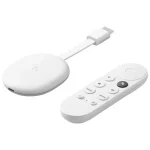
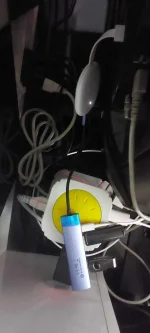
2. 4in1 Type C to HDMI PD USB 3.0 adapter 4K HDMI HUB docking station
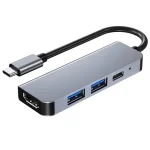
3. Ofc TV with HDMI port
Procedure:
Download Retroarch on your Google play TV
RetroArch Apk:
You do not have permission to view the full content of this post. Log in or register now.
1. Download RetroArch
To get started, go to the Android play store on your device and search for RetroArch. Downloaded the app. RetroArch is an emulator which trick the retro games into thinking they are running on the classic console. Once downloaded open it.
As you open the app, you might or might not see a bit of pixelated and broken menu icons. To fix this, head to settings and use the update assets option to download remaining dependencies, you can also choose the update joypad profiles option, in case your gaming controller isn't responding.
2. Download ROMs
Next up, you need to download the ROMs of the games you want to play. ROMs, if you don’t already know, are the files that have the actual game compressed inside. NES or SNES ROMs are usually smaller: less than 10 MB. Now, we won't go into the whole process of downloading a ROM, you can google it or use other online tutorials. In general, you can get the ROM by ripping it from a cartridge of your old game.
Once you have the ROM, copy it to a thumb drive and insert the drive into your TV or Android TV box and you will find the ROMs inside.
You can also use any file manager app to access files which are present inside your thumb drive, or you can use any other file manager app you have installed. Once you copy the ROM, we need to paste in the Android TV internal storage. To do so, create a folder named “ROMS” just for the sake of convenience on your internal storage. Paste all your ROMs inside the ROMS folder and head back to RetroArch.
3. Download cores
Next up, you need to download a Core. A Core is an engine that helps RetroArch to emulate platform-specific games. For example, if you want to play Mario or Contra, you can need to download SNES or NES Core; similarly, for Gameboy games, you need a Core that supports Gameboy.
Now, how do you download those Cores? Well, it’s not as complicated as downloading a ROM.
All you have to do is open the RetroArch menu and click on Load Core. Once in, you will find all kinds of Cores required to play on various gaming platforms. For this instance, I’ll show how to play Contra on Android TV, so, I’ll download the SNES or NES Cores. Don’t worry, we’ll also mention the Cores I used in the description below.
4. Load ROMS
Once you are done downloading the Cores, you need to load your ROMs in it, that you downloaded earlier.
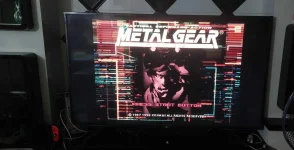
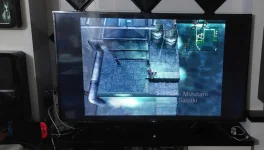
To do so, choose the Load option to navigate to the location where you copied the ROMs. In our case, it’s the “ROMS” folder and then select the zip file of the game you want to play, in this case, I am trying to install Metal gear solid which is present inside the download folder. Select Load archive and you are good to go.
5. Run ROMs and play
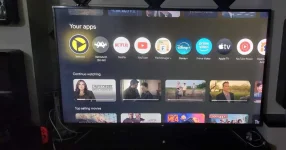
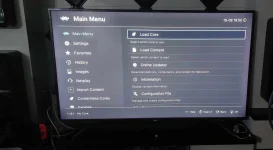
What is RetroArch?
RetroArch is a free and open-source, cross-platform frontend for emulators, game engines, video games, media players and other applications. It is the reference implementation of the libretro API, designed to be fast, lightweight, portable and without dependencies.It is licensed under the GNU GPLv3.
RetroArch runs programs converted into dynamic libraries called libretro cores, using several user interfaces such as command-line interface, a few graphical user interfaces optimized for gamepads, several input, audio and video drivers, plus other sophisticated features like dynamic rate control, audio filters, multi-pass shaders, netplay, gameplay rewinding, cheats, etc.
RetroArch has been ported to many platforms. It can run on several PC operating systems, home consoles, handheld consoles, smartphones, smart TV's, single-board computers and web browsers. Versions for PlayStation 4 and PlayStation 3 are not out yet, but are available unofficially (as of 1st April 2024.)
What will you need:
1. Google Chromecast
2. 4in1 Type C to HDMI PD USB 3.0 adapter 4K HDMI HUB docking station
3. Ofc TV with HDMI port
Procedure:
Download Retroarch on your Google play TV
RetroArch Apk:
You do not have permission to view the full content of this post. Log in or register now.
1. Download RetroArch
To get started, go to the Android play store on your device and search for RetroArch. Downloaded the app. RetroArch is an emulator which trick the retro games into thinking they are running on the classic console. Once downloaded open it.
As you open the app, you might or might not see a bit of pixelated and broken menu icons. To fix this, head to settings and use the update assets option to download remaining dependencies, you can also choose the update joypad profiles option, in case your gaming controller isn't responding.
2. Download ROMs
Next up, you need to download the ROMs of the games you want to play. ROMs, if you don’t already know, are the files that have the actual game compressed inside. NES or SNES ROMs are usually smaller: less than 10 MB. Now, we won't go into the whole process of downloading a ROM, you can google it or use other online tutorials. In general, you can get the ROM by ripping it from a cartridge of your old game.
Once you have the ROM, copy it to a thumb drive and insert the drive into your TV or Android TV box and you will find the ROMs inside.
You can also use any file manager app to access files which are present inside your thumb drive, or you can use any other file manager app you have installed. Once you copy the ROM, we need to paste in the Android TV internal storage. To do so, create a folder named “ROMS” just for the sake of convenience on your internal storage. Paste all your ROMs inside the ROMS folder and head back to RetroArch.
3. Download cores
Next up, you need to download a Core. A Core is an engine that helps RetroArch to emulate platform-specific games. For example, if you want to play Mario or Contra, you can need to download SNES or NES Core; similarly, for Gameboy games, you need a Core that supports Gameboy.
Now, how do you download those Cores? Well, it’s not as complicated as downloading a ROM.
All you have to do is open the RetroArch menu and click on Load Core. Once in, you will find all kinds of Cores required to play on various gaming platforms. For this instance, I’ll show how to play Contra on Android TV, so, I’ll download the SNES or NES Cores. Don’t worry, we’ll also mention the Cores I used in the description below.
4. Load ROMS
Once you are done downloading the Cores, you need to load your ROMs in it, that you downloaded earlier.
To do so, choose the Load option to navigate to the location where you copied the ROMs. In our case, it’s the “ROMS” folder and then select the zip file of the game you want to play, in this case, I am trying to install Metal gear solid which is present inside the download folder. Select Load archive and you are good to go.
5. Run ROMs and play