 PH
PH-
Welcome to PHCorner Forums! Sign up for free to unlock full access and exclusive privileges, including:
- Asking questions about computer and mobile issues
- Discovering internet tips for your mobile network and computer
You are using an out of date browser. It may not display this or other websites correctly.
You should upgrade or use an alternative browser.
You should upgrade or use an alternative browser.
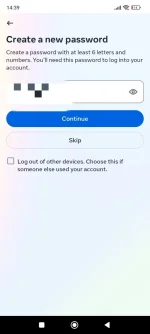
❓ Help Facebook Login May Problem Ba?
🤖
🤖
It's possible that the credentials saved in your Chrome browser are outdated or not updated after you reset your password. Here are some steps you can try to resolve the issue:
1. Clear Browser Data: Clear your browsing data in Chrome to remove any saved passwords or cookies that might be causing the issue.
- Go to Chrome Settings > Privacy and Security > Clear browsing data.
- Select the time range and check the boxes for passwords and cookies.
- Click on "Clear data" to remove the saved data.
2. Manually Enter Credentials: Instead of relying on saved passwords, manually enter your new credentials when logging in to Facebook on Chrome.
3. Update Saved Passwords: If you've saved your new password in Chrome, ensure that the correct credentials are saved. You can check and update saved passwords in Chrome settings.
- Go to Chrome Settings > Passwords.
- Search for Facebook and make sure the saved password is up to date.
4. Try Incognito Mode: Sometimes, extensions or settings in Chrome can interfere with login processes. Try logging in using Chrome's Incognito mode to see if the issue persists.
5. Check for Updates: Make sure your Chrome browser is up to date. An outdated browser version can sometimes cause login issues.
6. Contact Facebook Support: If the issue persists, you can reach out to Facebook support for further assistance. They may be able to provide specific troubleshooting steps tailored to your account.
By following these steps, you should be able to resolve the "invalid credentials" issue when logging in to Facebook on Chrome.
1. Clear Browser Data: Clear your browsing data in Chrome to remove any saved passwords or cookies that might be causing the issue.
- Go to Chrome Settings > Privacy and Security > Clear browsing data.
- Select the time range and check the boxes for passwords and cookies.
- Click on "Clear data" to remove the saved data.
2. Manually Enter Credentials: Instead of relying on saved passwords, manually enter your new credentials when logging in to Facebook on Chrome.
3. Update Saved Passwords: If you've saved your new password in Chrome, ensure that the correct credentials are saved. You can check and update saved passwords in Chrome settings.
- Go to Chrome Settings > Passwords.
- Search for Facebook and make sure the saved password is up to date.
4. Try Incognito Mode: Sometimes, extensions or settings in Chrome can interfere with login processes. Try logging in using Chrome's Incognito mode to see if the issue persists.
5. Check for Updates: Make sure your Chrome browser is up to date. An outdated browser version can sometimes cause login issues.
6. Contact Facebook Support: If the issue persists, you can reach out to Facebook support for further assistance. They may be able to provide specific troubleshooting steps tailored to your account.
By following these steps, you should be able to resolve the "invalid credentials" issue when logging in to Facebook on Chrome.
Similar threads
-
❓ Help May problem ba riot hindi makalog in eh? salamat
- Started by Jayveemasiddo
- Replies: 0
About this Thread
-
1Replies
-
956Views
-
1Participants
Last reply from:
Unknown user
Unknown user
New Topics
-
Globe at home postpaid modem
- Started by beudbdka
- Replies: 0
- 💬 Chitchat
-
PA HELP PO SA MGA MARUNONG SA TECH
- Started by Mina65
- Replies: 4
- 💬 Chitchat
-
May nakapag try na ba dito sa pinduoduo?
- Started by Solo21
- Replies: 2
- 💬 Chitchat
-
Mas Mabilis pa yung 4G kaysa 5G sa Area Namin
- Started by GoatPhomator666
- Replies: 1
- 💬 Chitchat
-
Sharp Samm Videoke
- Started by bossa_negra
- Replies: 0
- 💬 Chitchat
-
Looking or help sana thanks
- Started by tabalu
- Replies: 0
- 💬 Chitchat
-
Kamusta na ung Carziqo
- Started by Mar_007
- Replies: 3
- 💬 Chitchat
-
Anu maganda motor for low budget and low consumption lng sa gas
- Started by zenzenzens
- Replies: 3
- 💬 Chitchat
-
Huwag na i-Follow itong Fake Doctor sa Social Media
- Started by GoatPhomator666
- Replies: 2
- 💬 Chitchat
-
Awareness Para sa mga Baguhan dito sa Forum na Buyer
- Started by BossHabibi
- Replies: 26
- 💬 Chitchat
Trending Topics
Online now
- Members online
- 398
- Guests online
- 7,075
- Total visitors
- 7,473