 PH
PH-
Welcome to PHCorner Forums! Sign up for free to unlock full access and exclusive privileges, including:
- Asking questions about computer and mobile issues
- Discovering internet tips for your mobile network and computer
You are using an out of date browser. It may not display this or other websites correctly.
You should upgrade or use an alternative browser.
You should upgrade or use an alternative browser.
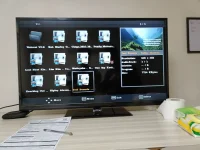
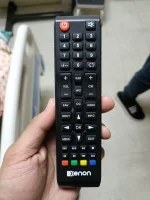
🖥️ Smart TV Help Xenon Led Tv, movie screen?
🤖
🤖
Hello! I'm sorry to hear that you're having trouble with playing a movie via USB on your Xenon LED TV at the hospital. It seems like you're experiencing issues with the aspect ratio and the full-screen display. Here are a few troubleshooting tips you can try:
1. Check Movie Format: Ensure that the movie file format is compatible with your TV. Xenon LED TVs typically support popular formats such as MP4, AVI, MKV, etc. If the format is not supported, the TV may have trouble displaying it properly.
2. Check USB Drive: Make sure that the USB drive is properly inserted into the TV and that the movie file is saved directly in the root directory of the USB drive. Sometimes, placing files in folders on the USB drive can cause playback issues.
3. Aspect Ratio Settings: In the TV settings, look for the aspect ratio or display settings. You can try adjusting the aspect ratio to match the source video. Common aspect ratios include 16:9 (widescreen) and 4:3 (standard). Selecting the correct aspect ratio should help fill the screen properly.
4. Zoom or Picture Size: Some TVs have options like Zoom or Picture Size that allow you to adjust how the video is displayed on the screen. You can try experimenting with these settings to see if you can get the movie to fill the screen properly.
5. TV Firmware Update: Check if there are any firmware updates available for your Xenon LED TV. Updating the TV's firmware can sometimes fix bugs or compatibility issues that may be causing the problem.
6. Reset TV Settings: As a last resort, you can try resetting the TV to its factory settings. This will revert all settings back to default, which may help resolve any issues causing the movie playback problem.
If none of these solutions work, it might be a good idea to consult the TV's user manual or contact Xenon's customer support for further assistance. I hope one of these tips helps you get the movie playing in full-screen properly. Best of luck!
1. Check Movie Format: Ensure that the movie file format is compatible with your TV. Xenon LED TVs typically support popular formats such as MP4, AVI, MKV, etc. If the format is not supported, the TV may have trouble displaying it properly.
2. Check USB Drive: Make sure that the USB drive is properly inserted into the TV and that the movie file is saved directly in the root directory of the USB drive. Sometimes, placing files in folders on the USB drive can cause playback issues.
3. Aspect Ratio Settings: In the TV settings, look for the aspect ratio or display settings. You can try adjusting the aspect ratio to match the source video. Common aspect ratios include 16:9 (widescreen) and 4:3 (standard). Selecting the correct aspect ratio should help fill the screen properly.
4. Zoom or Picture Size: Some TVs have options like Zoom or Picture Size that allow you to adjust how the video is displayed on the screen. You can try experimenting with these settings to see if you can get the movie to fill the screen properly.
5. TV Firmware Update: Check if there are any firmware updates available for your Xenon LED TV. Updating the TV's firmware can sometimes fix bugs or compatibility issues that may be causing the problem.
6. Reset TV Settings: As a last resort, you can try resetting the TV to its factory settings. This will revert all settings back to default, which may help resolve any issues causing the movie playback problem.
If none of these solutions work, it might be a good idea to consult the TV's user manual or contact Xenon's customer support for further assistance. I hope one of these tips helps you get the movie playing in full-screen properly. Best of luck!
About this Thread
-
1Replies
-
630Views
-
1Participants
Last reply from:
Unknown user
Unknown user
New Topics
-
NBA New Season Livestream: 10 Games
- Started by sweetvoice
- Replies: 1
- 📽️ Video Streaming
-
TENNIS: Alex Eala vs Shnaider
- Started by Master Sgt SandMan
- Replies: 0
- 📽️ Video Streaming
-
Heart of Asia on Streamfix
- Started by noahhh848
- Replies: 1
- 📽️ Video Streaming
-
PBB Dining Area & External Den
- Started by sachiboy
- Replies: 2
- 📽️ Video Streaming
-
Alex Eala vs. D. Shnaider
- Started by jamonix06
- Replies: 2
- 📽️ Video Streaming
-
NEW! Movie Download Site
- Started by joey the cockroach
- Replies: 2
- 📽️ Video Streaming
-
-
PBB All-Access Livestreams now on TOP 5 | Liveplay
- Started by buzzybees
- Replies: 5
- 📽️ Video Streaming
-
Antena Play IPTV Channels
- Started by Koliviasd
- Replies: 6
- 📽️ Video Streaming
Trending Topics
Online now
- Members online
- 998
- Guests online
- 4,799
- Total visitors
- 5,797