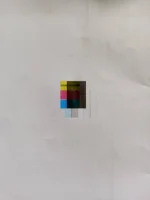
Hello! It seems like you are experiencing color issues when printing with your Epson L5290 printer. If performing head cleaning and power cleaning did not resolve the issue, you may try the following additional steps:
1. Check Ink Levels: Make sure that the ink levels are sufficient in all cartridges. Replace any low or empty cartridges.
2. Use Genuine Ink Cartridges: Ensure that you are using genuine Epson ink cartridges. Third-party or refilled cartridges may cause printing problems.
3. Check Print Settings: Verify that the print settings are correct. Make sure you have selected the appropriate paper type and print quality settings for your print job.
4. Update Printer Driver: Ensure that you have the latest printer driver installed on your computer. You can download the latest driver from the official Epson website.
5. Check for Software Updates: Update the printer's firmware if available. Firmware updates can sometimes improve print quality and performance.
6. Perform a Nozzle Check: Run a nozzle check to identify any clogged nozzles. If you notice any gaps or missing lines in the test pattern, you may need to perform a more thorough cleaning or seek professional assistance.
7. Contact Epson Support: If the issue persists after trying these steps, it is recommended to contact Epson support for further assistance. They may provide additional troubleshooting steps or recommend service options.
I hope these suggestions help you resolve the color issues with your Epson L5290 printer. Let me know if you need further assistance or have any other questions!
 PH
PH