 PH
PHPHC - Alimar23
Forum Veteran
SpeedTest using Termux


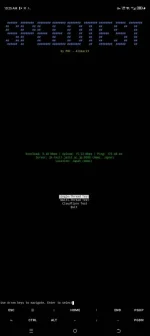
Step-by-step guide on how to use the provided script in Termux:
Prerequisites
1. Install Termux: Ensure you have Termux installed on your Android device.
2. Install Python: Make sure Python is installed in Termux.
3. Install Required Python Modules: You need to install the required Python modules (
Step-by-Step Guide
1. Prepare Your Directory
- Create a directory to store your scripts.
- Move the scripts (
2. Ensure Permissions
- Make sure the scripts have execution permissions.
3. Run the Menu Script
- Execute the
Using the Menu Interface
- Multi-Thread Test: Runs the general speed test script with multi-threading.
- Cloudflare Test: Runs the Cloudflare-specific speed test script.
- Quit: Exits the menu.
Example Execution
1. Start the Menu Script
2. Select an Option
- Use the arrow keys to navigate to
- The script will run and display the results in the center of the screen.
4. Quit
- Navigate to
Troubleshooting
1. Module Not Found Error: Ensure all required modules are installed.
2. Permission Denied: Ensure you have execution permissions for the scripts.
3. Network Issues: Check your internet connection if speed tests fail.
By following these steps, you should be able to run the speed test scripts seamlessly in Termux and view the results as intended. If you encounter any issues, comment down Paps.
You do not have permission to view the full content of this post. Log in or register now.
Step-by-step guide on how to use the provided script in Termux:
Prerequisites
1. Install Termux: Ensure you have Termux installed on your Android device.
2. Install Python: Make sure Python is installed in Termux.
Code:
    pkg update
    pkg upgrade
    pkg install python
3. Install Required Python Modules: You need to install the required Python modules (
speedtest-cli, requests, and curses).
Code:
pip install speedtest-cli requestsStep-by-Step Guide
1. Prepare Your Directory
- Create a directory to store your scripts.
- Move the scripts (
menu.py, general_speedtest.py, cloudflare_speedtest.py) into this directory.
Code:
    mkdir ~/speedtest_scripts
    mv /path/to/downloaded/scripts/* ~/speedtest_scripts/
    cd ~/speedtest_scripts/
2. Ensure Permissions
- Make sure the scripts have execution permissions.
Code:
chmod +x menu.py general_speedtest.py cloudflare_speedtest.py3. Run the Menu Script
- Execute the
menu.py script which will provide a menu interface to run the speed tests.
Code:
python menu.pyUsing the Menu Interface
- Navigation: Use the arrow keys to navigate through the menu options.
- Select: Press
Enterto select an option. - Menu Options:
- Multi-Thread Test: Runs the general speed test script with multi-threading.
- Cloudflare Test: Runs the Cloudflare-specific speed test script.
- Quit: Exits the menu.
Example Execution
1. Start the Menu Script
Code:
python menu.py2. Select an Option
- Use the arrow keys to navigate to
Single-Thread Test, Multi-Thread Test and Cloudflare Test and press Enter.- The script will run and display the results in the center of the screen.
4. Quit
- Navigate to
Quit and press Enter to exit the menu.Troubleshooting
1. Module Not Found Error: Ensure all required modules are installed.
Code:
pip install speedtest-cli requests curses2. Permission Denied: Ensure you have execution permissions for the scripts.
Code:
chmod +x menu.py general_speedtest.py cloudflare_speedtest.py3. Network Issues: Check your internet connection if speed tests fail.
By following these steps, you should be able to run the speed test scripts seamlessly in Termux and view the results as intended. If you encounter any issues, comment down Paps.
You do not have permission to view the full content of this post. Log in or register now.
