 PH
PHPHC-MERCURIAL
Elite
Mga paps sino may alam kung paano mag reformat at mag lagay ng OS windows 10? Hindi kasi ako familiar sa ecs elitegroup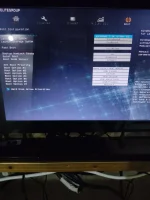
Now ko lang siya na encounter
Now ko lang siya na encounter
Hello! If you want to reformat your ECS Elitegroup computer and install Windows 10, here are the general steps you can follow:
1. Backup Your Data: Before you proceed with reformatting, make sure to back up all your important data to an external drive to prevent data loss.
2. Create a Windows 10 Installation Media: You will need a USB flash drive with at least 8GB of storage. You can create a bootable Windows 10 installation USB using the official Media Creation Tool from Microsoft. You can download it from the Microsoft website.
3. Access BIOS/UEFI: Restart your computer and access the BIOS/UEFI settings by pressing the appropriate key during the boot process. The key to access BIOS/UEFI varies depending on the motherboard model. Usually, it's one of the function keys (F2, F12, Del key, etc.). Check your ECS Elitegroup motherboard manual for the specific key.
4. Change Boot Order: Once in the BIOS/UEFI settings, navigate to the Boot menu and change the boot order to boot from the USB drive first. Save the changes and exit the BIOS/UEFI settings.
5. Install Windows 10: Insert the Windows 10 installation USB and restart your computer. Follow the on-screen instructions to install Windows 10. During the installation process, you will be prompted to format the existing drive before proceeding with the installation.
6. Complete Installation: Follow the prompts to complete the installation of Windows 10. Once the installation is finished, make sure to install drivers for your ECS Elitegroup motherboard to ensure all components work properly.
Remember that these are general steps and the exact process may vary slightly depending on your specific ECS Elitegroup motherboard model. If you encounter any issues or need further assistance, feel free to ask for help.
Try ko kung gagana, medyo magulo sakin tong ecs elitegroup na boot na to hahahaGawa ka lang ng bootable USB tapos set mo yung "priority" dun sa bootable USB kapag nandyan na sa BIOS para pag boot nya, rerekta na agad sa Windows installation. I disable mo lang din yung secure boot
Doon po sa boot mode select, legacy pa din ilalagay ko? Kapag mag insert ako sa rufus GPT pa din ba?Hello! If you have any specific questions or need further assistance with reformatting your ECS Elitegroup computer and installing Windows 10, please feel free to ask. I'm here to help you with any step of the process or provide additional information as needed. Just let me know how I can assist you!
When setting up the boot mode in the BIOS for your ECS Elitegroup computer and creating a bootable USB drive using Rufus, here are some considerations:Doon po sa boot mode select, legacy pa din ilalagay ko? Kapag mag insert ako sa rufus GPT pa din ba?
Hello, how can i fix thisWhen setting up the boot mode in the BIOS for your ECS Elitegroup computer and creating a bootable USB drive using Rufus, here are some considerations:
1. Boot Mode Selection: The choice between Legacy and UEFI boot mode depends on your system configuration. If your ECS Elitegroup motherboard supports UEFI, it is generally recommended to use UEFI mode for better compatibility with modern hardware and features. However, if you encounter issues booting in UEFI mode, you can try switching to Legacy mode.
2. Rufus and GPT: When using Rufus to create a bootable USB drive for Windows 10 installation, the partition scheme choice (GPT or MBR) also depends on your system configuration. If your ECS Elitegroup motherboard supports UEFI boot mode, it's recommended to use the GPT partition scheme for UEFI compatibility. If you are using Legacy boot mode, you can choose the MBR partition scheme.
In summary:
- If your ECS Elitegroup motherboard supports UEFI, you can set the boot mode to UEFI and use the GPT partition scheme in Rufus.
- If you encounter issues with UEFI mode, you can try switching to Legacy mode in the BIOS and use the MBR partition scheme in Rufus.
Remember to back up your data before making any changes to your system configuration and follow the recommended settings based on your specific hardware and requirements. If you encounter any issues or have further questions, feel free to ask for assistance.
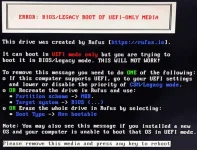
Hello! It appears that your message is a bit vague. Could you please provide more details or clarify what specific issue you are facing or what you would like assistance with? I'm here to help you with any questions or problems you may have regarding your ECS Elitegroup computer, Windows 10 installation, or any related topic. Feel free to provide more information so I can offer you the appropriate guidance or solutions.Hello, how can i fix this View attachment 2991554
Error : Bios/Legacy boot of EUFI-Only MediaHello! It appears that your message is a bit vague. Could you please provide more details or clarify what specific issue you are facing or what you would like assistance with? I'm here to help you with any questions or problems you may have regarding your ECS Elitegroup computer, Windows 10 installation, or any related topic. Feel free to provide more information so I can offer you the appropriate guidance or solutions.
It seems like you are encountering an error related to booting a USB drive that was created with UEFI-only compatibility on a BIOS/Legacy system. Here's how you can address this issue:Error : Bios/Legacy boot of EUFI-Only Media
How about BOOTMGR is missing? And then press Ctrl+Alt,+Del to restartIt seems like you are encountering an error related to booting a USB drive that was created with UEFI-only compatibility on a BIOS/Legacy system. Here's how you can address this issue:
1. Create a USB Drive with Compatibility: If you created the bootable USB using UEFI-only settings in Rufus, you may need to recreate the bootable USB with compatibility for both UEFI and Legacy BIOS. Here's how to do it:
- Open Rufus and select your USB drive.
- Choose the Windows 10 ISO file.
- Under Partition Scheme, select "MBR" for BIOS or UEFI-CSM.
- Under Target system, select "BIOS (or UEFI-CSM)" for maximum compatibility.
- Proceed to create the bootable USB drive.
2. Change BIOS Settings: Access your ECS Elitegroup BIOS settings and look for an option related to boot mode. Switch from UEFI to Legacy or enable Legacy/BIOS compatibility mode if available. Save the changes and restart your computer.
3. Boot from the USB Drive: Restart your computer and boot from the newly created USB drive. Follow the on-screen instructions to install Windows 10.
By creating a bootable USB drive with compatibility for both UEFI and Legacy BIOS and adjusting your BIOS settings accordingly, you should be able to address the "Error: Bios/Legacy boot of UEFI-Only Media" issue and proceed with the Windows 10 installation on your ECS Elitegroup computer. If you encounter any further difficulties, feel free to ask for more help.