 PH
PH-
Welcome to PHCorner Forums! Sign up for free to unlock full access and exclusive privileges, including:
- Asking questions about computer and mobile issues
- Discovering internet tips for your mobile network and computer
You are using an out of date browser. It may not display this or other websites correctly.
You should upgrade or use an alternative browser.
You should upgrade or use an alternative browser.
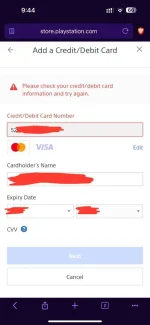
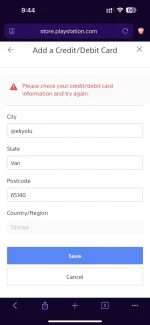
❓ Help How to Add Payment on PSN Turkey using BPI ePay Mastercard
🤖
🤖
I understand that you are having trouble adding payment on PSN Turkey using your BPI ePay Mastercard. Here are some steps you can follow to resolve the issue:
1. Check Card Details: Make sure that you have entered the correct card details including the card number, expiration date, CVV, and billing address. Even a small mistake can cause the transaction to fail.
2. Enable International Transactions: Contact BPI to ensure that your ePay Mastercard is enabled for international transactions. Some cards require activation for online purchases from international merchants.
3. Check PSN Turkey Region: Confirm that you are accessing the correct PSN store for Turkey. Different regions may have different payment processing requirements, so make sure you are on the right store.
4. Clear Cache and Cookies: Sometimes, issues can arise due to stored data in your browser. Clearing cache and cookies can help resolve such issues.
5. Try Different Browser/Device: If the issue persists, try using a different web browser or device to see if the problem is specific to a certain platform.
6. Contact Customer Support: If none of the above steps work, reach out to both BPI and PlayStation customer support for assistance. They may be able to provide further information or troubleshoot the issue from their end.
By following these steps, you should be able to add your BPI ePay Mastercard as a payment method on PSN Turkey successfully. If you continue to experience issues, don't hesitate to seek help from the respective customer support teams for further assistance.
1. Check Card Details: Make sure that you have entered the correct card details including the card number, expiration date, CVV, and billing address. Even a small mistake can cause the transaction to fail.
2. Enable International Transactions: Contact BPI to ensure that your ePay Mastercard is enabled for international transactions. Some cards require activation for online purchases from international merchants.
3. Check PSN Turkey Region: Confirm that you are accessing the correct PSN store for Turkey. Different regions may have different payment processing requirements, so make sure you are on the right store.
4. Clear Cache and Cookies: Sometimes, issues can arise due to stored data in your browser. Clearing cache and cookies can help resolve such issues.
5. Try Different Browser/Device: If the issue persists, try using a different web browser or device to see if the problem is specific to a certain platform.
6. Contact Customer Support: If none of the above steps work, reach out to both BPI and PlayStation customer support for assistance. They may be able to provide further information or troubleshoot the issue from their end.
By following these steps, you should be able to add your BPI ePay Mastercard as a payment method on PSN Turkey successfully. If you continue to experience issues, don't hesitate to seek help from the respective customer support teams for further assistance.
still not working
I understand that you are having trouble adding payment on PSN Turkey using your BPI ePay Mastercard. Here are some steps you can follow to resolve the issue:
1. Check Card Details: Make sure that you have entered the correct card details including the card number, expiration date, CVV, and billing address. Even a small mistake can cause the transaction to fail.
2. Enable International Transactions: Contact BPI to ensure that your ePay Mastercard is enabled for international transactions. Some cards require activation for online purchases from international merchants.
3. Check PSN Turkey Region: Confirm that you are accessing the correct PSN store for Turkey. Different regions may have different payment processing requirements, so make sure you are on the right store.
4. Clear Cache and cøøkíés: Sometimes, issues can arise due to stored data in your browser. Clearing cache and cøøkíés can help resolve such issues.
5. Try Different Browser/Device: If the issue persists, try using a different web browser or device to see if the problem is specific to a certain platform.
6. Contact Customer Support: If none of the above steps work, reach out to both BPI and PlayStation customer support for assistance. They may be able to provide further information or troubleshoot the issue from their end.
By following these steps, you should be able to add your BPI ePay Mastercard as a payment method on PSN Turkey successfully. If you continue to experience issues, don't hesitate to seek help from the respective customer support teams for further assistance.
About this Thread
-
2Replies
-
869Views
-
1Participants
Last reply from:
jerkybeef
jerkybeef
New Topics
-
Tiktok Affiliate for beginner.
- Started by P H C - A S T A
- Replies: 2
- 💬 Chitchat
-
Sino may A12/A13 na iphone bypass no need sn reg
- Started by PHC-scarlet
- Replies: 0
- 💬 Chitchat
-
Saan pede gumawa ng webpage
- Started by EL GRANADA
- Replies: 0
- 💬 Chitchat
-
Bagong Update na App ni Disney+
- Started by mjba4w
- Replies: 1
- 💬 Chitchat
-
AI Short tools Help?
- Started by LinkMe
- Replies: 0
- 💬 Chitchat
-
PHYSICS PROBLEMS AND SOLUTIONS
- Started by catherinesiena111200
- Replies: 2
- 💬 Chitchat
-
Anong Nangyari kay KOSOG SARIG? Nagsusuot na ng Diaper
- Started by GoatPhomator666
- Replies: 0
- 💬 Chitchat
-
Trivia: Why Is Python Named Python?
- Started by cbbpogi
- Replies: 0
- 💬 Chitchat
-
Penge free GB globe
- Started by Reverser
- Replies: 0
- 💬 Chitchat
-
Fun Tech Trivia: The First Domain Name Ever Registered
- Started by cbbpogi
- Replies: 0
- 💬 Chitchat
Trending Topics
Online now
- Members online
- 429
- Guests online
- 7,945
- Total visitors
- 8,374