 PH
PHEveryone has a different style of learning, but one thing we all need is SQL hands-on practice. It is one thing to read about
Plus, the ability to stimulate real-world scenarios allows you to practice SQL for job-specific conditions, making you better prepared for the professional world. Looking for a job in e-commerce? Set up your database with an order table, a customer table, and a product table. Interested in a career in finance? Great! Create a table for accounts receivable and another for accounts payable. The flexibility in creating your own database is unmatched by other ways to practice SQL.
If setting up a database sounds intimidating to you, don’t worry! It is very simple in practice. Different databases have different nuances. We won’t spend time here explaining them, but you can learn more about some of the most popular databases in 2023 in this article.
A Step-by-Step Guide to Setting up Your SQL Database
Step 1: Install Required Software
The first thing you need to do is to download a database tool. One that I use that works on Windows, Linux, and Mac is DBeaver, which may be downloaded You do not have permission to view the full content of this post. Log in or register now.. Best of all, it’s free!
Want some other tool?
Best SQL IDEs
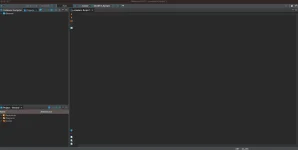
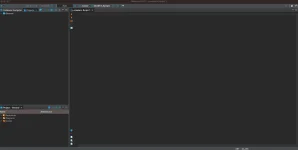
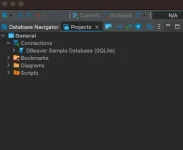
Once you’ve downloaded and installed the software, launch the application. You should see a screen that looks like this:
Step 2: Create a SQL Database
In the top toolbar, click on “Help” and then “Create Sample Database.” You then see a prompt asking if you would like to create a sample database. Click “Yes.”

You should now see a sample database listed under your connections under the Database Navigator panel.
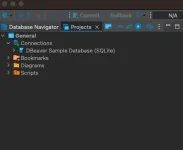
This sample database comes with already created tables and views you can query immediately.
Step 3: Create Custom Tables
Let’s go back to our example of practicing with e-commerce data. I’m going to rename my database to
To create a new table for
CODE
You can now run
CODE
Now, you will see your new data when you run a

Step 4: Import Data From CSVs
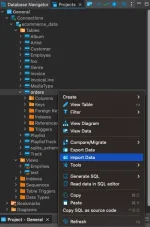
Inserting individual rows of data is tedious depending on how much data you want to set up in your database. Another option is to import whole CSV files rather than writing
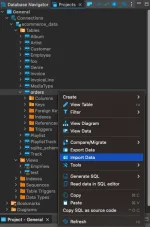
From here, select a CSV from your computer to upload. If you do not see your table listed under your sample database, right-click on the database name and click “Refresh.” You should then see the newly created tables.
There you have it! Your own database to practice SQL.
If you’re unsure about creating your own data, you can also find several resources online with public datasets for download. You can then import these files into your database. A good, clean data set often used is the You do not have permission to view the full content of this post. Log in or register now.
. This Excel sheet includes 3 separate tabs to create 3 tables of store purchase data.
Practice Queries
The questions below use the
Example 1: What is the distinct count of customers?
For this example, we only need to query the
CODE
This query counts the number of unique
Example 2: What is the average number of invoices per customer?
To answer this question, use the
CODE
At a glance, it looks like most customers have 6 or 7 invoices. Let’s calculate the average across all customer IDs by placing the above in a subquery and calculating the average:
CODE
The query returns 6.98 invoices, on average, for each customer.
These examples are just to get you started. Get familiar with what data lives in each table and how the tables relate to one another. Then, begin asking yourself questions and creating hypotheses. Finally, begin exploring the data by writing queries to answer those questions and test your hypotheses.
A great resource to reference is our You do not have permission to view the full content of this post. Log in or register now.. This is a curated list of SQL commands to help you get started. Once you get started, it’ll be hard to stop!


SELECT statements, JOINS, and GROUP BY clauses, but it is an entirely different experience to use them in queries and see the results.Why You Need Your Own Database for Practice
When you have your own database, you get the freedom to customize it however you want, from the table structure to the actual data it houses. You can create real-world scenarios tailored to your learning objectives. Your data stays with you, and you may explore and even make mistakes, without any judgment or fear of breaking something.Plus, the ability to stimulate real-world scenarios allows you to practice SQL for job-specific conditions, making you better prepared for the professional world. Looking for a job in e-commerce? Set up your database with an order table, a customer table, and a product table. Interested in a career in finance? Great! Create a table for accounts receivable and another for accounts payable. The flexibility in creating your own database is unmatched by other ways to practice SQL.
If setting up a database sounds intimidating to you, don’t worry! It is very simple in practice. Different databases have different nuances. We won’t spend time here explaining them, but you can learn more about some of the most popular databases in 2023 in this article.
A Step-by-Step Guide to Setting up Your SQL Database
Step 1: Install Required Software
The first thing you need to do is to download a database tool. One that I use that works on Windows, Linux, and Mac is DBeaver, which may be downloaded You do not have permission to view the full content of this post. Log in or register now.. Best of all, it’s free!
Want some other tool?
Best SQL IDEs
- Adminer
- DBeaver
- DbVisualizer
- HeidiSQL
- Microsoft SQL Server Management Studio E×ρréšš
- MySQL Workbench
- Oracle SQL Developer
- RazorSQL
- SQuirrel SQL
- Toad for SQL Server
- Valentina Studio
Once you’ve downloaded and installed the software, launch the application. You should see a screen that looks like this:
Step 2: Create a SQL Database
In the top toolbar, click on “Help” and then “Create Sample Database.” You then see a prompt asking if you would like to create a sample database. Click “Yes.”
You should now see a sample database listed under your connections under the Database Navigator panel.
This sample database comes with already created tables and views you can query immediately.
Step 3: Create Custom Tables
Let’s go back to our example of practicing with e-commerce data. I’m going to rename my database to
ecommerce_data by right-clicking on the database name and selecting “rename.”To create a new table for
orders, we execute a CREATE TABLE statement. In this statement, we define the table name of orders and then define the column names and the data types.CODE
CREATE TABLE orders (order_id varchar(255),customer_id varchar(255),order_date date,price decimal,quantity int,shipping decimal,tax decimal,total_order_amount decimal)You can now run
SELECT * FROM orders, but you will see an empty table. The next step is to insert rows into this table using an INSERT statement.CODE
INSERT into ordersVALUES ('12345','654321', '2024-07-01', 20.00, 1, 3.99, 1.75, 25.74)Now, you will see your new data when you run a
SELECT statement.Step 4: Import Data From CSVs
Inserting individual rows of data is tedious depending on how much data you want to set up in your database. Another option is to import whole CSV files rather than writing
INSERT statements. To do this, right-click on the table name under your sample database and select “Import Data.”From here, select a CSV from your computer to upload. If you do not see your table listed under your sample database, right-click on the database name and click “Refresh.” You should then see the newly created tables.
There you have it! Your own database to practice SQL.
If you’re unsure about creating your own data, you can also find several resources online with public datasets for download. You can then import these files into your database. A good, clean data set often used is the You do not have permission to view the full content of this post. Log in or register now.
. This Excel sheet includes 3 separate tabs to create 3 tables of store purchase data.
Practice Queries
The questions below use the
customer and invoice tables in the DBeaver sample databaseExample 1: What is the distinct count of customers?
For this example, we only need to query the
customer table. Use COUNT() and DISTINCT to answer this question.CODE
select count(distinct CustomerId)from customerThis query counts the number of unique
CustomerIds in the customer table.Example 2: What is the average number of invoices per customer?
To answer this question, use the
invoice table and create a list of all customer IDs with how many invoices each has.CODE
select CustomerId, count(distinct invoiceId) as invoicesfrom invoicegroup by 1At a glance, it looks like most customers have 6 or 7 invoices. Let’s calculate the average across all customer IDs by placing the above in a subquery and calculating the average:
CODE
select avg(invoices)from (select CustomerId, count(distinct invoiceId) as invoicesfrom invoicegroup by 1)The query returns 6.98 invoices, on average, for each customer.
These examples are just to get you started. Get familiar with what data lives in each table and how the tables relate to one another. Then, begin asking yourself questions and creating hypotheses. Finally, begin exploring the data by writing queries to answer those questions and test your hypotheses.
A great resource to reference is our You do not have permission to view the full content of this post. Log in or register now.. This is a curated list of SQL commands to help you get started. Once you get started, it’ll be hard to stop!
