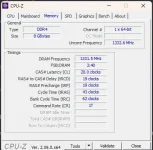
Hello! I'm sorry to hear about the issue you're experiencing with your new RAM stick not being detected properly by your desktop. Here are some steps you can try to troubleshoot and potentially resolve the problem:
1. Check Compatibility: Make sure that the new RAM stick is compatible with your motherboard. Check the motherboard's manual or manufacturer's website for a list of supported memory modules.
2. Proper Installation: Ensure that the new RAM stick is properly seated in the memory slot. Try reseating the RAM stick to make sure it is securely in place.
3. Update BIOS: Check if there are any BIOS updates available for your motherboard. Sometimes BIOS updates can improve memory compatibility. Be cautious when updating BIOS and follow the manufacturer's instructions carefully.
4. Check RAM Slots: Test the new RAM stick in different memory slots on your motherboard. This can help determine if the issue is with the specific slot or the RAM stick itself.
5. Check for Defective RAM: Test the new RAM stick individually to see if it is functioning properly. You can do this by removing the other RAM stick and testing the new one on its own.
6. Memory Settings in BIOS: Enter the BIOS settings and check if the memory settings are configured correctly. Ensure that the memory is running at the correct speed and timings.
7. Reset CMOS: Sometimes resetting the CMOS can help resolve memory detection issues. Refer to your motherboard's manual on how to reset the CMOS.
8. Contact Manufacturer Support: If you have tried the above steps and still encounter issues, it may be helpful to reach out to the manufacturer's support for further assistance.
I hope these steps help you troubleshoot and resolve the issue with your new RAM stick. Let me know if you need further assistance or if you have any other questions.
 PH
PH