PH
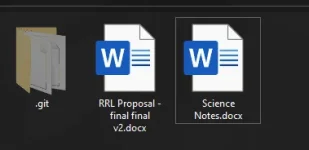
PHNaranasan nyo na ba gumagawa kayo reports tapos merong daming revisions kahit final na? Merong solusyon dyan! Think like a programmer!
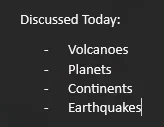
Kagaya nito:
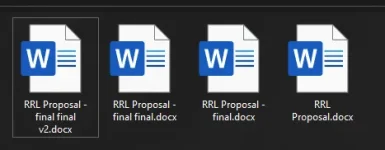
Ang tool lang na dapat mo gamitin ay Git!
Pero bakit Git? Diba para lang yun sa mga programmers? Nope! Pwede rin yun sa mga general use case kagaya ng paggawa sa mga research papers, project reports, mga notes, at iba pa.
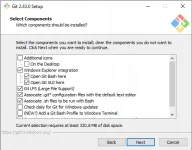
Next, install git.
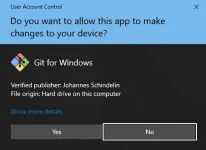
Click Yes
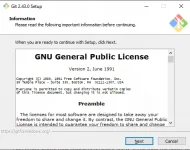
Click Next
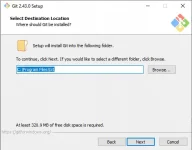
Click Next
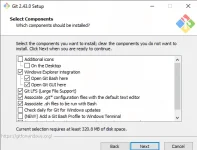
Click Next
Click Next
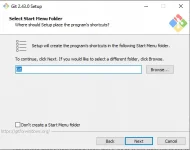
Select Use Notepad++ as Git's default editor. Click Next
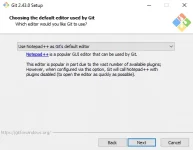
Click Next
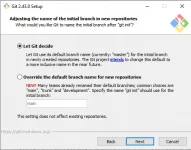
Click Next
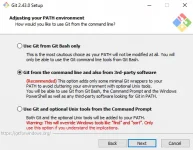
Click Next
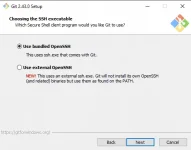
Click Next
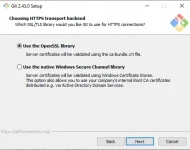
Click Next
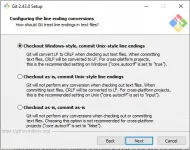
Click Next
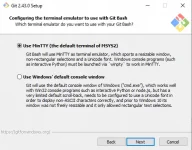
Click Next
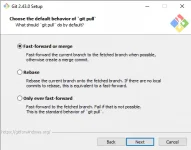
Click Next
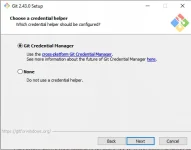
Click Next
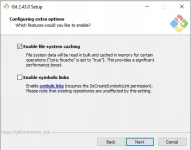
Click Install
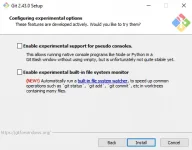
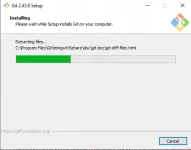
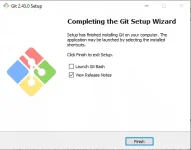
Pagkatapos ng install, click Finish.
Next step is install Notepad++ (check References).
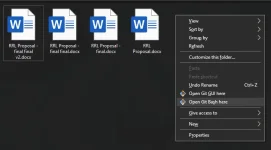
Go to your documents, then right click and select Open Git Bash Here:
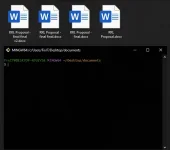
Dapat ito yung makita mo:
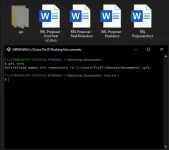
Dapat may makita ka na hidden folder: .git
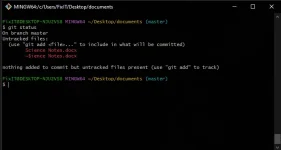
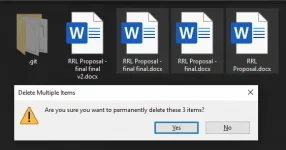
2. Delete mo yung useless files mo! Then check gamit git status.
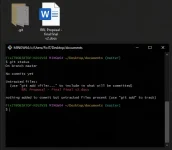
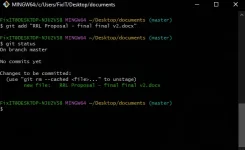
3. Add mo yung files mo for tracking with git add "RRL Proposal - final fina v2.docx"
Dapat makita mo yung files mo ay naka kulay GREEN after add as new file thru git status
4. Try mo mag git commit, kapag ito ang lalabas, set mo lang yung config mo:
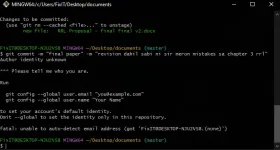
Config Commands:
dapat yung gamitin mong email and username ay sa IYO!
pwede any email lang for now as long as alam ni git sino ang nag commit.
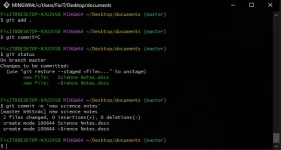
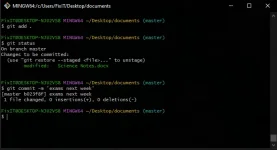
Dapat ito yung lalabas after mo set sa config and commit:
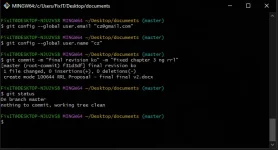
And then tapos kana mag save ng progress mo!
What if ma delete yung file mo? Easy lang!
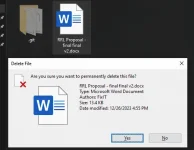
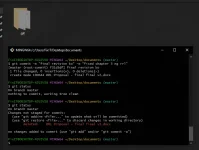
Check your files with git status for any changes, tapos if may makita ka na deleted. Pwede mo pa rin yan ma restore with git restore .
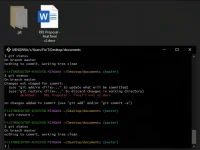
BOOM! Bumalik yung files mo!
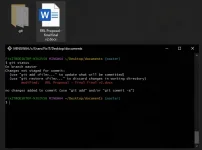
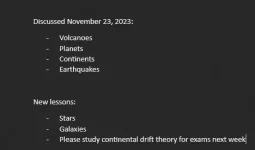
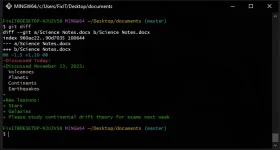
Makita mo na may merong modified ang iyong file.
Proceed ka sa mga steps:
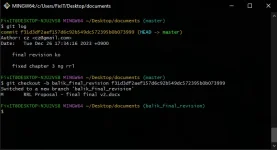
1. git log
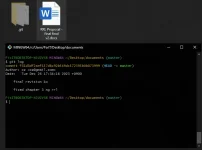
makita mo sa taas ay ang commit is f31d3df2aef15...etc. yun ang gamitin pang change to older version na commit at pwede ka din doon mag modify ng bago mong versions
2. use git checkout -b <title ng branch name mo> <commit>
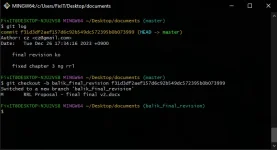
Pagkatapos nyan, na restore na ang iyong file!
BONUS:
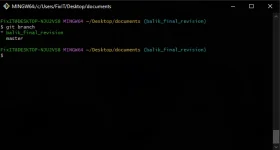
Use git branch para ilista yung mga branches (different versions ng files mo) then use git checkout <branch name>
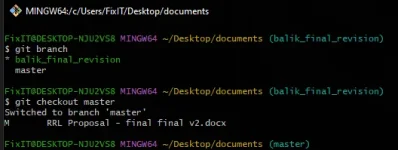
Makita din mo beside (right side) sa directory yung current branch. From balik_final_revision to master
Commands:
References:
FIND MORE EXAMPLES SA COMMENTS
Kagaya nito:
Ang tool lang na dapat mo gamitin ay Git!
Pero bakit Git? Diba para lang yun sa mga programmers? Nope! Pwede rin yun sa mga general use case kagaya ng paggawa sa mga research papers, project reports, mga notes, at iba pa.
Installation Steps
First, Download GIT.Next, install git.
Click Yes
Click Next
Click Next
Click Next
Click Next
Select Use Notepad++ as Git's default editor. Click Next
Click Next
Click Next
Click Next
Click Next
Click Next
Click Next
Click Next
Click Next
Click Next
Click Install
Pagkatapos ng install, click Finish.
Next step is install Notepad++ (check References).
Go to your documents, then right click and select Open Git Bash Here:
Dapat ito yung makita mo:
How TO USE?
1. Initalize yung repository: git initDapat may makita ka na hidden folder: .git
2. Delete mo yung useless files mo! Then check gamit git status.
3. Add mo yung files mo for tracking with git add "RRL Proposal - final fina v2.docx"
Dapat makita mo yung files mo ay naka kulay GREEN after add as new file thru git status
4. Try mo mag git commit, kapag ito ang lalabas, set mo lang yung config mo:
Config Commands:
git config --global user.email "phcorner_user@gmail.comgit config --global user.name "phcorner_learner"dapat yung gamitin mong email and username ay sa IYO!
pwede any email lang for now as long as alam ni git sino ang nag commit.
Dapat ito yung lalabas after mo set sa config and commit:
And then tapos kana mag save ng progress mo!
What if ma delete yung file mo? Easy lang!
Check your files with git status for any changes, tapos if may makita ka na deleted. Pwede mo pa rin yan ma restore with git restore .
BOOM! Bumalik yung files mo!
What if merong kang bagong changes sa file?
Easy lang, proceed ka lang sa same steps sa taas.Makita mo na may merong modified ang iyong file.
Proceed ka sa mga steps:
- git add .
- git commit -m "bagong changes" -m "merong spelling at grammar mistakes sa paragraph 4 ng chapter 3"
What if gusto mo magswitch to previous version ng file?
Hindi gangana yung git restore since para lang yan sa mga modified changes na wala pa na commit. Ang pwede mong gawin ay mag git log ka tapos git restore to the commit. Ito yung steps:1. git log
makita mo sa taas ay ang commit is f31d3df2aef15...etc. yun ang gamitin pang change to older version na commit at pwede ka din doon mag modify ng bago mong versions
2. use git checkout -b <title ng branch name mo> <commit>
Pagkatapos nyan, na restore na ang iyong file!
BONUS:
Use git branch para ilista yung mga branches (different versions ng files mo) then use git checkout <branch name>
Makita din mo beside (right side) sa directory yung current branch. From balik_final_revision to master
Commands:
- Create new repository:
git init - Add new file:
git add <filename> - Add all files:
git add . - New branch:
git checkout -b <branch_name> - Switch branch:
git branch <branch_name> - Check status:
git status - Commit:
git commit -m <title> -m <description> - Restore file changes to original:
git restore <file>
References:
- Git: You do not have permission to view the full content of this post. Log in or register now.
- Notepad++You do not have permission to view the full content of this post. Log in or register now.:
FIND MORE EXAMPLES SA COMMENTS