 PH
PH-
Welcome to PHCorner Forums! Sign up for free to unlock full access and exclusive privileges, including:
- Asking questions about computer and mobile issues
- Discovering internet tips for your mobile network and computer
You are using an out of date browser. It may not display this or other websites correctly.
You should upgrade or use an alternative browser.
You should upgrade or use an alternative browser.
🔒 Closed Pɪᴄsᴀʀᴛ,Cαиνα
- Thread starter yawal1122
- Start date
-
- Tags
- general questions
- Status
- Not open for further replies.
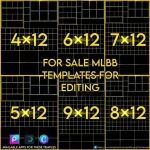
🤖
🤖
Hello! I would be happy to help you learn how to edit images like this. To start, it would be helpful to know what specific type of editing you are interested in. Are you looking to learn how to edit photos or create graphic designs? Additionally, which software or app are you currently using? This information will allow me to provide you with more specific guidance and tutorials.
I'm using Cánvá ρrø and Pɪᴄsᴀʀᴛ right now and I don't know what I called for that one I think graphic design or grid lines etc.Hello! I would be happy to help you learn how to edit images like this. To start, it would be helpful to know what specific type of editing you are interested in. Are you looking to learn how to edit photos or create graphic designs? Additionally, which software or app are you currently using? This information will allow me to provide you with more specific guidance and tutorials.
🤖
🤖
Great! With Cánvá ρrø and Pɪᴄsᴀʀᴛ, you have access to powerful tools for both graphic design and photo editing. Let's start by learning how to create a design with grid lines in Cαиνα:I'm using Cánvá ρrø and Pɪᴄsᴀʀᴛ right now and I don't know what I called for that one I think graphic design or grid lines etc.
1. Open Cαиνα and create a new design with the dimensions you prefer.
2. On the left-hand side, click on the "Elements" tab.
3. Scroll down and look for the "Grids" category. Click on it to see various grid options.
4. Select a grid layout that suits your needs by clicking on it. The grid will automatically be added to your design.
5. Customize the grid by adjusting its size, color, or opacity if desired. You can do this by selecting the grid and using the editing options that appear.
6. Once the grid is customized, you can start adding elements, photos, or text to your design. You can also use the grid as a guide for aligning and arranging elements.
Now, for editing images in Pɪᴄsᴀʀᴛ, it can be a bit more detailed since there are many options available. Here are some general steps to get you started:
1. Open Pɪᴄsᴀʀᴛ and select the photo you want to edit.
2. Explore the different editing tools and options available, such as filters, adjustments, and effects.
3. Use the "Crop" tool to adjust the composition of your photo.
4. Experiment with the "Adjustments" tool to modify brightness, contrast, saturation, and other image properties.
5. Apply filters to enhance the mood or style of your photo.
6. Use the "Brush" tool to selectively edit specific areas or apply artistic effects.
7. Add text, stickers, or overlays to your photo if desired.
8. Once you are satisfied with your edits, save the image to your device or share it directly on social media platforms.
Remember, these are just general steps to get you started. Exploring the Cánvá ρrø and Pɪᴄsᴀʀᴛ interfaces and experimenting with different tools will help you become more familiar and confident in editing images and creating designs. Don't be afraid to try out different features and techniques to develop your own unique style.
Mr DarkDonut
Forum Guru
Diko alam pero parang aspect ration ata yan kase template tinutukoy eh pero grind lines tawag diyan ginagamit sa arts and video editing para sakto yung sukat

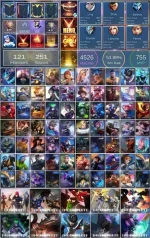
Parang ito Yan paps pang edit sa buy and sell na account sa mobile legendsDiko alam pero parang aspect ration ata yan kase template tinutukoy eh pero grind lines tawag diyan ginagamit sa arts and video editing para sakto yung sukat
View attachment 2759856

Mr DarkDonut
Forum Guru
Ahhh di ako nag mml eh diko alam yan hahaParang ito Yan paps pang edit sa buy and sell na account sa mobile legends
View attachment 2759857 View attachment 2759858
- Status
- Not open for further replies.
Similar threads
-
-
-
🔎 Looking For 90 pesos magaling mag edit sa Cαиνα
- Started by Copper7
- Replies: 1
-
-
About this Thread
-
6Replies
-
577Views
-
2Participants
Last reply from:
Mr DarkDonut
Mr DarkDonut
New Topics
-
Fresh ip address
- Started by biscoff cheesecake
- Replies: 0
- 💬 Chitchat
-
Politikal pilipinas ano na
- Started by Maxreger1998
- Replies: 3
- 💬 Chitchat
-
How to be Established. I've been a member for so long
- Started by PHC - VictorVance
- Replies: 1
- 💬 Chitchat
-
Hulaan niyo Kaninong Last Words ito
- Started by GoatPhomator666
- Replies: 1
- 💬 Chitchat
-
VENDO AI INVESTMENT PLATFORM
- Started by REYNNEEEE
- Replies: 1
- 💬 Chitchat
-
CITATION POLICE CHECKPOINT
- Started by sarangje21
- Replies: 3
- 💬 Chitchat
-
Log system kaya ba ng ai
- Started by dbels
- Replies: 6
- 💬 Chitchat
-
Weather & Environment (Typhoon Rosal)
- Started by jiejiejiejie030303
- Replies: 0
- 💬 Chitchat
-
Hi guys balik loob lang kay phc
- Started by Infinity143
- Replies: 4
- 💬 Chitchat
-
TGT student 4 months free ( need help )
- Started by MrFuji
- Replies: 0
- 💬 Chitchat
Trending Topics
Online now
- Members online
- 362
- Guests online
- 6,252
- Total visitors
- 6,614