 PH
PHPHC - plokplok
┌∩∩∩┐(◣_◢)┌∩∩∩┐
Let's say you have files in Virtual Space like GBox / Gspace or maybe a Work Profile / Corporate Ccount.
Since the main purpose of Virtual Space and Work Space(Corporate Account) is to separate Personal and Work Files and Apps you cannot see the files downloaded in Virtual/Work Space in your File Manager.
One Way to Move Files in between Personal and Virtual/Work Space is using a cloud storage. Uploading it then downloading it again but that needs internet.
Here is how you can transfer files in between Personal and Virtual / Work Space without using internet or cloud storage.
Pre-Requisite
• Install You do not have permission to view the full content of this post. Log in or register now. in Personal and Virtual / Work Space
Steps:
Personal Space
1) Turn on the Wifi Hotspot,
Open Mixplorer and Click Three Dots.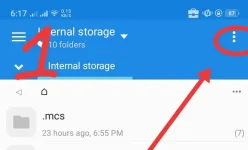
2) Click "Servers"
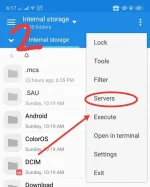
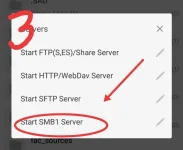
3) "Start SMB1 Server"
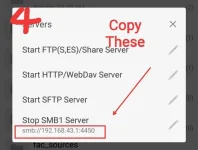
4) Copy the Url then go to Homescreen without stopping the App.
Work / Virtual Space
5) Open Mixplorer in Work / Virtual Space.
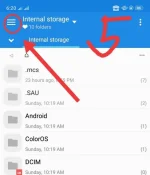
6) Click the Drawer to Expand then Tap "Add Storage"
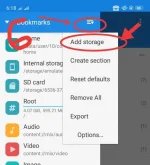
7) Tap "LAN (Samba)"
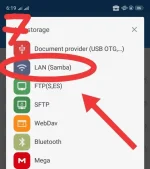
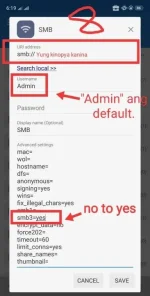
8) Put the copied URL from Step 4 in URL Address.
Make sure the Username and SMB3 is the same sa the picture.
Click "Save
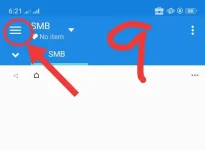
9) Tap on the Three Lines to open the bookmarks Drawer.
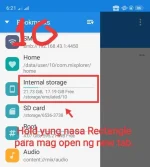
10) Tap and Hold the "Internal Storage" to open it in New Tab.
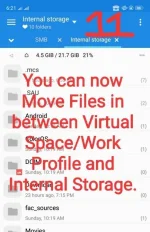
11)
You can now move files between your
Note: If you want Use it again another time all you gotta do is
1) Turn On Wifi Hotspot
2) (Personal Space)Turn On SMB Server in Mixplorer.
3) Use Mixplorer in Virtual/Work Space to move files.
Since the main purpose of Virtual Space and Work Space(Corporate Account) is to separate Personal and Work Files and Apps you cannot see the files downloaded in Virtual/Work Space in your File Manager.
One Way to Move Files in between Personal and Virtual/Work Space is using a cloud storage. Uploading it then downloading it again but that needs internet.
Here is how you can transfer files in between Personal and Virtual / Work Space without using internet or cloud storage.
Pre-Requisite
• Install You do not have permission to view the full content of this post. Log in or register now. in Personal and Virtual / Work Space
Steps:
Personal Space
1) Turn on the Wifi Hotspot,
Open Mixplorer and Click Three Dots.
2) Click "Servers"
3) "Start SMB1 Server"
4) Copy the Url then go to Homescreen without stopping the App.
Work / Virtual Space
5) Open Mixplorer in Work / Virtual Space.
6) Click the Drawer to Expand then Tap "Add Storage"
7) Tap "LAN (Samba)"
8) Put the copied URL from Step 4 in URL Address.
Make sure the Username and SMB3 is the same sa the picture.
Click "Save
9) Tap on the Three Lines to open the bookmarks Drawer.
10) Tap and Hold the "Internal Storage" to open it in New Tab.
11)
You can now move files between your
Note: If you want Use it again another time all you gotta do is
1) Turn On Wifi Hotspot
2) (Personal Space)Turn On SMB Server in Mixplorer.
3) Use Mixplorer in Virtual/Work Space to move files.