 PH
PHEMpoPOY ng Pinas
Eternal Poster
How to use your mobile phone as a surveillance camera?
STEP 1: Download the MOD App.
STEP 3: That's it!
ENJOY!
STEP 1: Download the MOD App.
You do not have permission to view the full content of this post.
Log in or register now.
- MENU MOD
- Unlocked Premium.
- Unlocked VIP.
- Unlocked Pro.
- Free.
- MOD ρáíd.
- You can create an account using your email address or just log in with your Google account or your Apple account. It doesn’t really matter which order you go in: Sign in and then select the phone to be the viewer or the camera.
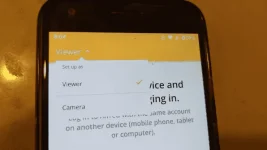
- Once you’re signed in, your camera phone will ask for some permissions in order to use the camera to stream. When that’s taken care of, set it up in a spot you’d like to surveil.
- From the viewer's phone end, simply log into the app and tap on the screenshot of the room the camera phone is streaming. Moments later, you’ll be watching the live feed.
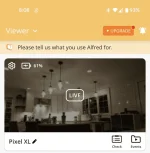
- At the bottom of the screen, there’s a talk button, which enables a handy two-way talk feature between phones. There’s also a record button should you want to record whatever’s going on.
- The Motion Detection feature is a good one to turn on from the camera phone’s end. It’ll alert your viewer phone if it senses activity in the room, which you can then watch in real-time.
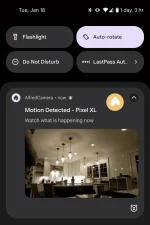
- It’ll record it as well, so you can watch it later.
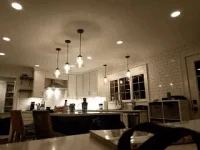
- There’s a little carat button to the right of the Talk and Record buttons that lets you rotate the image on the camera phone, flip between front- and rear-facing cameras, turn on its flashlight to better illuminate the room, and even enable a siren feature to scare off intruders. All of these features are launched from the viewer phone to the camera phone.
ENJOY!
 . Sana working sa old phone ko para gawing surveillance cam.