 PH
PHThis Thread is for us to learn ( for those who didn't know only  ) how to Convert .RAR / .ZIP archive into a Single .exe application using WinRAR..
And we will also Set it to automatically install the Executable file included in the archive.
) how to Convert .RAR / .ZIP archive into a Single .exe application using WinRAR..And we will also Set it to automatically install the Executable file included in the archive.
Why doing this?
~ ma-reduce ang size ng mga files natin once na na-Compress sila..at maari pa nating iburn sa CD or DVD
Example: may 730mb files ka na gusto mong iburn as bootable application, ngunit 700mb lang ang max capacity na kayang ihandle ng CD mo. Diba hassle? Maari mo parin maburn ito using winrar to compress the files but it will not support booting the installation process…parang ginawa lang natin ay nagsave ng file sa CD..
~One way din Para po kung ang tao na nagdownload ng file na binahagi natin ay hindi na mahirapan sa pag open ng Compress Files dahil sa kadahilanang walang naka-install ng winrar, 7-zip etc sa Unit nila. Sa pamamagitan ng Self Extract with auto installation na gagawin natin ay hindi na nila kakailanganin pa ng mga apps n nabanggit kanina
~ madami pang maganda ang dulot nito, ask niyo nalang si Google
~ ma-reduce ang size ng mga files natin once na na-Compress sila..at maari pa nating iburn sa CD or DVD
Example: may 730mb files ka na gusto mong iburn as bootable application, ngunit 700mb lang ang max capacity na kayang ihandle ng CD mo. Diba hassle? Maari mo parin maburn ito using winrar to compress the files but it will not support booting the installation process…parang ginawa lang natin ay nagsave ng file sa CD..
~One way din Para po kung ang tao na nagdownload ng file na binahagi natin ay hindi na mahirapan sa pag open ng Compress Files dahil sa kadahilanang walang naka-install ng winrar, 7-zip etc sa Unit nila. Sa pamamagitan ng Self Extract with auto installation na gagawin natin ay hindi na nila kakailanganin pa ng mga apps n nabanggit kanina
~ madami pang maganda ang dulot nito, ask niyo nalang si Google
 what we need :
 * You do not have permission to view the full content of this post. Log in or register now.: Download > You do not have permission to view the full content of this post. Log in or register now.<
If you want different version of winrar feel Free to Seach nalang po kayo ng installer dito (Search)
 ,
, mas maganda kung preCracked na ang gamit niyo..
* Unit : Desktop | Laptop | NEtbook etc. kung anu gamit niyo :shifty:
Patience.

Note : if you want a Self Extract with Auto Installation Feature in your archive, the archive must contain Executable files : [ .exe | Setup.exe ].
If none…hindi gagana ang auto installation
Let’s Begin ~
First : Open the Folder Directory kung saan po naka-save ang Files which we will add to the archive kung saan icoconvert natin para maging Single .exe application or installer..
In my Case, gawin ko Example ang AVG internet security 2011
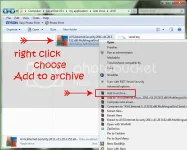
Right Click po sa File(s) then choose “Add to archive…”
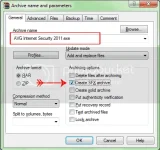
Second : Archive Name and Parameters window will come out.
Sa “General” Tab..
Set niyo po ang name ng project na ginagawa niyo,
lagyan po ng check ang “Create SFX archive” checkbox…………….don’t click OK yet.
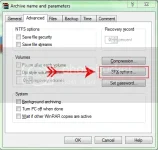
Third : Go to “Advanced” Tab., click on “SFX options..” Button.. “Advanced SFX options” window will pop up.
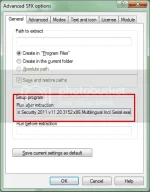
GENERAL TAB :
Sa “Setup Program” option (see screenshot). yun lang po ang gagalawin natin,
Dito po natin iseset ang .exe files that will initiate later for Automatic Installation process…
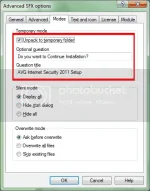
MODES TAB :
On “Temporary mode” option : put check in “Unpack to temp folder” checkbox.
Sa “optional question” : lagay kayo kung anu gusto niyo
Sa “Question title” : kayo narin bahala…
Wag na natin galawin ung “Silent Mode” at “Overwrite Mode” Options.
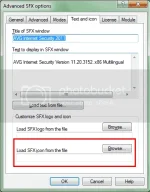
TEXT and ICON TAB :
see screenshot nlng for example.
*Sa “Title of SFX Window” : (kayo na bahala sa name) kung anu man ang Installer na Ginagawa niyo.
*Sa “text to display in SFX window” : (optional lang din)
*Sa “Costumize SFX logo and icon” option : maaari tayong magLoad ng Icon para sa ating Single application.
Kailangan lang na .ico ang file extension. Natural :hilarious:
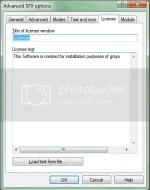
LICENCE TAB :
Optional : kayo na ulit bahala hehehe…see screenshot nlng for example.
Click “OK” Button. And Click "OK" Button Again.
Then the archive will start Compressing and Creating the Single Executable File..
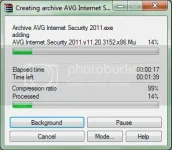
All done. Congrats.
Reduced na po ang Files natin at naka Set na rin sya as Self Extract file..
IF ever na gusto niyo i-burn ang Nagawa niyong Single Application(.exe),
make sure lang po na may kasamang autorun.inf at nakaset ang .exe app as bootable file..
Lagay ko nalang yung Autorun.inf sa attachment below.
[credit : globecircles : for attachment ]
edit niyo nlng siya : Download , Extract , then right click , open with notepad.
[autorun]
OPEN=ApplicationName.EXE
ICON=ApplicationName.EXE,0
OPEN=ApplicationName.EXE
ICON=ApplicationName.EXE,0
shell\configure=&Configure...
shell\configure\command=ApplicationName.EXE
shell\install=&Install...
shell\install\command=ApplicationName.EXE
shell\configure\command=ApplicationName.EXE
shell\install=&Install...
shell\install\command=ApplicationName.EXE
Doon sa naka RED font, dyan niyo ilagay ung Filename ng .exe application na nasa loob ng Archive niyo.
Doon naman sa BLUE font, para yun sa ICON. kung walang .ico sa loob ng archive niyo pwede narin yung .exe ang gamiitin niyo..
Disclaimer : sorry Newly discover ko lang ito noong year 2013 :hilarious: via experience and searching the web, kung may mali ako sorry nalang hehehe…
Ibahagi niyo nalang dito nalalaman niyo?

No need to Like and Say Thanks :facepalm:
Doon naman sa BLUE font, para yun sa ICON. kung walang .ico sa loob ng archive niyo pwede narin yung .exe ang gamiitin niyo..
Disclaimer : sorry Newly discover ko lang ito noong year 2013 :hilarious:
via experience and searching the web, kung may mali ako sorry nalang hehehe…Ibahagi niyo nalang dito nalalaman niyo?
No need to Like and Say Thanks :facepalm:

