 PH
PHS U K U N A
Forum Expert
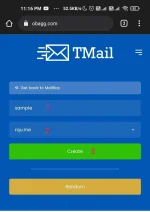
1. Open link: obagg.com
then fill-up details like for example:
*username(ikaw na bahala kung ano gusto mo ilagay)
*email suffix(piliin mo dito ang rqu.me)
*then click Create
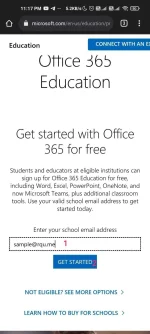
2. Open this link in new tab: You do not have permission to view the full content of this post. Log in or register now.
then paste the email you've created and click GET STARTED
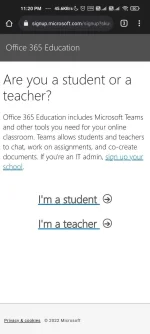
3. Click Student or Teacher (kahit alin sa dalawa gagana pa rin, same lang naman)
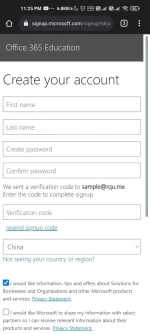
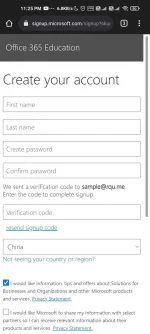
4. Fill-out the form(Ikaw bahala kung ano ilalagay mo)
First Name
Last Name
Password
then sa Verification Code sa next step na
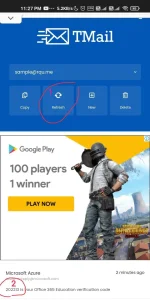
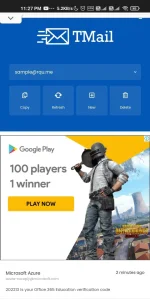
5. Para sa Verification Code punta ka sa email na ginawa mo sa obagg.com
hit refresh kung hindi dumadating yung code. Pag medyo matagal hintay lang muna hanggang 5mins then refresh lang ulit
then copy verification
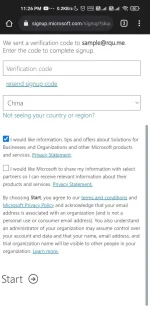
go to office sign-up
6. Paste Verification Code at click Start
7. Enjoy at mag feedback kung gumana sayo. Libre yan kaya wag abusohin baka maisipan isara ni Microsoft.
 Hinay-hinay lang kapatid

 Under construction