 PH
PHbongskee123
Fanatic
Hi Guys! I am starting this thread to help out newbies to properly set up their and explore the full potential of their Android TV's. Of course since I am not an expert, I am also seeking members of this Forum for help. Thank you guys and I hope we respect each other as well as posts in this thread.
Let's get started:
1. You must install a VPN to protect yourselves. You can use any VPN you want, personally I am using Nord.
2. Download and install these apps from the Playstore:
a. Downloader - this is important because you will be downloading most of your apps from here.
b. Sideload Launcher - Some of the apps you might install will not show up on your App list. You will need to launch this to see that apps that are hidden from the App list.
c. Kodi - this app is so versatile that I use this to stream live sports events (NBA, MMA, NCAA Basketball, Boxing, etc.). You will have to configure app this to use it, I personally use "The Crew" addon, because it has everything, Live Sports event, Live International TV, as well as Movies and TV shows. Installation of addon within KODI will be explained later.
3. Install Nova, TEA TV, Popcorn Time, Movie HD and many other streaming apps. First you have to search the web for the download sites of these applications, then copy the site from your browser; then open the Downloader app and paste or type the address of the app you want to download and install. The downloader app will open the download website and you will have to scroll and search for the download button.
NOTE: Be very careful in downloading from these sites because some of these will have a lot of download buttons that will direct you to a different app.
INSTALLING ADDON IN KODI:
As I have already stated, I use The Crew addon in KODI. I will be showing you guys how to install The Crew addon. Of course you can install other addon, the process is still the same; you should only know the repository URL. (by this time you should have already installed KODI on your device.)
1. Launch Kodi
2. Click the settings icon
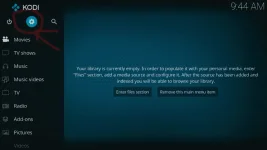
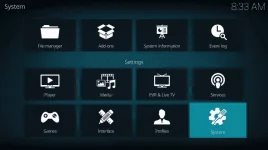
3. Click System
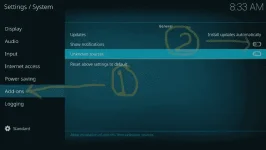
4. Hover over Add-ons menu item and turn on Unknown sources if not already on
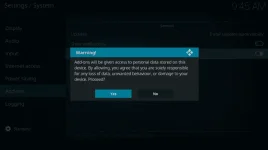
This is why it is so important running a VPN if you’re going to use a 3rd party addon such as The Crew.
A VPN won’t allow these 3rd party addons to gain access to your personal data.
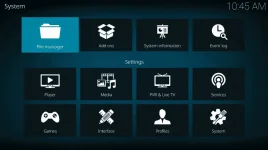
5. Click back on remote to go back to the System page, then select File Manager
6. Click Add source
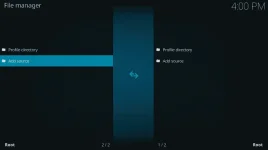
7. Click <None>
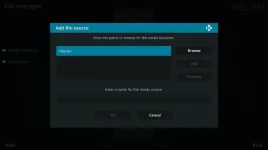
8. Type the following URL exactly how it is listed here – You do not have permission to view the full content of this post. Log in or register now. and click OK (GitHub is the official website that hosts this repository URL)
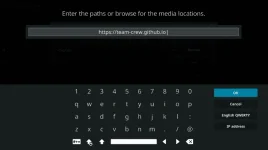
9. Highlight the box under the source that you just typed in and enter a name for this media source, type “crew” or any other name you would like to identify this source as and click OK
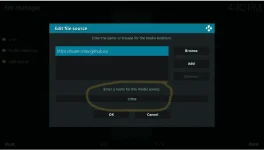
10. Click your back button on remote or keyboard until you are back on the System screen. Choose Add-ons
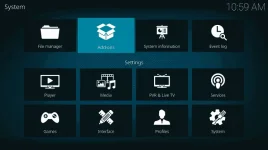
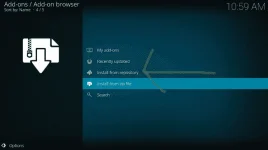
11. Click Install from zip file
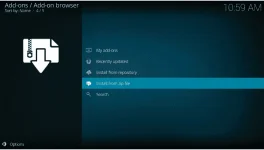
12. Choose “crew” or another name you assigned the media source in the previous step
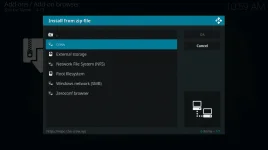
13. Click the repository zip file
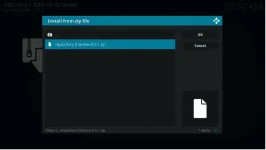
14. Wait for The Crew Add-on installed message to appear
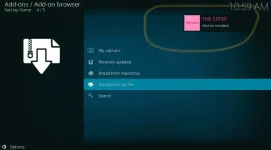
15. Click Install From Repository
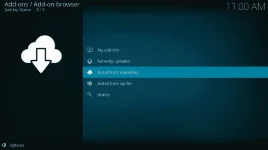
16. Choose The Crew
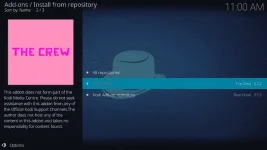
17. Click Video Add-Ons
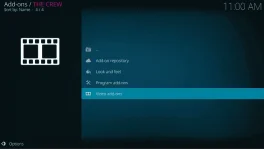
18. Choose The Crew
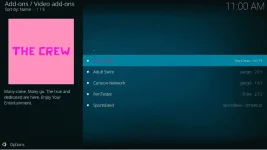
19. Click Install
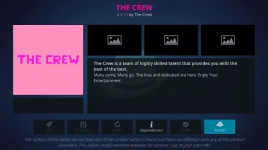
20. Kodi will then prompt the message below stating “The following additional add-ons will be installed”, Click OK
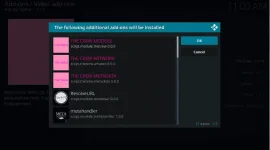
21. Wait for The Crew Add-on installed message to appear. Choose if you want to execute the setup wizard when the popup appears, I chose No
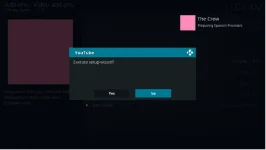
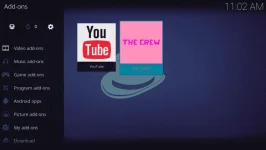
22. Click the back button until you return to the home screen, then scroll down and click Add-ons
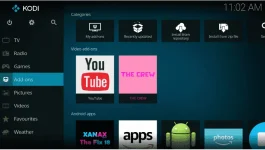
23. Scroll over and select The Crew add-on
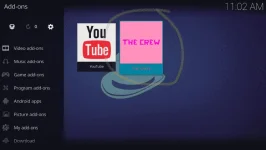
Installation of The Crew is now complete. Enjoy!
I use this addon to watch the NBA, MMA on weekends and Boxing.
Warning:
Be sure to follow these steps carefully and do not deviate. As you can see in some of the steps KODI has access to your system files and deviating from these steps might cause your device to be faulty. Install at your own risk.
FINAL NOTE: You can also install KODI on your Android Mobile as well on your laptop or PC.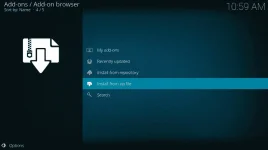
Let's get started:
1. You must install a VPN to protect yourselves. You can use any VPN you want, personally I am using Nord.
2. Download and install these apps from the Playstore:
a. Downloader - this is important because you will be downloading most of your apps from here.
b. Sideload Launcher - Some of the apps you might install will not show up on your App list. You will need to launch this to see that apps that are hidden from the App list.
c. Kodi - this app is so versatile that I use this to stream live sports events (NBA, MMA, NCAA Basketball, Boxing, etc.). You will have to configure app this to use it, I personally use "The Crew" addon, because it has everything, Live Sports event, Live International TV, as well as Movies and TV shows. Installation of addon within KODI will be explained later.
3. Install Nova, TEA TV, Popcorn Time, Movie HD and many other streaming apps. First you have to search the web for the download sites of these applications, then copy the site from your browser; then open the Downloader app and paste or type the address of the app you want to download and install. The downloader app will open the download website and you will have to scroll and search for the download button.
NOTE: Be very careful in downloading from these sites because some of these will have a lot of download buttons that will direct you to a different app.
INSTALLING ADDON IN KODI:
As I have already stated, I use The Crew addon in KODI. I will be showing you guys how to install The Crew addon. Of course you can install other addon, the process is still the same; you should only know the repository URL. (by this time you should have already installed KODI on your device.)
1. Launch Kodi
2. Click the settings icon
3. Click System
4. Hover over Add-ons menu item and turn on Unknown sources if not already on
- Read this important Warning prior to proceeding.
This is why it is so important running a VPN if you’re going to use a 3rd party addon such as The Crew.
A VPN won’t allow these 3rd party addons to gain access to your personal data.
5. Click back on remote to go back to the System page, then select File Manager
6. Click Add source
7. Click <None>
8. Type the following URL exactly how it is listed here – You do not have permission to view the full content of this post. Log in or register now. and click OK (GitHub is the official website that hosts this repository URL)
9. Highlight the box under the source that you just typed in and enter a name for this media source, type “crew” or any other name you would like to identify this source as and click OK
10. Click your back button on remote or keyboard until you are back on the System screen. Choose Add-ons
11. Click Install from zip file
12. Choose “crew” or another name you assigned the media source in the previous step
13. Click the repository zip file
14. Wait for The Crew Add-on installed message to appear
15. Click Install From Repository
16. Choose The Crew
17. Click Video Add-Ons
18. Choose The Crew
19. Click Install
20. Kodi will then prompt the message below stating “The following additional add-ons will be installed”, Click OK
21. Wait for The Crew Add-on installed message to appear. Choose if you want to execute the setup wizard when the popup appears, I chose No
22. Click the back button until you return to the home screen, then scroll down and click Add-ons
23. Scroll over and select The Crew add-on
Installation of The Crew is now complete. Enjoy!
I use this addon to watch the NBA, MMA on weekends and Boxing.
Warning:
Be sure to follow these steps carefully and do not deviate. As you can see in some of the steps KODI has access to your system files and deviating from these steps might cause your device to be faulty. Install at your own risk.
FINAL NOTE: You can also install KODI on your Android Mobile as well on your laptop or PC.

