 PH
PHProfessora Akira
☯️ SôulNinetãiL☯️
Step 1. Install and Run Mobile Eraser on the Computer
Search “Mobile Eraser” in any trusted link then install and launch it on your computer. Launch it, and connect your iPhone to the computer.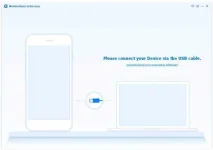
Once your iPhone or iPad is recognized, you can see five main options as the below picture on the primary interface.

Tips: All the erased data deleted by this program can not being restored after the deletion, so, before wiping your iPhone or iPad, please backup the data you want from your device, so that you still can restore it when you need.
Step 2. Wipe All Data on Your iDevice
Among the five options, please choose "Erase All Data" which enables you to erase all data permanently and make your iOS device like a brand new one.Then in the next window, you will be asked to type "delete" into the text box in order to confirm the decision of deletion. If done, click on "Erase Now" to begin delete all content on your iPhone or iPad.

When the process is finish, the program will give you notice as below.
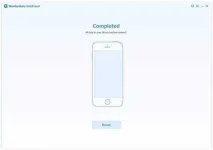
Notice: In this part, please do not run any other applications and keep your device connecting during the wiping process.
source:recoverandroid/ios
 >>>
>>>