 PH
PHCreate a Muti-Boot USB using XBoot
Download and install lang ng XBoot application (its freeware by the way)
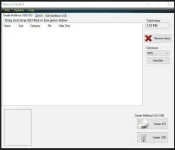
Now, drag and drop lang ng ISO na need mo i-install, for example gagawa tayo ng bootable Kaspersky Rescue disk.
Click and choose lang sa drop down box ng identity ng ISO, the click lang ng "add this file" button.
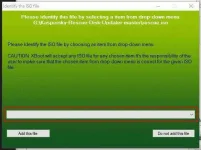
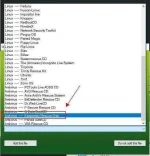
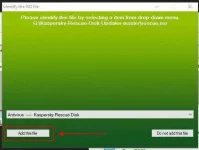
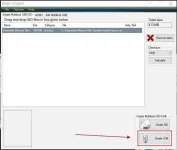
Then, click lang ng "Create USB" button.
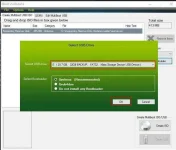
Select lang ng USB drive at ng desired na bootloader (yung recomended lang usually yung pinipili ko.), then click "OK".
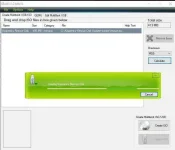
Wait lang natin matapos yung copying ng files
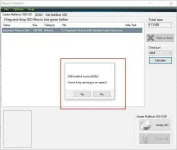
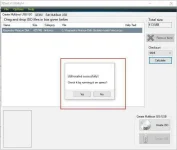
Then, after the copying, click "Yes" to test via QEMU kung working yung bootable USB. Click "No" to finish.
So, Meron ka nang Rescue boot sa USB, kaso sayang naman yung space kung yan lang laman nyan, lets add another one.
This time, mag add naman ako ng Acronis True Image. Drop & Drop lang ng ISO then click "Create USB"
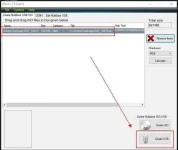
Again, select lang ng USB drive, but this time, no need na mag install ng bootloader so click lang ng radio button indicating "Do not install any Bootloader"
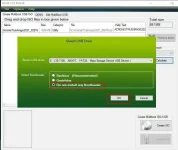
Wait lang ulit na matapos yung copying.

Now, to check via QEMU if working yung Multi-boot USB, click "Yes".
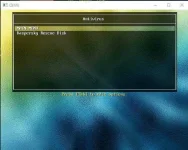
As you can see here, naka hiwalay by folder yung mga Application na pwedeng gamitin,
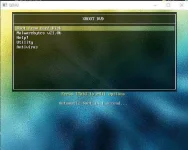
Select Anitvirus to access Kaspersky Rescue

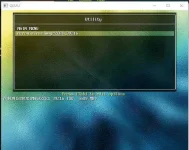
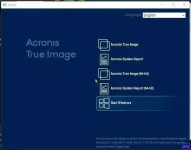
Select Utilities to access Acronis
Very straight forward lang diba, so create na.
Google drive Link for Xboot
Password: iambrookthemusician

Download and install lang ng XBoot application (its freeware by the way)
Now, drag and drop lang ng ISO na need mo i-install, for example gagawa tayo ng bootable Kaspersky Rescue disk.
Click and choose lang sa drop down box ng identity ng ISO, the click lang ng "add this file" button.
Then, click lang ng "Create USB" button.
Select lang ng USB drive at ng desired na bootloader (yung recomended lang usually yung pinipili ko.), then click "OK".
Wait lang natin matapos yung copying ng files
Then, after the copying, click "Yes" to test via QEMU kung working yung bootable USB. Click "No" to finish.
So, Meron ka nang Rescue boot sa USB, kaso sayang naman yung space kung yan lang laman nyan, lets add another one.
This time, mag add naman ako ng Acronis True Image. Drop & Drop lang ng ISO then click "Create USB"
Again, select lang ng USB drive, but this time, no need na mag install ng bootloader so click lang ng radio button indicating "Do not install any Bootloader"
Wait lang ulit na matapos yung copying.
Now, to check via QEMU if working yung Multi-boot USB, click "Yes".
As you can see here, naka hiwalay by folder yung mga Application na pwedeng gamitin,
Select Anitvirus to access Kaspersky Rescue
Select Utilities to access Acronis
Very straight forward lang diba, so create na.
Google drive Link for Xboot
Password: iambrookthemusician