 PH
PHarsenal1205
Rarely opens PHC
If you want to install Windows 11 on a computer with unsupported hardware, there is now one more tool to make that process easier. Rufus, a neat third-party utility to create bootable USB drives in Windows, received an update to version 3.16 Beta 2. The main highlight of the update is the ability to make a Windows 11 installation media without Microsoft's security requirements.
For those who just recently joined the Windows 11 party, the latest operating system from Microsoft You do not have permission to view the full content of this post. Log in or register now. with Intel 8th gen CPUs and newer or AMD Zen+ based CPUs and newer. Besides, Windows 11 requires a motherboard with UEFI, SecureBoot, and Trusted Platform Module 2.0 (TPM). Inability to meet one of those requirements will render your computer incompatible with Windows 11.
Despite keeping strict requirements, Microsoft allows installing Windows 11 on computers with older processors or without TPM. In such a scenario, Microsoft does not guarantee you proper support and feature updates. If you want to risk it, Rufus 3.16 Beta 2 is here to help you install Windows 11 on unsupported hardware.
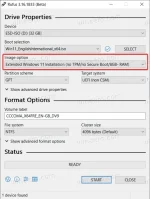
Here is the full changelog for the latest version:
Before creating a Windows 11 installation media without security requirements, we recommend You do not have permission to view the full content of this post. Log in or register now.. Your computer may be compatible with Windows 11, but it may need some changes in the UEFI. You can read how to You do not have permission to view the full content of this post. Log in or register now. in our dedicated guide.
FROM: WINAERO
For those who just recently joined the Windows 11 party, the latest operating system from Microsoft You do not have permission to view the full content of this post. Log in or register now. with Intel 8th gen CPUs and newer or AMD Zen+ based CPUs and newer. Besides, Windows 11 requires a motherboard with UEFI, SecureBoot, and Trusted Platform Module 2.0 (TPM). Inability to meet one of those requirements will render your computer incompatible with Windows 11.
Despite keeping strict requirements, Microsoft allows installing Windows 11 on computers with older processors or without TPM. In such a scenario, Microsoft does not guarantee you proper support and feature updates. If you want to risk it, Rufus 3.16 Beta 2 is here to help you install Windows 11 on unsupported hardware.
Here is the full changelog for the latest version:
- Fixed ISO mode support for Red Hat 8.2+ and derivatives.
- Fixed BIOS boot support for Arch derivatives.
- Fixed removal of some boot entries for Ubuntu derivatives.
- Fixed log not being saved on exit.
- Added Windows 11 Extended installation support. That disables TPM, SecureBoot, and RAM requirements.
- Improved Windows 11 support.
- Improved Windows version reporting.
- Added UEFI Shell ISO downloads.
- Added support for Intel NUC card readers.
- Improved speed of cleaning MBR/GPT.
Before creating a Windows 11 installation media without security requirements, we recommend You do not have permission to view the full content of this post. Log in or register now.. Your computer may be compatible with Windows 11, but it may need some changes in the UEFI. You can read how to You do not have permission to view the full content of this post. Log in or register now. in our dedicated guide.
FROM: WINAERO