 PH
PHTried and tested ko ngayun lang.
Ang ginawa ko is:
1. Pumunta sa official Microsoft Windows 11 site. Basahin mo mga options bago mo simulan.
You do not have permission to view the full content of this post. Log in or register now.
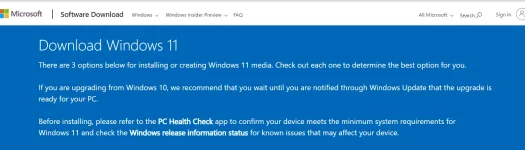
2. Download mo ang Windows PC Health Check Setup at Windows 11 Installation Assistant.
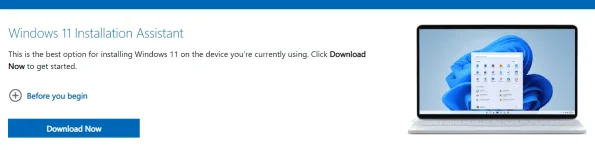
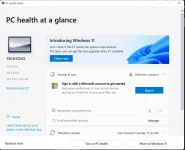
3. Save muna sa mga files na naopen. Backup na din just incase. Install first ang "WindowPCHealthCheckSetup.msi" the click Check Now button for checking sa device, after then run mo ang "Windows11InstallationAssistant.exe" na iyong na download.

4. After that antayin nlng matapos ang Installation Assistant. After that mag rereboot na then makakita mo na kaibahan.
Enjoy your Windows 11.


Ang ginawa ko is:
1. Pumunta sa official Microsoft Windows 11 site. Basahin mo mga options bago mo simulan.
You do not have permission to view the full content of this post. Log in or register now.
2. Download mo ang Windows PC Health Check Setup at Windows 11 Installation Assistant.
3. Save muna sa mga files na naopen. Backup na din just incase. Install first ang "WindowPCHealthCheckSetup.msi" the click Check Now button for checking sa device, after then run mo ang "Windows11InstallationAssistant.exe" na iyong na download.
4. After that antayin nlng matapos ang Installation Assistant. After that mag rereboot na then makakita mo na kaibahan.
Enjoy your Windows 11.

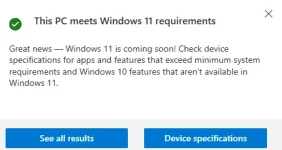

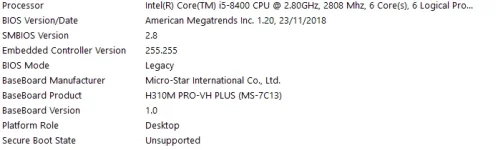
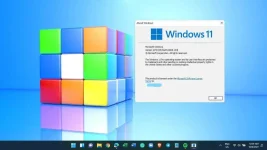
 As of now, wala pa namang issue smooth pa rin.