 PH
PH-
Welcome to PHCorner Forums! Sign up for free to unlock full access and exclusive privileges, including:
- Asking questions about computer and mobile issues
- Discovering internet tips for your mobile network and computer
You are using an out of date browser. It may not display this or other websites correctly.
You should upgrade or use an alternative browser.
You should upgrade or use an alternative browser.
❓ Help Huawei E5330Cs-82 di madetect
- Thread starter shivah23
- Start date
- Status
- Not open for further replies.
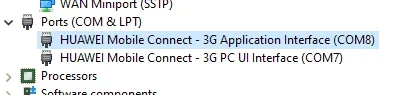
nag try po kase ako mag unlock ng wifi ko kase mahina dito samin ang globe. may ininstall po ako na driver galing tutorial tapos nag fail po yung unlocking ko. tapos ayun di na po madetect ng pc yung wifi COM port lang po nalabas.Para saang purpose?
Mag experiment ka nalang Ka phc, kita pa naman naka usb mode yang, pocket wifi need lang malagyan firmware yan at dashboard, mukhang need mo rin usbLoader or balong usbLoader
Download ka nalang kaya firmware ng universal firmware ng Huawei 5330 Bs2, baka working pang debrand kay 5330cs
Kunin mo rin yung Usb loader dto sa file ng 5573cs-933
You do not have permission to view the full content of this post. Log in or register now.
Baka working na pang debrand unlock, search google ka Phc
Sources:
https://supotech.phc.onl/#forbidden#/2018/01/huawei-e5330bs-2-unlock-and-debranding.html?m=1
Huawei Unlock Calculator V1 to V3
You do not have permission to view the full content of this post. Log in or register now.
Debrand firmware 5330Bs-2
You do not have permission to view the full content of this post. Log in or register now.
gRdov
Huawei E5330Bs - 2 Unlock and Debranding
Things needed to prepare:
1. Computer
2. USB Cable
3. Huawei E5330Bs - 2 Universal Firmware ( download link below )
4. Huawei Unlock Code Calculator ( Download link below )
Here are the steps:
1. Insert invalid simcard to Huawei E5330Bs - 2 ( SMART, TNT, SUN )
2. Extract Huawei-Unlock-Code-Calculator.zip file you downloaded and Open Huawei Unlock code calculator application.
3. Enter IMEI of your Huawei E5330Bs - 2 on the box as shown on the image below.
. Click Calc button.
NOTE: Don't Close this window.
5.Extract and open the Huawei E5330Bs - 2 debrand unlock folder and open Universal Folder.
6. Open the Firmware folder. Follow the steps as shown on the photo below.
7. Turn On your Huawei E5330Bs - 2 and plug it to your computer. Wait until its drivers are installed.
8. Run E5330BS_FW_UPDATE_21.210.25.00.00 application.
9. Click START
10. A dialog box will pop up and it will ask for the password. To get the password go to huawei unlock code calculator that you open a while ago and copy the flash code and enter the code to the pop up message that opens when you run the E5330BS_FW_UPDATE_21.210.25.00.00 application . see photo below to check where is the flash code.
11. Wait till it finished. You can see a notification windows stating that you successfully updated the firmware etc...
12. Close all the window.
13. Go back to step 5 but now you need to open the WebUI Foder.See photos below.
14. Run the Update_WEBUI_17.100.13.01.03_RE5 application.
15. Click START. Wait till it finished.
16. If it is successfully updated the webui of your Huawei E5330Bs - 2. Go to your browser and on the address bar type 192.168.8.1.
GUI
user name: admin
password: admin
17. After opening the web GUI of your Huawei E5330Bs - 2 on the browser it will ask for the unlock code.
18. Go to Huawei Unlock Code Calculator that you run a while ago and copy the unlock code and paste it on the web ui of your Huawei E5330Bs - 2 that asking for unlock code on the browser and confirm. A notification box will open asking for the user name and password.
The default user name and password is
user name: admin
password: admin
Just wait then see the GUI if it looks like the photo below it means you successfully unlocked and debranded your Huawei E5330Bs - 2 pocket wifi.
If it fails just repeat the steps.
Download links here.
Download ka nalang kaya firmware ng universal firmware ng Huawei 5330 Bs2, baka working pang debrand kay 5330cs
Kunin mo rin yung Usb loader dto sa file ng 5573cs-933
You do not have permission to view the full content of this post. Log in or register now.
Baka working na pang debrand unlock, search google ka Phc
Sources:
https://supotech.phc.onl/#forbidden#/2018/01/huawei-e5330bs-2-unlock-and-debranding.html?m=1
Huawei Unlock Calculator V1 to V3
You do not have permission to view the full content of this post. Log in or register now.
Debrand firmware 5330Bs-2
You do not have permission to view the full content of this post. Log in or register now.
gRdov
Huawei E5330Bs - 2 Unlock and Debranding
Things needed to prepare:
1. Computer
2. USB Cable
3. Huawei E5330Bs - 2 Universal Firmware ( download link below )
4. Huawei Unlock Code Calculator ( Download link below )
Here are the steps:
1. Insert invalid simcard to Huawei E5330Bs - 2 ( SMART, TNT, SUN )
2. Extract Huawei-Unlock-Code-Calculator.zip file you downloaded and Open Huawei Unlock code calculator application.
3. Enter IMEI of your Huawei E5330Bs - 2 on the box as shown on the image below.
. Click Calc button.
NOTE: Don't Close this window.
5.Extract and open the Huawei E5330Bs - 2 debrand unlock folder and open Universal Folder.
6. Open the Firmware folder. Follow the steps as shown on the photo below.
7. Turn On your Huawei E5330Bs - 2 and plug it to your computer. Wait until its drivers are installed.
8. Run E5330BS_FW_UPDATE_21.210.25.00.00 application.
9. Click START
10. A dialog box will pop up and it will ask for the password. To get the password go to huawei unlock code calculator that you open a while ago and copy the flash code and enter the code to the pop up message that opens when you run the E5330BS_FW_UPDATE_21.210.25.00.00 application . see photo below to check where is the flash code.
11. Wait till it finished. You can see a notification windows stating that you successfully updated the firmware etc...
12. Close all the window.
13. Go back to step 5 but now you need to open the WebUI Foder.See photos below.
14. Run the Update_WEBUI_17.100.13.01.03_RE5 application.
15. Click START. Wait till it finished.
16. If it is successfully updated the webui of your Huawei E5330Bs - 2. Go to your browser and on the address bar type 192.168.8.1.
GUI
user name: admin
password: admin
17. After opening the web GUI of your Huawei E5330Bs - 2 on the browser it will ask for the unlock code.
18. Go to Huawei Unlock Code Calculator that you run a while ago and copy the unlock code and paste it on the web ui of your Huawei E5330Bs - 2 that asking for unlock code on the browser and confirm. A notification box will open asking for the user name and password.
The default user name and password is
user name: admin
password: admin
Just wait then see the GUI if it looks like the photo below it means you successfully unlocked and debranded your Huawei E5330Bs - 2 pocket wifi.
If it fails just repeat the steps.
Download links here.
maraming salamat po sa advice at sa oras nyo. godblessMag experiment ka nalang Ka phc, kita pa naman naka usb mode yang, pocket wifi need lang malagyan firmware yan at dashboard, mukhang need mo rin usbLoader or balong usbLoader
Download ka nalang kaya firmware ng universal firmware ng Huawei 5330 Bs2, baka working pang debrand kay 5330cs
Kunin mo rin yung Usb loader dto sa file ng 5573cs-933
You do not have permission to view the full content of this post. Log in or register now.
Baka working na pang debrand unlock, search google ka Phc
Sources:
You do not have permission to view the full content of this post. Log in or register now.
Huawei Unlock Calculator V1 to V3
You do not have permission to view the full content of this post. Log in or register now.
Debrand firmware 5330Bs-2
You do not have permission to view the full content of this post. Log in or register now.
gRdov
Huawei E5330Bs - 2 Unlock and Debranding
Things needed to prepare:
1. Computer
2. USB Cable
3. Huawei E5330Bs - 2 Universal Firmware ( download link below )
4. Huawei Unlock Code Calculator ( Download link below )
Here are the steps:
1. Insert invalid simcard to Huawei E5330Bs - 2 ( SMART, TNT, SUN )
2. Extract Huawei-Unlock-Code-Calculator.zip file you downloaded and Open Huawei Unlock code calculator application.
3. Enter IMEI of your Huawei E5330Bs - 2 on the box as shown on the image below.
. Click Calc button.
NOTE: Don't Close this window.
5.Extract and open the Huawei E5330Bs - 2 debrand unlock folder and open Universal Folder.
6. Open the Firmware folder. Follow the steps as shown on the photo below.
7. Turn On your Huawei E5330Bs - 2 and plug it to your computer. Wait until its drivers are installed.
8. Run E5330BS_FW_UPDATE_21.210.25.00.00 application.
9. Click START
10. A dialog box will pop up and it will ask for the password. To get the password go to huawei unlock code calculator that you open a while ago and copy the flash code and enter the code to the pop up message that opens when you run the E5330BS_FW_UPDATE_21.210.25.00.00 application . see photo below to check where is the flash code.
11. Wait till it finished. You can see a notification windows stating that you successfully updated the firmware etc...
12. Close all the window.
13. Go back to step 5 but now you need to open the WebUI Foder.See photos below.
14. Run the Update_WEBUI_17.100.13.01.03_RE5 application.
15. Click START. Wait till it finished.
16. If it is successfully updated the webui of your Huawei E5330Bs - 2. Go to your browser and on the address bar type 192.168.8.1.
GUI
user name: admin
password: admin
17. After opening the web GUI of your Huawei E5330Bs - 2 on the browser it will ask for the unlock code.
18. Go to Huawei Unlock Code Calculator that you run a while ago and copy the unlock code and paste it on the web ui of your Huawei E5330Bs - 2 that asking for unlock code on the browser and confirm. A notification box will open asking for the user name and password.
The default user name and password is
user name: admin
password: admin
Just wait then see the GUI if it looks like the photo below it means you successfully unlocked and debranded your Huawei E5330Bs - 2 pocket wifi.
If it fails just repeat the steps.
Download links here.
Kahit hindi usb mode yan. May huawei calculator para sa imei niya. Open mo yun sa pc. Tas ilagay mo imei niya at copy mo yung code sa v2 tapoa ilalagay mo sa paglalagyan ng pin sa admin oage ng wifi mo. 192.168.8.1 yata yan. Magpapakita agad sa bungad pa palang.
hindi po gumagana yung mga codes 3 sites na po ata ng calculator nakita ko 2 attempts nalang po natira. salamat poKahit hindi usb mode yan. May huawei calculator para sa imei niya. Open mo yun sa pc. Tas ilagay mo imei niya at copy mo yung code sa v2 tapoa ilalagay mo sa paglalagyan ng pin sa admin oage ng wifi mo. 192.168.8.1 yata yan. Magpapakita agad sa bungad pa palang.
Hinde talaga nagana yung unlock code V1, v2, v3 codes sa Huawei 5330Cs, gumagana lang sa 5330As, 5330bs2, 5330bs6, 5220
Ano ka phc, na try mo ba ipasok Debrand firmware ng 5330 bs2
Yung Huawei E3372H, may tuts sa y utube debrand unlock. Yan mga kasabay ng 5330cs
Ano ka phc, na try mo ba ipasok Debrand firmware ng 5330 bs2
Yung Huawei E3372H, may tuts sa y
utube debrand unlock. Yan mga kasabay ng 5330csinantay ko lang po yung binili kong gomo sim kung mabilis sa pocket wifi para kung sakaling mag mabilis di ko na po idedebrand. sadly mabagal din po dito ang gomo. idedebrand ko na po ngayon, kung sakaling mag fail ok lang wala na din naman pag asa yung signal dito hahaha. update ko po dito ang results salamat po sa tut !Hinde talaga nagana yung unlock code V1, v2, v3 codes sa Huawei 5330Cs, gumagana lang sa 5330As, 5330bs2, 5330bs6, 5220
Ano ka phc, na try mo ba ipasok Debrand firmware ng 5330 bs2
Yung Huawei E3372H, may tuts sa y
May Teknik jan KA PHC, Willing to help kahit Globe Sim ka lang, gamit gomo sim. Gamit ka band selector, Pwede ka select band na mabilis, yung Band1 , Band3, Band28, band40, band41. Pwede rin combined mo lahat ng band na meron jan sa inyo. I check mo lahat ng Band mas bibilis download speed and low ms, pero Try mo muna isang Band yung may malakas na signal jan sa inyo
GOODLUCK and Proceed
Eto yung link click mo
HUAWEI CONTROL BAND SELECTOR
https://phcorner.org/threads/freee-...bands-para-low-ms-ping.1128586/#post-18688409
You do not have permission to view the full content of this post. Log in or register now.
HUAWEI MANAGER BAND SELECTOR
https://phcorner.org/threads/huawei-managers-for-android-windows-pc.900177/
You do not have permission to view the full content of this post. Log in or register now.
Credit sa mga nag shared
GOODLUCK and Proceed
Eto yung link click mo
HUAWEI CONTROL BAND SELECTOR
https://phcorner.org/threads/freee-...bands-para-low-ms-ping.1128586/#post-18688409
You do not have permission to view the full content of this post. Log in or register now.
HUAWEI MANAGER BAND SELECTOR
https://phcorner.org/threads/huawei-managers-for-android-windows-pc.900177/
You do not have permission to view the full content of this post. Log in or register now.
Credit sa mga nag shared
salamat po ! itry ko muna to. para po kapag gumana hindi ko na idebrand. maraming salamat po sa tulong!May Teknik jan KA PHC, Willing to help kahit Globe Sim ka lang, gamit gomo sim. Gamit ka band selector, Pwede ka select band na mabilis, yung Band1 , Band3, Band28, band40, band41. Pwede rin combined mo lahat ng band na meron jan sa inyo. I check mo lahat ng Band mas bibilis download speed and low ms, pero Try mo muna isang Band yung may malakas na signal jan sa inyo
GOODLUCK and Proceed
Eto yung link click mo
HUAWEI CONTROL BAND SELECTOR
https://phcorner.org/threads/freee-...bands-para-low-ms-ping.1128586/#post-18688409
You do not have permission to view the full content of this post. Log in or register now.
HUAWEI MANAGER BAND SELECTOR
https://phcorner.org/threads/huawei-managers-for-android-windows-pc.900177/
You do not have permission to view the full content of this post. Log in or register now.
Credit sa mga nag shared
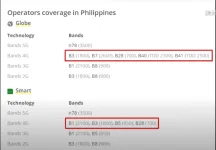
nag research po ako sa bands na pwedeng gamitin try ko po sana bumilis yung gomoView attachment 1511998
Enjoy Ka phc, Pili ka band na malakas sa inyo yung stable. Pero pwede mo pagsabayin 4 to 5 bands para sa maximum speed. Mas marami band dunsa HUACTRL
stuck po sa 200kbps-1mbs ok na po siguro ito kesa wala hahhahaa. salamat po sa tulong. ito na siguro pinaka ok na band. nung di ko pa pinapalitan band wala pang 100kbps gomo dito ahahahaha.Ano update Bro, Muzta speedtest mo sa fast.com. Ayos ba
Means Congested na jan sa inyo ka phc. Sobra dami cguro User, Sabagay mabagal din globe dto sa amin mga 250meter lang lau tower dto sa amin
Medyo Mabagal jan sa inyo. Ka Phc, Lakas ng Smart dito sa amin 15 mbps to 31mbps yung na debrand unlock na Huawei 5573Cs-933 using combined na Band, Bale naka select band1, Band3, Band28.
Ang Remedyo jansa inyo Ka phc, mag antenna ka
Mas lalakas Lalo net kung ung Pldt router na R281 with manual lock select Band tapos gagamit ka dual hybrid Antenna or Parabolic Antenna by Skywave
Expensive nga Lang Ka phc set parabolic Antenna 60Db halos 8k yung may Universal frequency 700mhz to 3200mhz support, Mas mura yung Hybrid Antenna need 2pcs 2k yung 2pcs, need mo lang Bili wires na 20 to 30meters mga 3.5k aabutin, yung LTE advanced na Router Pldt R281 MABIBILI 1.5K pero d na pwede ma unlock detect na ni smart. Meron yung Unlockable ngayun yun Globe ZLT S10G ang model, mabibili 1.2k to 1.4k
Medyo Mabagal jan sa inyo. Ka Phc, Lakas ng Smart dito sa amin 15 mbps to 31mbps yung na debrand unlock na Huawei 5573Cs-933 using combined na Band, Bale naka select band1, Band3, Band28.
Ang Remedyo jansa inyo Ka phc, mag antenna ka
Mas lalakas Lalo net kung ung Pldt router na R281 with manual lock select Band tapos gagamit ka dual hybrid Antenna or Parabolic Antenna by Skywave
Expensive nga Lang Ka phc set parabolic Antenna 60Db halos 8k yung may Universal frequency 700mhz to 3200mhz support, Mas mura yung Hybrid Antenna need 2pcs 2k yung 2pcs, need mo lang Bili wires na 20 to 30meters mga 3.5k aabutin, yung LTE advanced na Router Pldt R281 MABIBILI 1.5K pero d na pwede ma unlock detect na ni smart. Meron yung Unlockable ngayun yun Globe ZLT S10G ang model, mabibili 1.2k to 1.4k
Uu nga Lods, natapon ko yung isang pocket wifi ko na 5330cs, d kona nahanap hehhehe, yung 5220 ko buhay weak lang batterry, pero nagana Pa naman. Buti pa yung 5573cs-933 unlock via jumper at debrand firmware. Yung fx id3 naman lagi dc, kahit unlock at naka admin access na rinMahirap tlga iunlock tong model na to e, wala din makitang flash firmware kasi yung sa routerunlock error code 13 yun. Sa easy-firmware meron kaso may bayad.
- Status
- Not open for further replies.
About this Thread
-
18Replies
-
3KViews
-
5Participants
Last reply from:
Xpmove12
Xpmove12
New Topics
-
ᑕᕼᗩTGᑭT Plus Subscritption with atleast 5-45 hour usage limit
- Started by kyl311
- Replies: 1
- ❓ Internet Questions
-
Certification Exam Dumps?
- Started by keepitfun
- Replies: 0
- ❓ Internet Questions
-
Xperience Hub Tv box
- Started by XxSpongebobxX
- Replies: 0
- ❓ Internet Questions
-
Bida fiber zte admin account
- Started by PHC-Warning
- Replies: 0
- ❓ Internet Questions
-
Help b315s-938 po mga boss
- Started by thosamad12
- Replies: 0
- ❓ Internet Questions
-
Piso wifi no hulog
- Started by Grovey3
- Replies: 0
- ❓ Internet Questions
-
Asking kung unli ba talaga ang pldt prepaid fiber?
- Started by Joshua0821
- Replies: 1
- ❓ Internet Questions
-
Looking for outdoor Ethernet cable
- Started by rjackdaw
- Replies: 2
- ❓ Internet Questions
-
GlobeatHome HG6145D2 as extender
- Started by mac_dah
- Replies: 0
- ❓ Internet Questions
-
Paano ba magkaron ng million views sa blue app?
- Started by renvin1215
- Replies: 0
- ❓ Internet Questions
Trending Topics
Online now
- Members online
- 1,107
- Guests online
- 3,535
- Total visitors
- 4,642