PH
PHB 0 S S P 1 K
Established
Ok dahil bawal magpost ng telegram dito, láρág ko na lang full tut pero credit pa rin to sa tele haha
30 days, Unlimited 90 mins RDP..
Pwede na sa pang trial, testing, or torrent download hehe..
First and foremost Connect to VPN Japan IP
Step 1.) Gumawa muna ng outlook/hotmail account. Kung meron na skip this step. (IDK kung pwede gmail, try mo na lang)
Step 2) Punta dito You do not have permission to view the full content of this post. Log in or register now. at magregister gamit ang outlook account mo
Step 3) Punta ka sa outlook Iconfirm/iverify ang email
Step 4) Next punta ka dito You do not have permission to view the full content of this post. Log in or register now., click mo Copy Code, then Claim
Step 5) Paste mo yung code, and complete captcha, and click Submit.
Step 6) Click mo yung Join to Enroll this Quest
Step 7) Doon sa create account page, scroll mo sa baba, click Sigin Instead , then login mo yung ginawa mong account kanina
Step 8) Click mo yung Enroll in this Quest
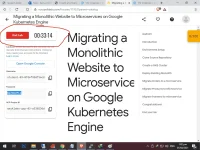
Step 9) Click mo Start Lab yung may 00:45:00, Complete Captcha again, after 30 seconds, Click End Lab, and then click Cancel
Step 10) Refresh Page, Click the User icon on the Upper Right window, confirm if there is a Monthly Subscription below your email
Kapag meron, ok na yan, kapag wala repeat step 1..
Step 11) Punta dito You do not have permission to view the full content of this post. Log in or register now., click Start Lab yung may 01:30:00, again Compete Captcha
Step 12) Copy the Username and Password to notepad, and then Click Open Google Console
Step 13) Login gamit ang username at password, pag naghingi ng Phone Verification, palitan lang PH +63 and gamitin mo yung number mo for verification..
Step 14) Pag nagopen na yung Google Cloud Platform, click mo yung icon na 3 line tabi ng word na Google Cloud Platform
Step 15) Scroll mo at hanapin yung Compute Engine, and click VM Instances
*Eto yung crucial kasi pag nasobrahan mo # of CPU at maling pili ng server, block account mo
Step 16) Click Create Instance, Pili ka sa Region, I prefer London or Los Angeles,
pero pwede sa ibang region.. yun palang kasi natest ko
Step 17) Under Series, Choose N1
Step 18) Under Machine Type, Choose Custom
Step 19) Scroll mo lang 4 Cpu, the 600GB Ram
Step 20) Under Operating System, choose Windows Server, then Version is Windows Server 2016 Data Center
Step 21) Put SSD size to 500 GB then Click Select
Step 22) Under Firewall tick the two checkboxes (Allow HTTP Traffic and Allow HTTPS traffic)
Step 23) lastly Click Create and wait for the instance to be created and running.
Dito siguro alam nyu na gagawin, iconnect trough Remote Desktop
Sya nga pala kapag nag expire na yung 1 hour & 30 mins mo,
Start Lab ulit.. REPEAT Step 11
It would take 6-8 mins of time from Start Lab up to Creating Windows Server instance.. not bad..
CTTO: tele
30 days, Unlimited 90 mins RDP..
Pwede na sa pang trial, testing, or torrent download hehe..
First and foremost Connect to VPN Japan IP
Step 1.) Gumawa muna ng outlook/hotmail account. Kung meron na skip this step. (IDK kung pwede gmail, try mo na lang)
Step 2) Punta dito You do not have permission to view the full content of this post. Log in or register now. at magregister gamit ang outlook account mo
Step 3) Punta ka sa outlook Iconfirm/iverify ang email
Step 4) Next punta ka dito You do not have permission to view the full content of this post. Log in or register now., click mo Copy Code, then Claim
Step 5) Paste mo yung code, and complete captcha, and click Submit.
Step 6) Click mo yung Join to Enroll this Quest
Step 7) Doon sa create account page, scroll mo sa baba, click Sigin Instead , then login mo yung ginawa mong account kanina
Step 8) Click mo yung Enroll in this Quest
Step 9) Click mo Start Lab yung may 00:45:00, Complete Captcha again, after 30 seconds, Click End Lab, and then click Cancel
Step 10) Refresh Page, Click the User icon on the Upper Right window, confirm if there is a Monthly Subscription below your email
Kapag meron, ok na yan, kapag wala repeat step 1..
Step 11) Punta dito You do not have permission to view the full content of this post. Log in or register now., click Start Lab yung may 01:30:00, again Compete Captcha
Step 12) Copy the Username and Password to notepad, and then Click Open Google Console
Step 13) Login gamit ang username at password, pag naghingi ng Phone Verification, palitan lang PH +63 and gamitin mo yung number mo for verification..
Step 14) Pag nagopen na yung Google Cloud Platform, click mo yung icon na 3 line tabi ng word na Google Cloud Platform
Step 15) Scroll mo at hanapin yung Compute Engine, and click VM Instances
*Eto yung crucial kasi pag nasobrahan mo # of CPU at maling pili ng server, block account mo
Step 16) Click Create Instance, Pili ka sa Region, I prefer London or Los Angeles,
pero pwede sa ibang region.. yun palang kasi natest ko
Step 17) Under Series, Choose N1
Step 18) Under Machine Type, Choose Custom
Step 19) Scroll mo lang 4 Cpu, the 600GB Ram
Step 20) Under Operating System, choose Windows Server, then Version is Windows Server 2016 Data Center
Step 21) Put SSD size to 500 GB then Click Select
Step 22) Under Firewall tick the two checkboxes (Allow HTTP Traffic and Allow HTTPS traffic)
Step 23) lastly Click Create and wait for the instance to be created and running.
Dito siguro alam nyu na gagawin, iconnect trough Remote Desktop
Sya nga pala kapag nag expire na yung 1 hour & 30 mins mo,
Start Lab ulit.. REPEAT Step 11
It would take 6-8 mins of time from Start Lab up to Creating Windows Server instance.. not bad..
CTTO: tele