 PH
PHIf you are searching for your laptops, desktop’s, printer’s scanner’s, webcam’s and bla bla bla drivers whatever the computer accessories you having then I’m pretty sure going to help you out by this tutorial.
I know pretty sure you are wondering about why we need to install our computer’s drivers or what are those drivers do in our computer? The answer is just a car needs a driver to move, your computer hardware also needs a driver to run itself properly. Some of hardware comes with automatic drivers installation like your pen drive, hard drive etc. but some of hardware requires to install there drivers to perform better. I think now you should know well about why we need drivers to install in our computer.
In this tutorial I’ll show you how you can easily find your computer’s hardware drivers to install or update them quickly. There are only two ways to install your computer driver, which are –
Compaq Drivers – You do not have permission to view the full content of this post. Log in or register now.
Dell Drivers – You do not have permission to view the full content of this post. Log in or register now.
Sony Drivers –You do not have permission to view the full content of this post. Log in or register now.
So let’s see how to use driver identifier
Step 1 – Download
First you’ll have to download the driver finder from the official website of driveridentifier, here’s a quick link to download >>>>You do not have permission to view the full content of this post. Log in or register now.
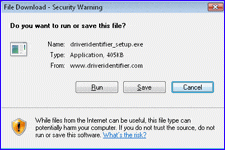
Click on a save button to “Save File” on your computer.
Step 2 – Installation
After the download completes, double click on the file driveridentifier_setup.exe in your downloads folder. You’ll just have to do next, next and finish. That’s it.

Step 3 – Scanning
Now open your Driver Identifier and click on “Scan Drivers” to start the hardware scanning.

Step 4 – Download Drivers
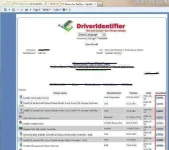
Now you will see your browser is open to shows you the list of your hardware’s supported drivers. Click on download or update to download the particular driver.
I know pretty sure you are wondering about why we need to install our computer’s drivers or what are those drivers do in our computer? The answer is just a car needs a driver to move, your computer hardware also needs a driver to run itself properly. Some of hardware comes with automatic drivers installation like your pen drive, hard drive etc. but some of hardware requires to install there drivers to perform better. I think now you should know well about why we need drivers to install in our computer.
In this tutorial I’ll show you how you can easily find your computer’s hardware drivers to install or update them quickly. There are only two ways to install your computer driver, which are –
- Download from manufacture website.
- Use 3rd party software
- Download From Manufacture Website – By searching your hardware’s model no. into manufacturer’s website support center can easily find your latest driver to download. Some of companies also provide you automatic driver installation, they give you a software to run in your computer which will auto-detect your product and gives you a list of driver what you’ve need. Here are list of some company’s driver support portal to show you an example how your manufacture’s website looks like.
Compaq Drivers – You do not have permission to view the full content of this post. Log in or register now.
Dell Drivers – You do not have permission to view the full content of this post. Log in or register now.
Sony Drivers –You do not have permission to view the full content of this post. Log in or register now.
- Use 3rd Party Software – Sometimes it’s very hard to find our computer’s drivers on manufacture’s website because mostly those companies stops supporting their old products or sometimes we got confused to know, what to do or where to click on their website, that’s why we are using 3rd party software to find and install our hardware’s supported drivers easily and I’m going to show you a great software which can helps you a lot with your driver problem and the best part is you don’t need to go visit the manufacturer website or pay money to download the supports drivers.
So let’s see how to use driver identifier
Step 1 – Download
First you’ll have to download the driver finder from the official website of driveridentifier, here’s a quick link to download >>>>You do not have permission to view the full content of this post. Log in or register now.
Click on a save button to “Save File” on your computer.
Step 2 – Installation
After the download completes, double click on the file driveridentifier_setup.exe in your downloads folder. You’ll just have to do next, next and finish. That’s it.
Step 3 – Scanning
Now open your Driver Identifier and click on “Scan Drivers” to start the hardware scanning.
Step 4 – Download Drivers
Now you will see your browser is open to shows you the list of your hardware’s supported drivers. Click on download or update to download the particular driver.

