 PH
PHDiego Mendoza
Elite
Guys this method is 100% WORKING TODAY, AUGUST 4, 2025! This method was also working around June but this was patched immediately by Google! So there's a possibility that this will also be removed by Google in the coming days. 
August 5:
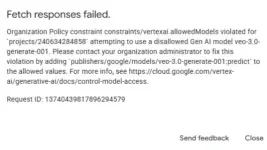
I think Google already disabled Veo 3 generations. But you can still try this method in generating images with the latest Imagen 4 Ultra! You can also try generating voices. I don't know but I can't seem to generate music.
--------+++++++------------+++++++
No VPN! No Credit Card! No Google AI Pro Subscription! Unlimited Veo 3 generation!
I will outline the steps here:
1. Create a New Email Address: Start by creating a new "throwaway" Gmail account.
Or any old Gmail account you don't use anymore. There's a possibility that this account will be blocked by Google. So don't use your main account!
Next steps below
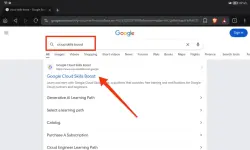
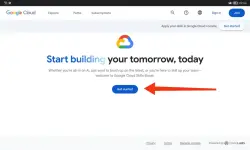
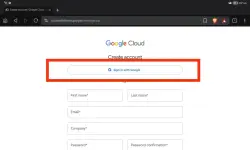
2. Sign Up for Google Skill Boost: Search for "Google Skill Boost" or "cloud skills boost" and sign up for an account using your throwaway email address. Set Age to over 18 when prompted, ensure you set your age to be over 18.
4. Navigate to the Generative AI Lab: In the "explore catalog" section, search for "generative AI" and find the 45-minute lab.
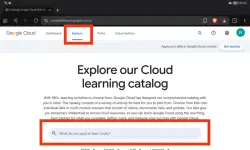
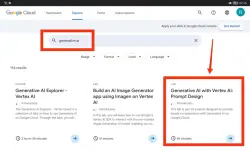
Click Start Lab. You may have to wait 3 mins before having access. Just wait.
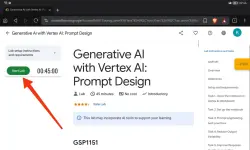
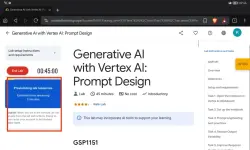
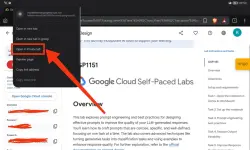
5. Open Google Cloud Console in Incognito Mode: Start the lab and open the Google Cloud Console in an incognito window.
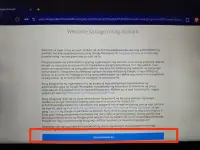
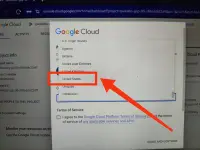
6. Set Country to United States: In the Google Cloud Console setup, you must select "United States" as your country.
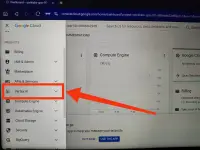
7. Navigate to Vertex AI: In the console, go to "Vertex AI" and then "media studio."
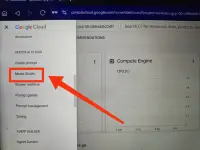
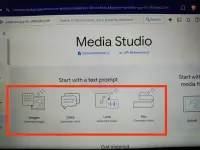
8. Select Veo: Choose "Veo 3" from the available tools. You can also explore other tools and generate images, voice and music!
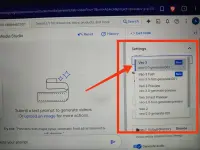
9. Configure Video Settings: Select a Veo model (Veo 3 New), video length, and set the resolution to 1080p. Enable audio generation.
10. Enter Prompt and Generate: Paste your desired prompt and click "generate."
Download Your Video: Once the video is ready, you can download it.
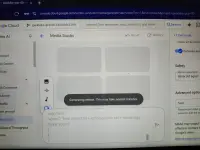
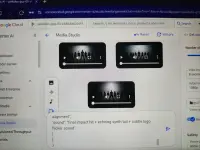
You can open new tabs and generate videos simultaneously while waiting for your videos to be generated.
You have 45 minutes of lab time per session. Once the time runs out, you can repeat the process.
If you don't want to read eto po ang video instructions na nakuha you sa YouTube -
Ctto
Please feedback if working guys! Thanks!
PS: If you're struggling in making prompts for veo 3, try my prompt generator Chatbot - https://phcorner.org/threads/veo-3-prompt-generator-chatbot.2351801/
August 5:
I think Google already disabled Veo 3 generations.
But you can still try this method in generating images with the latest Imagen 4 Ultra! You can also try generating voices. I don't know but I can't seem to generate music. --------+++++++------------+++++++
No VPN! No Credit Card! No Google AI Pro Subscription! Unlimited Veo 3 generation!
I will outline the steps here:
1. Create a New Email Address: Start by creating a new "throwaway" Gmail account.
Or any old Gmail account you don't use anymore. There's a possibility that this account will be blocked by Google. So don't use your main account!
Next steps below
2. Sign Up for Google Skill Boost: Search for "Google Skill Boost" or "cloud skills boost" and sign up for an account using your throwaway email address. Set Age to over 18 when prompted, ensure you set your age to be over 18.
4. Navigate to the Generative AI Lab: In the "explore catalog" section, search for "generative AI" and find the 45-minute lab.
Click Start Lab. You may have to wait 3 mins before having access. Just wait.
5. Open Google Cloud Console in Incognito Mode: Start the lab and open the Google Cloud Console in an incognito window.
6. Set Country to United States: In the Google Cloud Console setup, you must select "United States" as your country.
7. Navigate to Vertex AI: In the console, go to "Vertex AI" and then "media studio."
8. Select Veo: Choose "Veo 3" from the available tools. You can also explore other tools and generate images, voice and music!
9. Configure Video Settings: Select a Veo model (Veo 3 New), video length, and set the resolution to 1080p. Enable audio generation.
10. Enter Prompt and Generate: Paste your desired prompt and click "generate."
Download Your Video: Once the video is ready, you can download it.
You can open new tabs and generate videos simultaneously while waiting for your videos to be generated.
You have 45 minutes of lab time per session. Once the time runs out, you can repeat the process.
If you don't want to read eto po ang video instructions na nakuha you sa YouTube -
Ctto
Please feedback if working guys! Thanks!
PS: If you're struggling in making prompts for veo 3, try my prompt generator Chatbot - https://phcorner.org/threads/veo-3-prompt-generator-chatbot.2351801/


