PH
PHPHC - plokplok
┌∩∩∩┐(◣_◢)┌∩∩∩┐
Installing Windows Server on Linode
Other Thread: Installing Windows RDP on DigitalOcean
Steps
1) Create A Linode, I recommend at least a 4gb ram VPS.
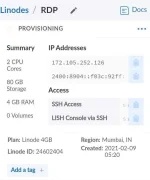
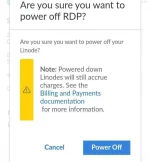
2) After creating, Power off your VPS.
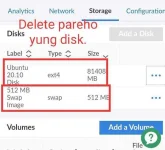
3) On Storage Tab, Delete lahat ng existing Disks.
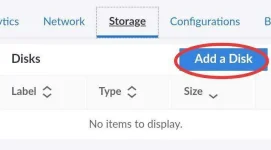
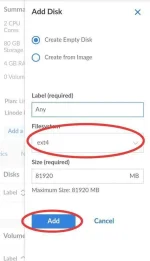
4) When the disks are deleted, Create new disk with ext4 filesystem.
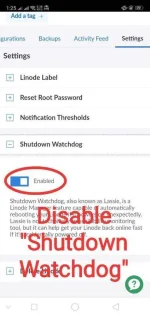
5) On Settings Tab, Disable "Shutdown Watchdog".
6) Boot into Rescue mode and place the newly created disk in /dev/sda.
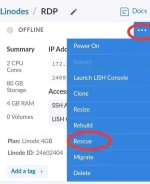
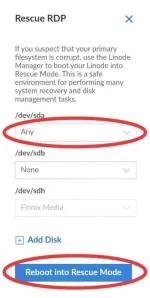
7) Launch LISH Console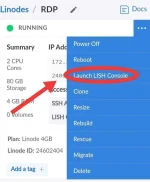
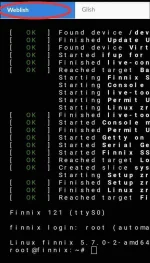
8) On Weblish Tab, Enter this command. Choose which Operating System you want.
[CODE title="Windows Server 2012 R2 (Windows 8.1)"]wget -O- https://drop.cx/011821/windowsserver2012.gz | gunzip | dd of=/dev/sda[/CODE]
[CODE title="Windows Server 2016 (Windows 10)"]wget -O- https://drop.cx/011821/windowsserver2016.gz | gunzip | dd of=/dev/sda[/CODE]
9) Wait Until finished, pwede mong i-exit yan. Tutuloy pa din yan sa background. Make sure na natapos bago mag proceed sa next step.
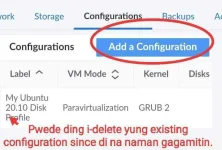
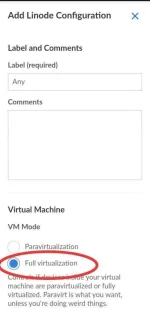
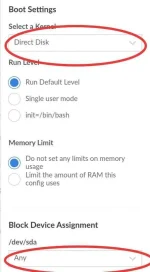
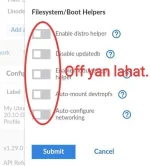
10) On Configurations Tab, Add a new Configuration. Tapos Gayahin lang yung nasa Pics.
Boot using the new Configuration.
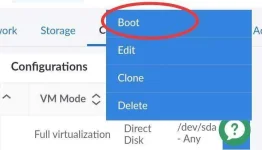
11) After matapos mag boot, reboot mo uli.
12) After matapos magreboot pwede ka na maglog-in sa RDP Client using these credentials.
RDP Credentials for Windows 2012 R2 (Windows 8.1)
User: Administrator
Password: P@ssword64
RDP Credentials for Windows 2016 (Windows 10)
User: WhatUpTime.com
Password: P@ssword64
NOTICE!!!
There are some instances na kahit booted na at kahit sa GLISH Console ay kita mo na yung windows log in pero hindi makakonek using RDP.
Ldk kung bakit pero kapag ganyan wait lang ng 3-5 mins at kapag ayaw pa din.
Clone mo yung disk na may installed windows, after ma-clone, doon sa bagong VPS proceed ka na sa step 10 then delete mo na yung VPS na nag error.
Other Thread: Installing Windows RDP on DigitalOcean
Steps
1) Create A Linode, I recommend at least a 4gb ram VPS.
2) After creating, Power off your VPS.
3) On Storage Tab, Delete lahat ng existing Disks.
4) When the disks are deleted, Create new disk with ext4 filesystem.
5) On Settings Tab, Disable "Shutdown Watchdog".
6) Boot into Rescue mode and place the newly created disk in /dev/sda.
7) Launch LISH Console
8) On Weblish Tab, Enter this command. Choose which Operating System you want.
[CODE title="Windows Server 2012 R2 (Windows 8.1)"]wget -O- https://drop.cx/011821/windowsserver2012.gz | gunzip | dd of=/dev/sda[/CODE]
[CODE title="Windows Server 2016 (Windows 10)"]wget -O- https://drop.cx/011821/windowsserver2016.gz | gunzip | dd of=/dev/sda[/CODE]
9) Wait Until finished, pwede mong i-exit yan. Tutuloy pa din yan sa background. Make sure na natapos bago mag proceed sa next step.
10) On Configurations Tab, Add a new Configuration. Tapos Gayahin lang yung nasa Pics.
Boot using the new Configuration.
11) After matapos mag boot, reboot mo uli.
12) After matapos magreboot pwede ka na maglog-in sa RDP Client using these credentials.
RDP Credentials for Windows 2012 R2 (Windows 8.1)
User: Administrator
Password: P@ssword64
RDP Credentials for Windows 2016 (Windows 10)
User: WhatUpTime.com
Password: P@ssword64
NOTICE!!!
There are some instances na kahit booted na at kahit sa GLISH Console ay kita mo na yung windows log in pero hindi makakonek using RDP.
Ldk kung bakit pero kapag ganyan wait lang ng 3-5 mins at kapag ayaw pa din.
Clone mo yung disk na may installed windows, after ma-clone, doon sa bagong VPS proceed ka na sa step 10 then delete mo na yung VPS na nag error.