PH
PH From this
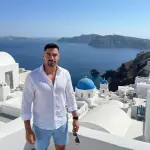
To this
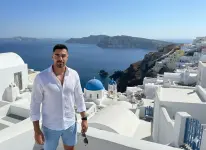
Nano Banana, by default, generates square (1:1) images, typically at a resolution such as 1024x1024 pixels. Directly specifying other aspect ratios in the prompt will often be ignored, and manual workarounds (such as uploading a blank image in the desired aspect ratio) are needed to achieve formats like 16:9 or 4:3.
Here is a step-by-step guide to changing the aspect ratio of your photos using Nano Banana in Google AI Studio or Gemini:
Guide: Changing Aspect Ratio with Nano Banana
Step 1: Upload Your Photo
- Open Nano Banana on Google AI Studio and upload the photo you want to modify.
Step 2: Prepare a Transparent PNG with Your Target Aspect Ratio
- Go to this website - You do not have permission to view the full content of this post. Log in or register now..
- Choose your desired aspect ratio (e.g., 16:9).
- Click "Generate" to create a transparent PNG in the chosen ratio.
- Download the PNG, or copy it directly if using a computer.
Step 3: Create the Prompt
- Copy the suggested prompt from the website, or write your own.
- The prompt should say to paste the uploaded image on top of the transparent PNG and expand the background (e.g., "Paste my photo on top of this transparent image and expand the background to match the aspect ratio, keeping everything else the same").
Step 4: Upload Transparent PNG to Nano Banana
- Upload the transparent PNG you prepared earlier to Nano Banana.
Step 5: Paste the Prompt and Run
- Paste the prompt into Nano Banana.
- Click "Run" and wait a few seconds for the result.
Step 6: Download the Result
- Once the process finishes, download the newly expanded image with your target aspect ratio.
Step 7: Experiment and Fine-Tune
- Try different prompts or aspect ratios to match your requirements.
- Adjust the wording for the prompt to get the best visual match for light, background, and composition.
Important: Always make sure you upload your photo FIRST then the transparent image as your SECOND image. You may have to try several times to get your desired output. Try different prompts or use your own.
This method enables rapid aspect ratio adjustment and background expansion, ideal for preparing content for social media, videos, or any platform requiring specific proportions
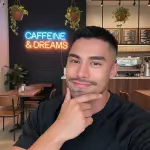
Your feedback is highly appreciated!

Support my other posts

- Google just KILLED Photoshop!
- 50 Brilliant Ways to Supercharge Creativity with Nano Banana
- Nano Banana Prompt Gallery
- AI Fashion Studio: AI Virtual Try-On Powered By Nano Banana
- Free Image Upscaler up to 16K Quality!
- Make Your Own Viral 3D Figurine
- Free Seedream 4 Access
- Google VEO 3 is now FREE!
- Travel the World with Nano Banana
- Nano Banana Polaroid Trend
- AI Profile Picture Generator
- AI Snapshot Generator