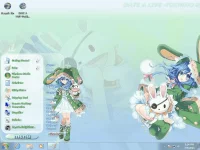
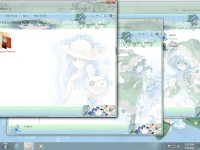
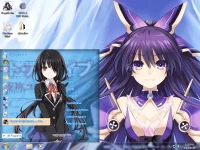
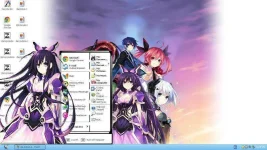
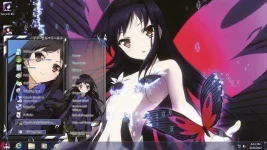
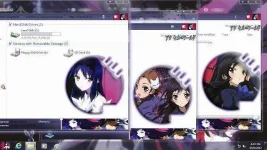
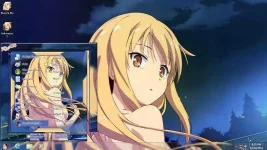
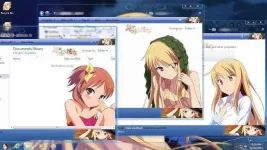
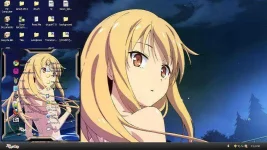
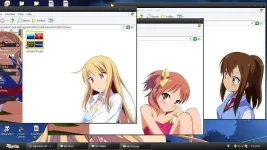
PH
PHKamiNoSekai
Fanatic
 Window Theme
 C: Modvisc
======================================================================
List:
Tutorial
You do not have permission to view the full content of this post. Log in or register now.
Accel World Xp,7Oreshura Xp,7
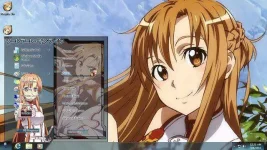
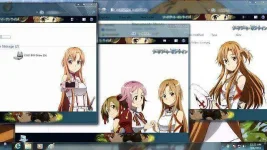
Sword Art Online(Asuna) Xp.7
Sakura-sou no Pet na Kanojo Xp,7
Chuunibyou demo Koi ga Shitai! Xp,7
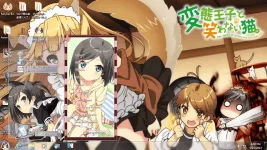
Hén†áí Ouji to Warawanai Neko 7
======================================================================
Add more later
and this post is too long load cuz the pics are too large ======================================================================
Please hit Like if you like it

======================================================================
You do not have permission to view the full content of this post. Log in or register now.
UniversalThemePatcher
WindowThemeInstaller
:Tutorial:
Requirement
- Make sure your Windows 7 is home premium and above.
- Make sure you have You do not have permission to view the full content of this post. Log in or register now. install in you computer, a software to extract compressed file, the installer need it.
- Best if you have chinese ρá†ch install in your Windows 7, just some of the theme that using chinese word as password will not able to proceed, I will mention in the post if it needed or not.
- Backup these files ("themeservice.dll", "themeui.dll", "uxtheme.dll", "ExplorerFrame.dll") which inside the "C:\Windows\System32\" folder, but if you are x64 system you will see there is same file under this folder path "C:\Windows\SysWOW64\", so far I only know it is using "System32" folder, so I'm not sure this folder will be using or not, but well just backup all of these files, the file pretty small anyway
 .
.
This is for if anything goes wrong, you can restore back manually. How to restore? Refer below. - Make sure you are not using any 3rd party theme before apply these theme, especially those with "Shellchange" apply by the "Guider" in the other guide. What I mean is restore the "Shellchange" before apply this theme, I'm not sure what will happen.
- Lastly, use the theme at your own risk.
The installer UI sometime will be in English or Chinese, depend on the theme maker what they set I think. So hopefully won't get confuse.
- Download the package, extract it anywhere you like, inside the package usually you will see a file end with ".exe", for example "DateAlive.exe".
- Execute the installer, or Right-click the installer and select 'Run as Administrator'.
- A window prompt up and it will start extracting (if you did not install 7zip, you are unable to proceed!). Or you can unzip it manually and press the "setup.exe".
- After finish unzip you will see something like this prompt up, example below, sometime in English, sometime in Chinese. When you see a text-field in the middle, usually ask you to enter password, so just enter password and continue. Some theme will start with just a "OK" button before you reach the password input menu.
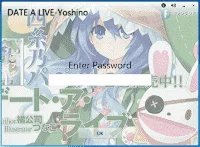
- Next, just continue by pressing the "Enter Setup" button.
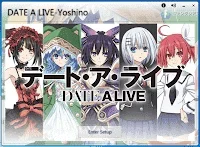
- Next, will be system check menu, it will show your System Version, System Theme ρá†ch and System Explorer Frame ρá†ch, this is to make sure you have install Universal Theme ρá†ch and Explorer ρá†ch.
- If you haven't do any ρá†ch, it will show something like below which show in Red color text and Yellow text, both "System Theme File ρá†ch" & "System Explorer Frame File ρá†ch" will be clickable if you haven't do any ρá†ch.
- If you already patched, it will show in green color, make sure you have all Green only proceed! Theme patcher will be mention more at another section below.
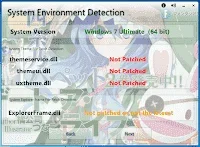
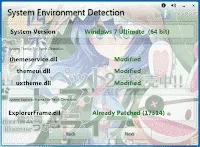
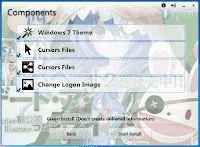
- Then press next until you reach components menu, which allow you to select which component to install, this menu option will always different from theme to theme, depend on the theme maker what they include, but "Windows 7 Theme" option will be always there. Press "Start Install" to do the installation.
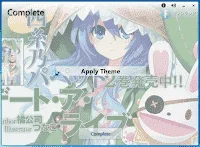
- After finish install, you will reach the complete/finish menu, to either select or de-select the "Apply Theme", then just press "Complete" to finish the installation .
- Lastly, remember to restart when you apply any of these theme, cause some of the thing require restart to take effect like, windows task bar background and etc.
This section is give you more detail on the theme file and explorer frame file ρá†ch which mention in "Installation" step 6 above. And these step only require to do once.
System Theme ρá†ch
- First, press/click on the "System Theme File ρá†ch" area, if you haven't ρá†ch, the whole area is clickable.
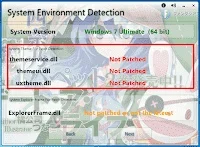
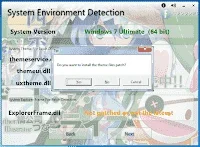
- Next, a window prompt you to ask want to ρá†ch the theme file or not, proceed with YES, basically this is the only option, else you won't be able to use 3rd party theme. It might require to wait a bit until next window prompt, so just wait.
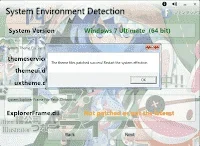
- After a short while, it will prompt finish ρá†ch, and require you to restart to take effect. If everything is ok, mean it is success, but sometime do have special case, if special case go to step 4 below, else if everything ok go to step 5.
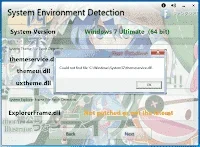
- Some time after ρá†ch, it will tell you some file missing, and you will see the "themeui.dll" is not patched, this is not big deal, after you restart your computer it will all green. So far this is what I encounter, but other than this, I'm not sure. So just proceed if everything ok.
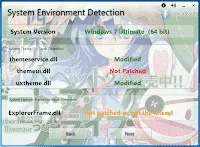
- If you haven't ρá†ch System Explorer Frame file, please proceed the ρá†ch (next section is the detail of this ρá†ch), so you don't have to restart 2 times. If already then just continue the installation.
- First, press/click on the "System Explorer Frame File ρá†ch" area, if you haven't ρá†ch, the whole area is clickable.
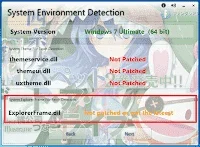
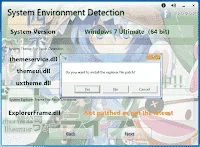
- Next, a window prompt you to ask want to ρá†ch the file or not, proceed with YES, basically this is the only option, else you won't be able to use folder background and change start menu icon (to be confirm). It might require to wait a bit until next window prompt, so just wait.
- Next it will tell you the ρá†ch is done, and require to reboot for this it to take effect, so be sure to restart it, usually this step won't have any problem.
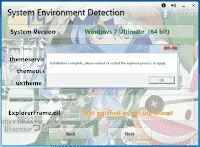
- When see all green, proceed back to the installation.
- For these 3 files ("themeservice.dll", "themeui.dll", "uxtheme.dll"), you can easily use Universal Theme Patcher to restore, but only work if you using the Universal Theme Patcher, this installer is using it so should be work fine. To do the restoration, can refer to another guide for that. Only work if you are using correct version of theme patcher. x86 will be using x86 theme patcher for x64 will using x64 theme patcher, when you run the theme patcher, it will show "restore" button if the file is patched.
- For "ExplorerFrame.dll", this a bit tricky, just go search in Gooogle or Youtube for tutorial, this is where the backup "ExplorerFrame.dll" come into use.